How to Share YouTube Videos on Facebook: 2026 Guide
Published on
Tags:
You've pasted a clean YouTube URL into Facebook, watched the preview spin, and published anyway. The thumbnail is wrong, the title is stale, or the share sheet doesn't even show Facebook. Then someone asks why the post underperformed, as if the problem were the video rather than the publishing path.
That's the part most quick guides skip. How to share YouTube videos on Facebook isn't one workflow. It depends on the device, destination, post format, and whether you're sending people to YouTube or trying to keep them engaged inside Facebook. The practical map starts with the basic share, then accounts for Pages, groups, Stories, Messenger, embeds, native uploads, and automation.
Table of Contents
Why Sharing YouTube Links to Facebook Is More Annoying Than It Should Be
A link post looks simple from the outside. You copy a URL, paste it into Facebook, add a caption, and publish. In practice, the post depends on Facebook retrieving metadata from YouTube, generating a preview card, selecting an image, and allowing the chosen destination to accept the post.
That creates several failure points. A preview can remain incomplete while you're editing. A thumbnail change on YouTube might not appear immediately in Facebook because the platform may still be using previously retrieved link data. On mobile, the operating system's share sheet can also omit Facebook, leaving you with a button that works in one setup but disappears in another.
Practical rule: Treat the preview card as something to validate before publishing, not as decoration that Facebook will repair later.
The audience context adds another layer. A link shared to your personal profile isn't the same publishing operation as a Page post or a group submission. Each destination has its own identity, permissions, moderation expectations, and audience behavior. A workflow that works for a personal post can fail when a Page role is restricted, or when a group doesn't allow external links.
Facebook also sits in a broader shift toward native video distribution. In 2013, nearly two-thirds of video shares on Facebook were YouTube links, while YouTube's share had fallen to 11% by 2016, according to Sprout Social's summary of social video data. Facebook's native video ecosystem was already substantial, with more than 1 billion videos watched daily as of June 2014, and direct Facebook uploads had overtaken YouTube videos shared on the platform by November of that year, as reported by Marketing Land.
The result is a choice, not a single best button. If you need the original YouTube URL, share the link. If you need Facebook-native viewing, use a native asset. For teams managing Pages and repeatable publishing, a documented workflow such as Facebook Page management prevents those decisions from being made in the middle of a launch.
The Basic Share Flows on Mobile and Desktop
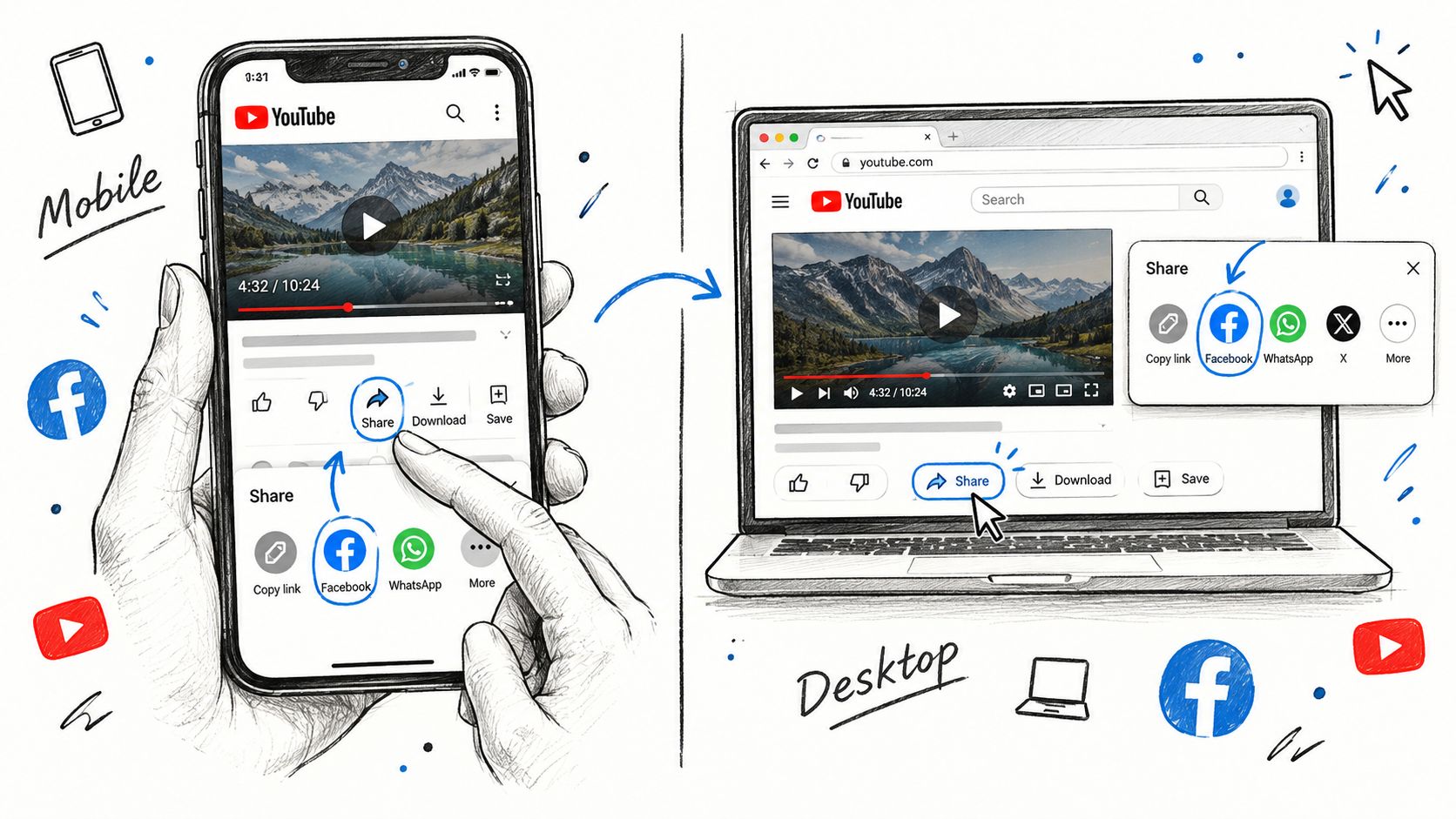
The reliable baseline is still simple: open the video, use YouTube's Share control, and either select Facebook or copy the URL manually. YouTube's documented sharing flow supports sharing a video from its player, while the Facebook fallback works when the direct destination isn't available.
 Screenshot from https://example.com/screenshots/youtube-share-sheet-facebook.png
Sharing from an iPhone or Android device
Open the YouTube app or mobile site and load the video. Tap Share, then choose Facebook from the system share sheet if it appears. Facebook should open a composer where you can review the destination, write the caption, and publish.
The destination deserves a quick check before you tap Post. Facebook may default to a personal profile, while you intended to share from a Page, group, or Story. Select the destination in the composer rather than assuming the share sheet has preserved your preferred context.
If Facebook is missing, tap Copy link, open Facebook yourself, start a new post, and paste the URL. This manual path is also useful when app restrictions or device-level sharing settings change which apps appear in the share sheet. The step-by-step YouTube sharing workflow documents the same direct-share and manual-paste fallback.
Write a caption that gives the preview a job. A short explanation, takeaway, or question is more useful than posting the URL without context. Then wait for the preview card to load fully before publishing.
Sharing from a desktop browser
On YouTube, open the video and click Share below the player. You can choose Facebook if the option is offered, or select Copy and paste the URL into Facebook's post composer. Choose the profile, Page, group, or other destination, check the generated card, add your caption, and publish.
The direct YouTube-to-Facebook option isn't presented consistently to every user, so manual URL paste remains the most dependable desktop baseline. It also gives you a cleaner review point before the post goes live.
The video below illustrates the share path and the point at which you should confirm the Facebook destination.
Choosing Where the Video Actually Lands
Facebook's destination selector changes the workflow. Don't think of “Facebook” as one publishing surface, because a personal profile, Page, group, Story, and Messenger conversation each serves a different purpose.
Personal profile
Open Facebook, start a post from your profile, and paste the YouTube URL. Add context, optionally tag friends, and use the audience selector before publishing. The selector matters because the same link can be appropriate for friends but unsuitable for a public audience, or vice versa.
A personal profile works well for conversational sharing. Lead with your own reaction, a useful takeaway, or a question that fits the relationship you have with the audience.
Facebook Page
Switch into the intended Page in the Facebook app or open the Page's publishing interface on desktop. Paste the YouTube URL, wait for the preview, write Page-appropriate copy, and publish.
The account also needs the relevant Page role or task access. A person may be able to view a Page without being allowed to publish, so a failed Page share isn't necessarily a bad URL. Check the Page identity and publishing access before changing the video.
Group
Open the target group and select Write something. Paste the YouTube link, add a caption that explains why the video belongs in that community, and confirm that the group's rules permit external links.
Group context matters more than generic promotion. A tutorial posted to a technical group should answer why it helps that group's members, rather than repeating a channel announcement.
Story
Tap Create Story in Facebook and use the available share-to-Story path from YouTube's share interface if it appears. If that route isn't available, use a permitted visual from the video or camera roll and add the relevant link treatment offered by Facebook.
Stories are a different format from feed posts. Keep the message brief and make the next action obvious. A YouTube URL may not behave like a full feed preview in every Story flow, so verify the result before relying on it for a launch.
Messenger
Open an existing Messenger conversation or start a new message. Paste the YouTube URL and send it. The recipient can follow the link directly, while preview rendering can vary between Messenger versions and client states.
Avoid blasting the same link across many groups at once. Repeated cross-posting can trigger spam controls, and spacing distribution gives you time to confirm that the first destination rendered correctly before multiplying the same action.
Embedding YouTube Videos Inside Facebook Posts
A YouTube embed is different from a Facebook link share. YouTube's official instructions say to open Share, choose Embed, and copy the generated HTML. The player uses an iframe URL in the form https://www.youtube.com/embed/VIDEO_ID, and YouTube documents a minimum player size of 200px by 200px in its official embed documentation.
The workflow is straightforward:
Open the YouTube video.
Click Share below the player.
Choose Embed.
Copy the iframe snippet.
Paste it into a CMS, landing-page editor, or other surface that accepts raw HTML.
The important limitation is the destination. Facebook's ordinary post composer isn't an HTML canvas for arbitrary iframe markup. If you paste an iframe into a status update, Facebook can strip the tag rather than create an embedded player. Inside Facebook, a normal YouTube URL produces a link preview, not a custom iframe player.
That distinction prevents a common integration mistake. A developer can generate valid YouTube embed HTML and still get no player in the Facebook feed because the Facebook composer sanitizes the content. Use the iframe on an external page, then share that page to Facebook, when you control the CMS and need a true embedded experience.
You can also use oEmbed where the receiving platform supports it. The service resolves a YouTube URL into embed-ready HTML, which is useful for a website builder or publishing system that understands oEmbed. If the target surface only accepts Facebook post text, use a standard YouTube link and let Facebook create its preview. For teams converting links into hosted video pages, URL-to-video workflows can help separate the embed-generation step from the Facebook distribution step.
Link Post vs Native Upload and What It Means for Reach
The format decides what happens after the click. A YouTube link post sends people toward YouTube and preserves the direct relationship with the original video. A native Facebook upload puts a video asset inside Facebook, which reduces the extra step for people who want to watch in the feed.
Independent analysis has reported that Facebook-native video can achieve substantially stronger reach and sharing than outbound YouTube links, as summarized in Stepper's guide to sharing YouTube videos on Facebook. That doesn't make the link format wrong. It means the post needs a defined job.
Factor | Link Post | Native Upload |
Primary destination | YouTube | |
Viewer action | Click through to the original video | Watch within the Facebook feed |
Attribution | Keeps the YouTube URL and channel path | Creates a separate Facebook video asset |
Measurement focus | YouTube traffic and watch activity | Facebook views and engagement |
Production effort | Copy the URL and validate the preview | Prepare and upload a Facebook-ready file |
Best fit | Full-video discovery and channel growth | Facebook-native attention and conversation |
Facebook's crawler reads the shared page's metadata to build the preview card. That includes the title, image, and video-related metadata exposed by the YouTube page. If that metadata is stale or incomplete, your Facebook post can look wrong even though the YouTube video itself works.
Native upload changes the measurement boundary. Re-uploading a video creates a Facebook asset with its own reactions, comments, and viewing behavior, rather than carrying interaction back to the YouTube page. Choose it when the immediate goal is Facebook engagement. Choose the link when sending viewers to the complete YouTube experience matters more.
Decision rule: Don't ask one post to maximize Facebook retention and YouTube traffic at the same time. Pick the primary destination, then build the post around that outcome.
For a deeper tactical discussion of Facebook video distribution, how to share Facebook videos strategically is a useful companion to this format decision.
Automating Cross-Posting Through Meta and PostPulse
Manual sharing is reasonable for occasional posts. A product team needs a different design when a new video should reach an administered Facebook Page through a repeatable publishing process.
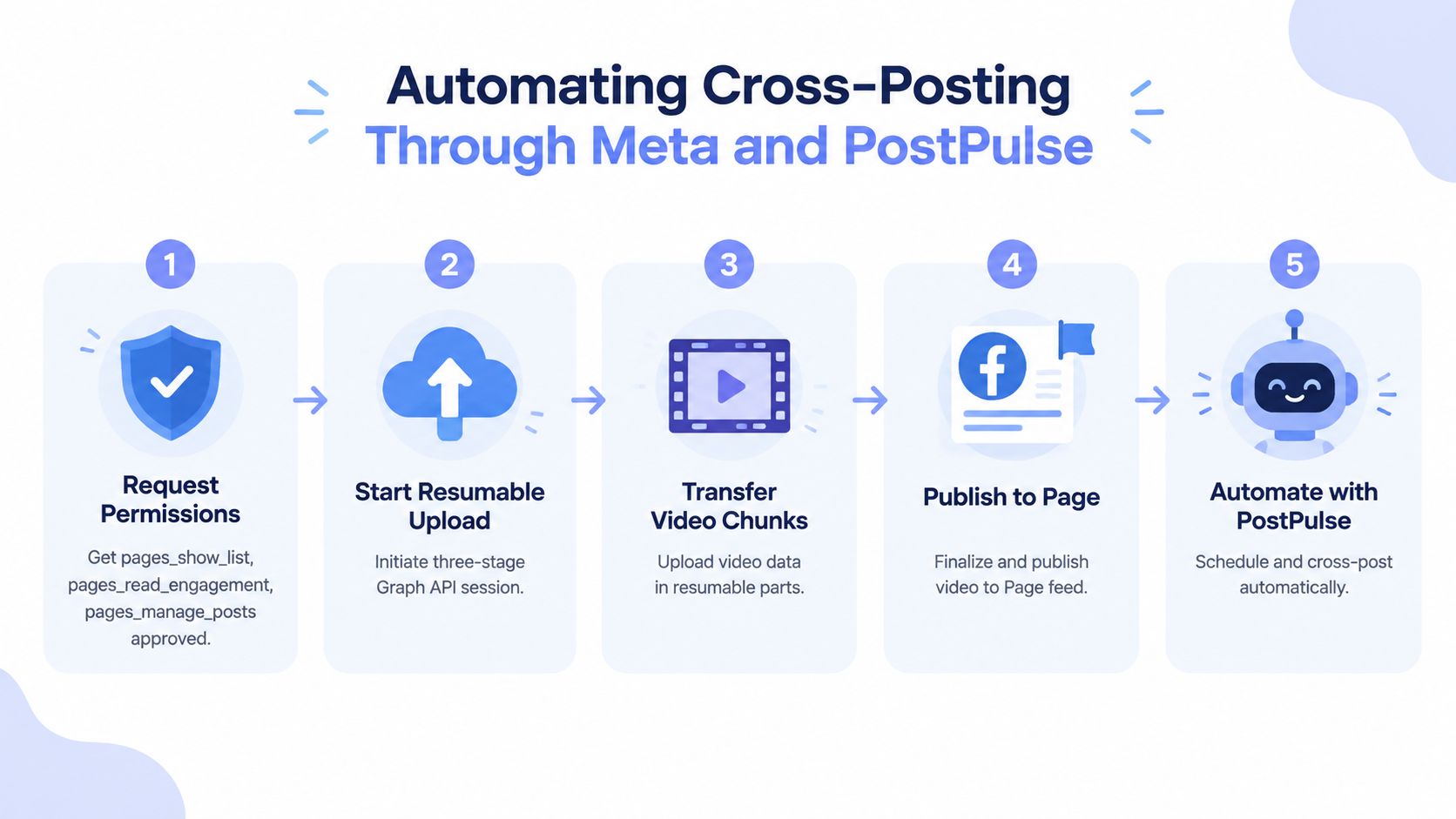
Meta's official Page video documentation identifies the required Page task as CREATE_CONTENT and lists pages_manage_posts, pages_read_engagement, and pages_show_list among the permissions needed to create and publish a Page video. The Meta Graph API Page video reference is the authority for the permission and task requirements.
The direct Meta route
The API workflow has two distinct phases. First, upload the video to Meta's social graph. Meta's Video API overview describes the API as a way to publish existing videos to Pages administered by app users, and its publishing guidance requires the upload to happen before Page publication.
Then complete the upload session and publish the resulting video through the Page workflow. Meta documents video publishing through edges including /{page-id}/videos, while its Video object reference also describes fields such as embeddable HTML and the initial publication time.
That sounds manageable until governance enters the picture. Your app needs the right permissions, the connected user needs the right Page access, and your implementation must handle upload state, retries, token lifecycle, and API changes. Meta's own documentation should remain the source of truth for the exact endpoint behavior and current requirements.
 A five-step infographic showing how to automate cross-posting videos from Meta to the PostPulse platform.
Where a unified publishing layer fits
PostPulse provides a unified publishing API for Facebook Pages and other supported social destinations. In a product integration, your service can send publishing instructions through its REST API instead of implementing each platform connection independently. The same approach is available through official n8n and Make.com integrations for no-code workflows, and through an MCP server for AI-agent-driven publishing.
That can be useful when the actual requirement is not “upload this file to Meta,” but “take a new YouTube upload, apply a destination-specific caption, and publish it to the correct Page after approval.” A workflow can keep the YouTube URL as a link post when traffic is the goal, or use a prepared native asset when Facebook viewing is the priority.
Teams exploring broader cross-platform reuse can also review ways to repurpose YouTube content for Twitter, then keep the Facebook-specific decision separate from the rest of the distribution plan. For implementation patterns and connected publishing workflows, see the PostPulse integration guides.
Troubleshooting and a Final Engagement Checklist
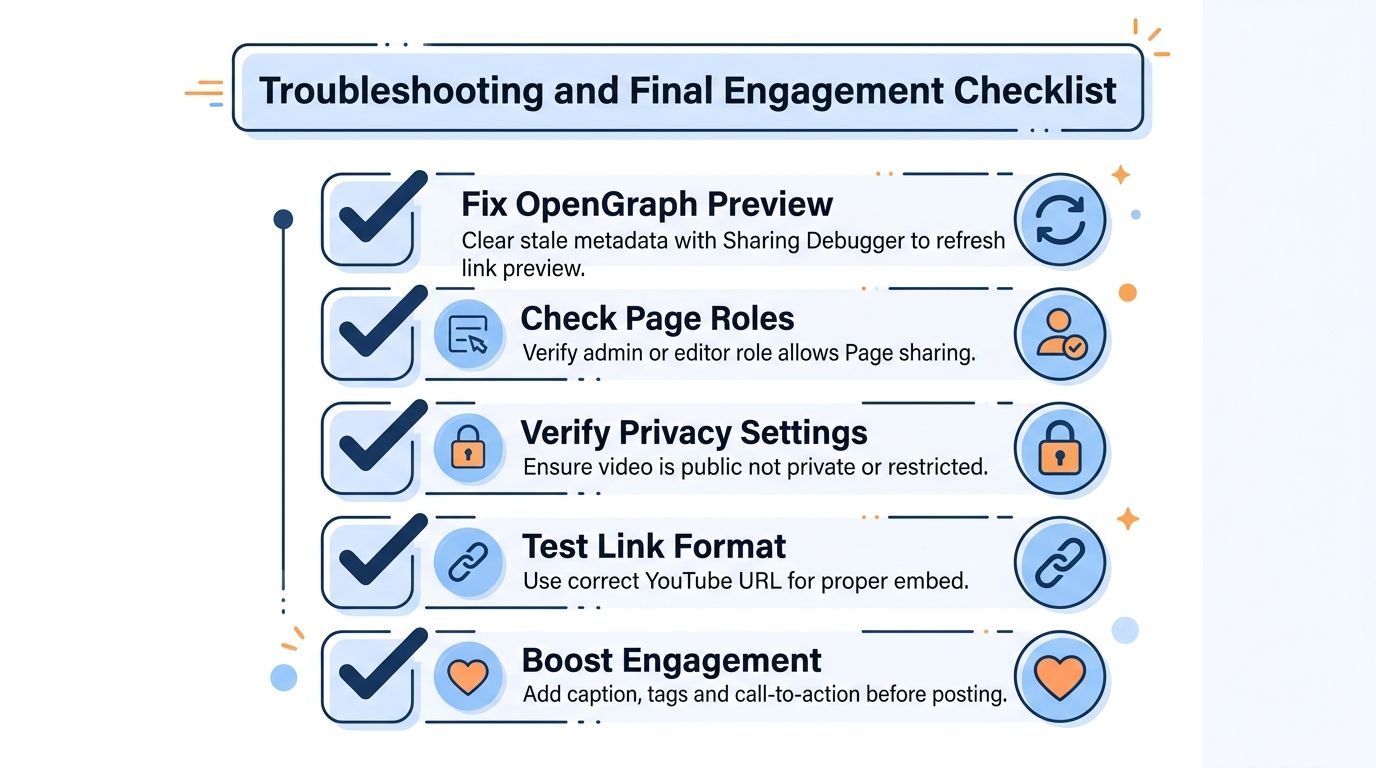
A broken preview isn't always a broken video. Start by opening the YouTube URL directly in a private browser window and on mobile. If the video itself is inaccessible, fix its visibility or access settings first. If the video works but Facebook shows the wrong title or image, the issue is likely preview metadata rather than playback.
Use this diagnostic order:
Refresh the preview: Re-paste the URL and wait for Facebook's card to finish loading before publishing. If the metadata remains stale, use Facebook's Sharing Debugger to request a fresh scrape.
Check Page access: Confirm that the publishing identity has the Page task or role needed to create content. A personal account's access doesn't automatically mean it can publish for every Page.
Review the format: If a native upload is rejected or altered because of rights-matched material, switch to a YouTube link when the distribution goal allows it.
Test Stories separately: Don't assume a feed link preview will become a Story link experience. Create a test Story and verify the action before using it for a campaign.
Validate on mobile: Check the thumbnail, title, and tap behavior from a phone before scaling the workflow.
 A helpful infographic checklist for troubleshooting and improving YouTube video sharing on Facebook pages.
Once the post is technically sound, improve the handoff to the audience. Let the preview load, add a concise caption with context or a question, tag collaborators when appropriate, and avoid sending the same link to multiple groups in rapid succession. The right cross-post order depends on your campaign, but separating native Facebook assets from YouTube link promotion keeps the purpose of each post clear.
Review the resulting Page or profile analytics after publication, compare the outcome with the post's primary goal, and record what happened. A link post should be judged by the YouTube action it was designed to encourage, while a native upload should be judged by Facebook behavior. That feedback loop is more useful than changing thumbnails at random.
If your team is tired of copying YouTube URLs, checking Facebook previews, and maintaining separate publishing integrations, PostPulse provides REST API, n8n, Make.com, and MCP server options for automating Facebook Page publishing. Use it to turn the sharing path you've chosen into a repeatable workflow, while keeping destination checks and caption review in your own product or process.
About the Author

Founder of PostPulse — a social media scheduling platform for creators and teams. Software engineer with a passion for building developer tools and simplifying complex API integrations across social media platforms.