API Documentation
Complete reference for the PostPulse API - unified publishing to 10 social media platforms.
Authentication
PostPulse API uses OAuth 2.0 for authentication. Sign up at PostPulse and create an OAuth application at PostPulse Developer Portal to get your API credentials instantly.
API Base URLs
Authentication: https://auth.post-pulse.com
API Endpoints:  https://api.post-pulse.com
OAuth Flow
// Step 1: Get authorization code
GET https://auth.post-pulse.com/authorize
  ?client_id=YOUR_CLIENT_ID
  &response_type=code
  &redirect_uri=YOUR_REDIRECT_URI
  &scope=postpulse-api/accounts.read postpulse-api/api postpulse-api/media.write postpulse-api/posts.read postpulse-api/posts.write postpulse-api/webhooks.write
  &state=YOUR_STATE_PARAMETER
  &audience=https://api.post-pulse.com

// Step 2: Exchange code for access token
POST https://auth.post-pulse.com/oauth/token
Content-Type: application/json

{
  "grant_type": "authorization_code",
  "client_id": "YOUR_CLIENT_ID",
  "client_secret": "YOUR_CLIENT_SECRET",
  "code": "AUTHORIZATION_CODE",
  "redirect_uri": "YOUR_REDIRECT_URI"
}
Using Access Token
All API requests must include the Bearer token in the Authorization header:
Authorization: Bearer YOUR_ACCESS_TOKENAccounts
Retrieve connected social media accounts for the authenticated user.
Get All Accounts
Returns a list of all social media accounts connected by the user.
Response Example
[
  {
    "id": 123,
    "platform": "INSTAGRAM",
    "accountId": "instagram_user_id",
    "accountUsername": "myaccount",
    "accountDisplayName": "My Instagram Account",
    "accountAvatarUrl": "https://example.com/avatar.jpg",
    "createdTime": "2025-08-15T10:30:00.000000",
    "updatedTime": "2025-08-15T10:30:00.000000"
  }
]
Get Connected Chats
Returns the destinations a post can target on accounts that publish to a specific channel, Page or board. Pass the returned id as the post's chatId.
platform=TELEGRAM— channels/chats where the bot can publishplatform=FACEBOOK— Facebook Pages managed by the accountplatform=PINTEREST— the account's Pinterest boards (typeisBOARD)
Response Example — Telegram
[
  {
    "id": "-1002726180643",
    "title": "PostPulse Official",
    "type": "channel",
    "platform": "TELEGRAM"
  }
]
Response Example — Pinterest
[
  {
    "id": "1018813041503562001",
    "title": "Spring Recipes",
    "type": "BOARD",
    "platform": "PINTEREST"
  }
]
Media Upload
Most platforms require media to be hosted in PostPulse storage before scheduling. You have three ways to get media there — pick the one that fits your use case.
Direct Upload
POST /v1/media/upload
Send the file as binary in a single multipart/form-data request.
- Simplest approach
- Best for small files
- Synchronous — returns the media key immediately
Pre-signed PUT URL
POST /v1/media/upload/urls
Request a pre-signed URL, then PUT the file directly to our storage.
- Best for large files
- Bypasses API size limits
- Confirm step recommended after upload
Public URL Import
POST /v1/media/upload/import
Provide a public URL — we download the file into our storage.
- Fully asynchronous
- Poll for completion
- Or pass the URL directly to
attachmentPaths
Direct Upload
Upload an image or video file in a single request.
Request
Content-Type: multipart/form-data

file: [binary file data]
Response Example
{
  "path": "6354d8d2-e0f1-702b-af6c-62e28e377ec7/e1992700-96f5-4f0b-bd48-45d902ffbb0c.jpeg"
}
Use the returned path as an entry in attachmentPaths when creating a post.
Pre-signed PUT URL
For large files, request a pre-signed URL and upload the binary directly to our storage. This takes three calls: request URL → PUT file → confirm upload.
1. Request the URL
Get a pre-signed URL configured for your file's filename, content type, and size.
Request Schema
{
  "filename": "my-video.mp4",
  "contentType": "video/mp4",
  "sizeBytes": 10485760
}
Response Schema
{
  "key": "f157080a-7c45-4b43-9d7c-d17dd83dbf92/b43ec45c-6367-4edd-868b-5f704a4ff04e.mp4",
  "method": "PUT",
  "url": "https://social-media-planner-s3.fly.storage.tigris.dev/f157080a-7c45-4b43-9d7c-d17dd83dbf92/b43ec45c-6367-4edd-868b-5f704a4ff04e.mp4?X-Amz-Algorithm=AWS4-HMAC-SHA256&X-Amz-Date=20260418T193733Z&X-Amz-SignedHeaders=content-type%3Bhost%3Bx-amz-meta-declared-size%3Bx-amz-meta-orig-filename&X-Amz-Credential=...&X-Amz-Expires=600&X-Amz-Signature=...",
  "headers": {
    "Content-Type": "video/mp4",
    "x-amz-meta-declared-size": "10485760",
    "x-amz-meta-orig-filename": "my-video.mp4"
  },
  "expiresAt": "2026-04-18T19:47:33Z"
}url with the exact headers and HTTP method from the response — the signature is bound to them.2. PUT the file to the returned URL
PUT https://social-media-planner-s3.fly.storage.tigris.dev/...?X-Amz-Signature=...
Content-Type: video/mp4
x-amz-meta-declared-size: 10485760
x-amz-meta-orig-filename: my-video.mp4

[binary file bytes]
Storage responds with 200 OK on success. The URL expires after the window shown in expiresAt.
3. Confirm the upload (recommended)
Confirms the file landed in our storage, runs a basic integrity check (for videos, this verifies the container is readable), and detects the file's real type from its bytes. Optional but recommended — catches transfer problems early and avoids surprises at post time.
Request Schema
{
  "key": "f157080a-7c45-4b43-9d7c-d17dd83dbf92/b43ec45c-6367-4edd-868b-5f704a4ff04e.mp4"
}
Response Schema
{
  "key": "b43ec45c-6367-4edd-868b-5f704a4ff04e.mp4",
  "path": "f157080a-7c45-4b43-9d7c-d17dd83dbf92/b43ec45c-6367-4edd-868b-5f704a4ff04e.mp4",
  "filename": "my-video.mp4",
  "contentType": "video/mp4",
  "sizeBytes": 10485760,
  "url": "https://..."
}
The returned path is always the key you were given in step 1 — a key never moves once it has been handed out, so it is safe to store it before confirming.
photo.jpeg keeps a .jpegkey. The returned contentType is detected from the file itself and is what we use when publishing (image conversion, platform format rules). Read the type from contentType, never from the key.A file whose bytes are neither an image nor a video is refused: confirm answers 400 naming the type we found, the stored object is deleted, and that key can no longer be used in attachmentPaths — scheduling a post with it fails with the same reason. Upload the file again as a supported image or video. A corrupt or incomplete file is refused the same way.
Public URL Import
Already have a public URL? Hand it to us and we'll pull the file into storage for you. This is fully asynchronous — you get an import job back and poll for completion.
attachmentPaths when creating a post — see the Post Scheduling section. The platform will create the import job for you and flip the post to SCHEDULED once the file is ready.Start an import
Kick off a background import from a public URL.
Request Schema
{
  "url": "https://example.com/image.jpg",
  "filenameHint": "image.jpg"
}
Response Schema
{
  "id": 12345,
  "state": "QUEUED"
}
Poll import status
Get the current status of a media import job.
Response Schema
{
  "id": 12345,
  "state": "READY",            // QUEUED, DOWNLOADING, VALIDATING, UPLOADING, READY, FAILED_TEMPORARY, FAILED_PERMANENT
  "sourceUrl": "https://example.com/image.jpg",
  "bytesDownloaded": 2048576,
  "totalBytes": 2048576,
  "detectedMime": "image/jpeg",
  "s3Key": "6354d8d2-e0f1-702b-af6c-62e28e377ec7/e1992700-96f5-4f0b-bd48-45d902ffbb0c.jpeg",
  "errorCode": null,
  "errorMessage": null
}
When state is READY, use s3Key as the attachmentPaths entry. FAILED_PERMANENT means the job is dead — inspect errorCode and errorMessage. FAILED_TEMPORARY may still recover.
media.upload.ready event when the import is complete.Post Scheduling
Schedule posts to one or multiple social media platforms simultaneously.
Understanding the Data Model
PostSchedule
The root object that contains common settings for all publications:
- scheduledTime: When to publish. Accepts ISO 8601 with or without timezone offset (see below).
- isDraft: Whether this is a draft (recommended: false for API)
- publications: Array of Publication objects
Publication
Represents publishing to one social media account:
- socialMediaAccountId: Required. The numeric
idof a connected account from the accounts endpoint (not the platform-sideaccountId). - platformSettings: Required. Object with at least a
typematching the account platform (e.g.{ "type": "TELEGRAM" }); some platforms need extra fields, see Platform Settings. - posts: Array of Post objects
Post
Individual post content:
- content: Post text/description
- attachmentPaths: Array of media references — each entry is either an s3 key returned by a media upload, or a public URL we should import.
- chatId: Target destination on the account: the Telegram channel ID, Facebook Page ID or Pinterest board ID (required for Pinterest). Get the IDs from Get Connected Chats. Only Telegram, Facebook, Pinterest and WhatsApp use
chatId; on any other platform it is ignored, not stored and left out of responses. - thumbnailPath: Optional thumbnail (coming soon)
Scheduled Time Formats
The scheduledTime field accepts ISO 8601 with or without a timezone offset. All values are normalized to UTC on the server.
// All three formats are accepted:

"2026-04-17T23:33:00"          // No offset — interpreted as UTC
"2026-04-17T23:33:00Z"         // Explicit UTC
"2026-04-17T19:33:00-04:00"    // With offset — normalized to UTC server-side
Attachments: Key vs Public URL
Each entry in attachmentPaths can be one of two things:
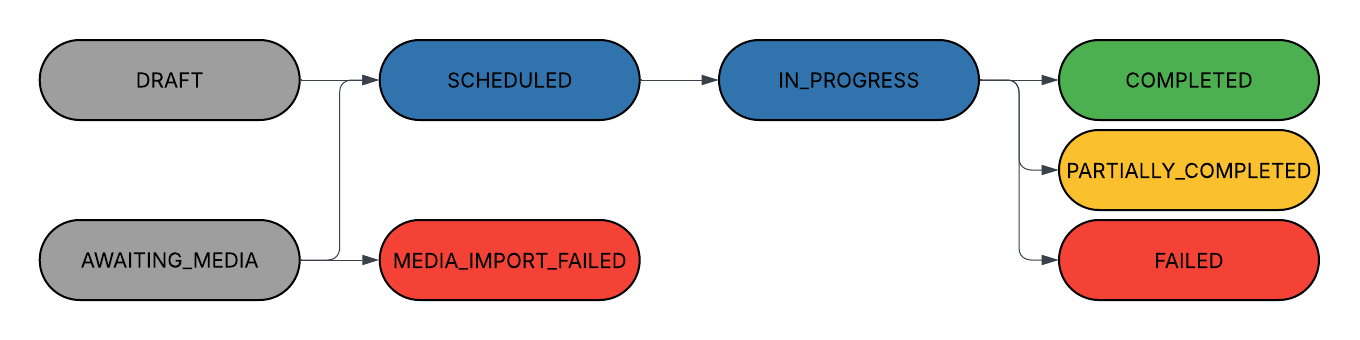
Post Lifecycle
The diagram below shows how a posting schedule moves through statuses. Posts with s3 keys go straight to SCHEDULED. Posts with public URLs start in AWAITING_MEDIA and transition to SCHEDULED once every referenced file has been imported — or to MEDIA_IMPORT_FAILED if any import fails permanently.
Create Post Schedule
Schedule a post to one or multiple platforms.
Request Example — Storage Key
{
"scheduledTime": "2026-04-17T19:33:00-04:00",
"isDraft": false,
"publications": [
{
"socialMediaAccountId": 445,
"platformSettings": {
"type": "TELEGRAM"
},
"posts": [
{
"content": "Ready to go!",
"chatId": "-1001947450140",
"attachmentPaths": [
"6354d8d2-e0f1-702b-af6c-62e28e377ec7/e1992700-96f5-4f0b-bd48-45d902ffbb0c.jpeg"
]
}
]
}
]
}Request Example — Public URL
{
"scheduledTime": "2026-04-20T12:00:00Z",
"isDraft": false,
"publications": [
{
"socialMediaAccountId": 445,
"platformSettings": { "type": "TELEGRAM" },
"posts": [
{
"content": "Posting from a remote image",
"chatId": "-1001947450140",
"attachmentPaths": [
  "https://example.com/my-image.jpg"
]
}
]
}
]
}Request Example — Pinterest Pin
The board goes in chatId; pin options go in platformSettings (see Platform Settings).
{
  "scheduledTime": "2026-04-20T12:00:00Z",
  "isDraft": false,
  "publications": [
    {
      "socialMediaAccountId": 512,
      "platformSettings": {
        "type": "PINTEREST",
        "title": "Easy spring salad",
        "link": "https://example.com/recipes/spring-salad"
      },
      "posts": [
        {
          "content": "A 10-minute salad with seasonal greens.",
          "chatId": "1018813041503562001",
          "attachmentPaths": [
            "6354d8d2-e0f1-702b-af6c-62e28e377ec7/b7c1f0a2-3d4e-4f5a-9b6c-7d8e9f0a1b2c.jpeg"
          ]
        }
      ]
    }
  ]
}
Response
Returns 201 Created with the newly created posting schedule. Fields without a value (for example thumbnail, or pendingImports when nothing is being imported) are omitted from the response:
{
  "id": 9821,
  "overallStatus": "SCHEDULED",       // SCHEDULED | AWAITING_MEDIA | DRAFT
  "scheduledTime": "2026-04-17T23:33:00Z",
  "publications": [
    {
      "id": 14433,
      "socialMediaAccountId": 445,
      "platformSettings": { "type": "TELEGRAM" },
      "posts": [
        {
          "id": 28801,
          "chatId": "-1001947450140",
          "content": "Ready to go!",
          "attachmentPaths": [
            "6354d8d2-e0f1-702b-af6c-62e28e377ec7/e1992700-96f5-4f0b-bd48-45d902ffbb0c.jpeg"
          ]
        }
      ]
    }
  ]
  // "pendingImports" is added when attachmentPaths contain public URLs (see below)
}
When any attachmentPaths entry is a public URL, overallStatus is AWAITING_MEDIA and pendingImports is populated with one entry per in-flight import. Track progress by polling GET /v1/media/upload/import/{importTaskId}:
"pendingImports": [
  {
    "postId": 28801,
    "attachmentIndex": 0,
    "importTaskId": 12345,
    "sourceUrl": "https://example.com/my-image.jpg",
    "state": "QUEUED"                 // Poll GET /v1/media/upload/import/{importTaskId}
  }
]
Platform Settings
Each platform requires specific settings in the platformSettings JSON object. The type field is mandatory for all platforms and must match the platform name.
platformSettings field with the type value in your request.{
"type": "INSTAGRAM",
"publicationType": "FEED" | "REELS" | "STORY",
"aiContent": false
}aiContent (optional, default false) labels the post as AI-generated content on Instagram.
{
  "type": "LINKEDIN",
  "visibility": "PUBLIC" | "CONNECTIONS" | "GROUP"
}
Threads
{
  "type": "THREADS",
  "topicTag": "optional topic tag"
}
TikTok
{
  "type": "TIK_TOK",
  "title": "Video title",
  "privacyLevel": "PUBLIC_TO_EVERYONE" | "FOLLOWER_OF_CREATOR" | "MUTUAL_FOLLOW_FRIENDS" | "SELF_ONLY",
  "disableDuet": false,
  "disableComments": false,
  "disableStitch": false,
  "brandContent": false,
  "brandOrganic": false,
  "aiContent": false,
  "autoAddMusic": false,
  "hasUsageConfirmation": true
}
type also accepts TIKTOK. aiContent (optional, default false) discloses AI-generated content and applies to video posts. autoAddMusic (optional, default false) lets TikTok add background music and applies to photo posts. TikTok decides per creator which privacyLevel values are available and whether duet/stitch/comments can be enabled; a value the creator can't use is rejected when the post is published.
YouTube
{
  "type": "YOUTUBE",
  "title": "Video title",
  "privacyStatus": "PUBLIC" | "UNLISTED" | "PRIVATE",
  "category": "FILM_ANIMATION" | "AUTOS_VEHICLES" | "MUSIC" | "PETS_ANIMALS" | "SPORTS" | "TRAVEL_EVENTS" | "GAMING" | "PEOPLE_BLOGS" | "COMEDY" | "ENTERTAINMENT" | "NEWS_POLITICS" | "HOWTO_STYLE" | "EDUCATION" | "SCIENCE_TECHNOLOGY"
}
Telegram
{
  "type": "TELEGRAM"
}
X (Twitter)
{
  "type": "TWITTER"
}
type also accepts X_TWITTER.
Bluesky
{
  "type": "BLUE_SKY"
}
type also accepts BLUESKY.
{
  "type": "FACEBOOK",
  "publicationType": "FEED" | "REELS" | "STORY"
}{
"type": "PINTEREST",
"title": "Pin title",
"link": "https://example.com/landing-page",
"altText": "Description of the image for screen readers",
"boardSectionId": "5234567890123456789"
}Only type is required; title (up to 100 characters), link (destination URL opened when the pin is clicked), altText and boardSectionId (pin into a section of the board) are optional. The board itself is set per post via chatId — get board IDs from Get Connected Chats with platform=PINTEREST.
Data Models
Account Model
{
  "id": "number",
  "platform": "X_TWITTER" | "YOUTUBE" | "THREADS" | "TIKTOK" | "INSTAGRAM" | "LINKEDIN" | "BLUE_SKY" | "TELEGRAM" | "FACEBOOK" | "PINTEREST",
  "accountId": "string",
  "accountUsername": "string",
  "accountDisplayName": "string",
  "accountAvatarUrl": "string",
  "createdTime": "ISO 8601 datetime",
  "updatedTime": "ISO 8601 datetime"
}
Chat Model
{
  "id": "string",
  "title": "string",
  "type": "string",
  "platform": "string"
}
Media Upload Response
{
  "path": "string"
}
Publication Model
{
  "socialMediaAccountId": "number",
  "platformSettings": {
    "type": "platform_enum"
  },
  "posts": [
    {
      "content": "string",
      "chatId": "string (Telegram channel, Facebook Page or Pinterest board)",
      "attachmentPaths": ["string — storage key (from media upload) OR public URL"]
    }
  ]
}
Posting Schedule Created Response
Returned from POST /v1/posts.
{
  "id": "number",
  "overallStatus": "SCHEDULED | AWAITING_MEDIA | DRAFT",
  "scheduledTime": "ISO 8601 datetime (UTC)",
  "publications": [
    {
      "id": "number",
      "socialMediaAccountId": "number",
      "platformSettings": { "type": "platform_enum" },
      "posts": [
        {
          "id": "number",
          "chatId": "string (omitted when not set)",
          "content": "string",
          "attachmentPaths": ["string"],
          "thumbnail": "string — the post's thumbnailPath (omitted when not set)"
        }
      ]
    }
  ],
  "pendingImports": [                // Omitted when no public URLs are being imported
    {
      "postId": "number",
      "attachmentIndex": "number",
      "importTaskId": "number",
      "sourceUrl": "string",
      "state": "QUEUED | DOWNLOADING | VALIDATING | UPLOADING | READY | FAILED_TEMPORARY | FAILED_PERMANENT"
    }
  ]
}
Error Handling
PostPulse API uses standard HTTP status codes. Every error response from the API is a JSON object with an error string — there are no machine-readable error codes, so branch on the HTTP status and show error to the user or log it.
Error Response Format
HTTP/1.1 400 Bad Request
Content-Type: application/json

{
  "error": "Social media account ID cannot be null; Platform settings cannot be null"
}
When several fields fail validation at once, their messages are joined with ; in a single error string, as in the example above.
Common Status Codes
| HTTP Status | When | Example error message |
|---|---|---|
| 400 | Request validation failed, malformed JSON, or an invalid value | Platform settings cannot be null |
| 401 | Missing, expired or invalid access token | Unauthorized |
| 402 | Connecting a social media account that was already used by another PostPulse user | Social media account has already been used previously |
| 403 | Token lacks the required scope, or the account is suspended | Access denied |
| 404 | Unknown route or resource | Posting schedule not found: 9821 |
| 409 | A conflicting operation is already running (e.g. user deletion) | Account deletion is already in progress |
| 410 | OAuth state of a connect flow expired — start the flow again | Invalid or expired OAuth state |
| 413 | Uploaded file exceeds the size limit | Uploaded file is too large. Max size is 100MB. |
| 500 | Unexpected server error | An unexpected error occurred |
Gateway Errors
Rate limiting (429) and a few infrastructure errors are returned by the API gateway in front of the service rather than by the API itself. Those responses use a message field instead of error:
HTTP/1.1 429 Too Many Requests
Content-Type: application/json

{
  "message": "Too Many Requests"
}
Retry 429 and 5xx responses with exponential backoff. Do not retry 4xx responses other than 429 without changing the request.