How to Publish on LinkedIn: A Developer's Guide
Published on
Tags:
Your LinkedIn publisher works in testing, then production throws a different problem: the user completed OAuth, but the post request gets denied. Or the text publishes while the image never arrives. Sometimes the workflow succeeds, only to send the update from the wrong account. These failures often have less to do with the post itself than with permissions, media handling, and the assumptions built into automation.
LinkedIn is a professional network, not just a text box with a Publish button. Its more than 1 billion members across more than 200 countries and territories make it a substantial distribution channel, but publishing still depends on audience, identity, format, and the route used to send the post (LinkedIn's company overview). Whether you're posting manually or building an integration, it helps to treat the process as a workflow: confirm the account, choose a suitable format, publish, then check what happened.
 A pencil sketch of a frustrated man looking at a LinkedIn error screen on his laptop.
A personal profile and a company page serve different professional identities, and results shouldn't be assumed to transfer between them. A manual post may be straightforward, but a repeatable automated workflow also needs authorization, correct media handling, error recovery, and checks that prevent publishing to the wrong destination. For guidance on the profile and audience side, this resource on how to build a personal brand on LinkedIn complements the integration details here.
Table of Contents
Choosing the Right Post Format for Your Audience
Choose a format for the job the post needs to do, not because one format is universally best. A short text post can share a point of view or a practical lesson. A document or carousel can make a framework easier to follow, while video can help when a demonstration or spoken explanation matters. Images can add context, and articles or newsletters suit longer-form publishing; polls are useful when the question itself is the content.
Research figures can help you decide what to test, but they aren't promises about your account. One analysis of LinkedIn business-page posts reported these average engagement rates by format (LinkedIn's content marketing tactical plan):
Format | Average Engagement Rate |
Native document | 7.00% |
Multi-image post | 6.45% |
Video | 6.00% |
Single image | 5.30% |
Text-only post | 4.50% |
Those figures describe averages from the analysis, not a guaranteed ranking for your audience. A separate study reported an engagement rate of approximately 2% for LinkedIn posts and identified posting time as a meaningful influence, while a large post analysis found median carousel impressions of 1,410, compared with roughly 569–622 for other formats (academic analysis of LinkedIn post engagement). Differences in samples and methods matter. Treat the numbers as reasons to test, not as a shortcut around knowing your audience.
For a practical first choice, match format to purpose:
Text: Use it for a focused observation, lesson, or question that makes sense without visual support.
Document or carousel: Use it to present a sequence, checklist, or framework that benefits from being read in steps.
Image or video: Use an image to support a point visually, or video when seeing a demonstration adds something text can't.
Article, newsletter, or poll: Choose an article or newsletter for longer-form ideas and recurring editorial content; use a poll when collecting responses is the goal.
Personal profiles and company pages aren't interchangeable publishing contexts. The audience, account identity, and available analytics can differ, so track them separately rather than comparing their results as if they came from the same source. For asset preparation, this guide to LinkedIn post image sizes is useful before you queue up visuals.
Understanding LinkedIn API Permissions and Requirements
An OAuth login confirms that a user authenticated. It doesn't, on its own, confirm that your app is allowed to publish for them. LinkedIn requires applications to be authorized and authenticated before accessing member data, and most permissions and partner programs require explicit approval. For the Share on LinkedIn product, the member scope w_member_social allows an app to post, comment, and like on behalf of an authenticated member. If the scope isn't available or the user doesn't grant it, treat that as a permissions problem, not automatically as an expired-token problem (LinkedIn's access and permissions documentation).
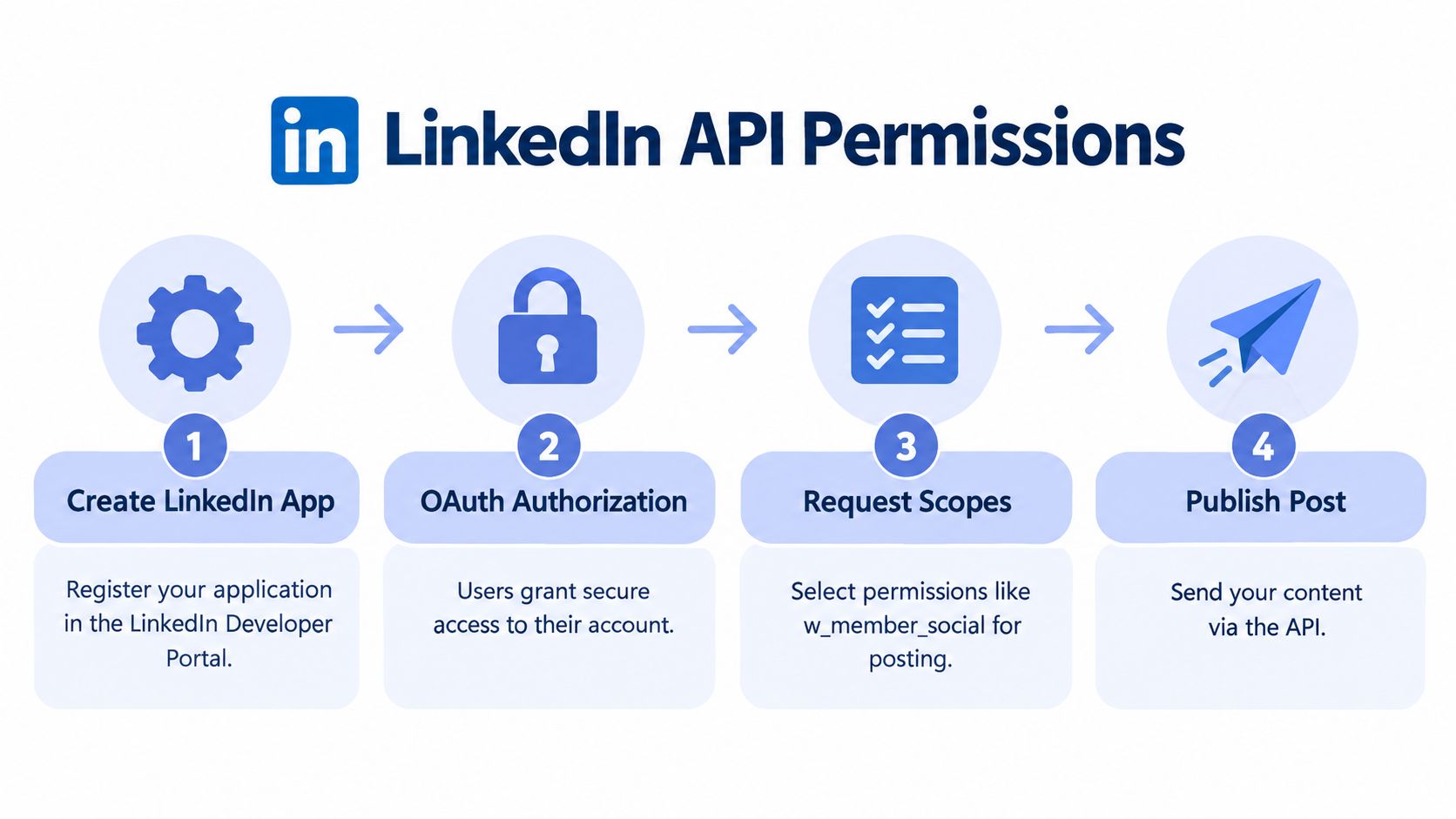 A four-step infographic illustrating the process to obtain LinkedIn API permissions for publishing content.
Use the current publishing endpoint and required headers
LinkedIn's current Posts API replaces the older ugcPosts API. API requests require a Linkedin-Version header in YYYYMM format and X-Restli-Protocol-Version: 2.0.0. Build those into your request configuration, rather than scattering header assumptions across workflow nodes. The official Posts API documentation is the source of truth for the current request format.
Upload media before creating the share
Images and videos don't publish just because a public media URL appears in the post-creation request. LinkedIn's documented flow is to register the asset, upload the binary file to the returned upload URL, then create the share using the resulting media asset URN. Images use an image URN; videos use a video URN. Article shares are different: they can include an originalUrl without an uploaded media asset. Treat this as a sequence of separate operations, and don't ask the share-creation request to do the upload's job.
Track both rate-limit budgets
For the self-serve Share on LinkedIn integration, LinkedIn documents a daily UTC limit of 150 requests per member and 100,000 requests per application (Share on LinkedIn documentation). These are separate limits, not one shared allowance. Track usage at the appropriate member and app levels, and handle retries with backoff rather than repeatedly sending a failed request. For a broader implementation walkthrough, see this guide to the LinkedIn API for developers.
Scheduling and Automating Posts with n8n and Make.com
Automation should make publishing repeatable, not opaque. Start with a workflow that keeps content preparation separate from publishing: a schedule or webhook triggers the job, the workflow retrieves approved copy and media, then the publishing step sends the post and records the result. That separation makes it easier to diagnose whether a problem came from the content source, media processing, authorization, or the API request.
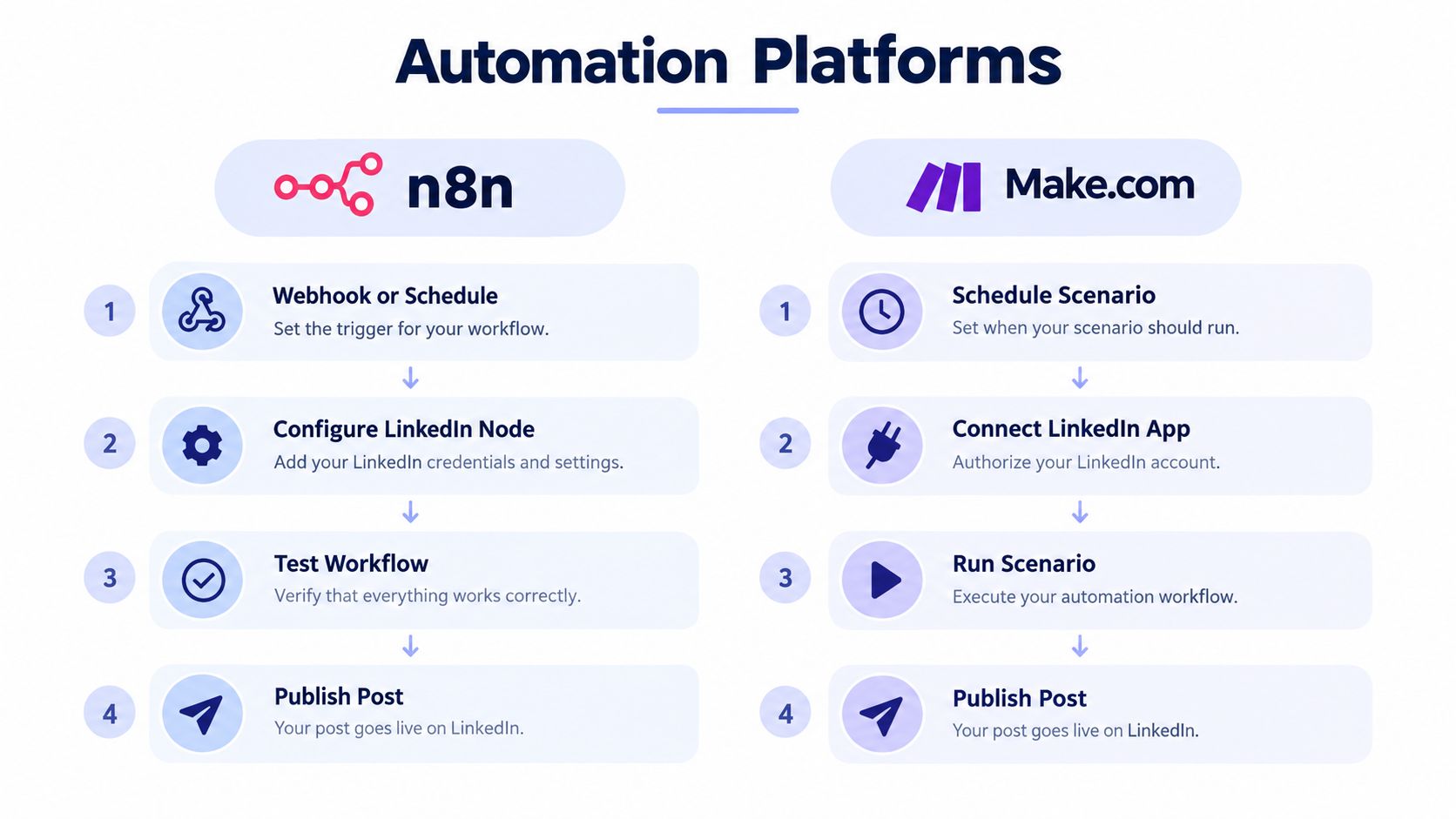 A comparison chart showing the step-by-step workflow for publishing on LinkedIn using n8n and Make.com automation platforms.
A workflow pattern for n8n
In n8n, use a schedule or webhook trigger, fetch a ready-to-publish item from a spreadsheet or database, and pass it through a review or validation step before sending it to LinkedIn. Keep copy, account identity, media references, and the planned publication time in explicit fields. If the post includes an image or video, make sure the workflow follows LinkedIn's registration-and-upload sequence before creating the share.
A failure branch should capture the response, mark the item as failed, and notify someone who can act on it. Don't blindly retry every error: a permission denial needs a different fix from a temporary request failure, and repeating a partially completed media upload can make diagnosis harder. Test with controlled content and confirm the destination account before enabling unattended runs.
Here's a visual overview of the automation approach:
A workflow pattern for Make.com
In Make.com, build the same basic chain as a scenario: schedule the run, connect the LinkedIn account, retrieve the next approved post, and send it through the appropriate publishing action. Keep an error route that records what failed and prevents a failed item from disappearing without a trace. For media, don't treat a URL in your content record as proof that LinkedIn has received an uploaded asset.
The editorial process matters as much as the scenario wiring. A useful editorial planning workflow overview can help teams decide what's approved and ready before automation picks it up. For platform-specific workflow ideas, see n8n social media automation. Whether you use n8n, Make.com, or your own scheduler, preserve human review for confidential, regulated, or culturally sensitive claims, and verify the published result rather than trusting a green workflow indicator alone.
Building Your Own Integration vs Using a White-Label Platform
Building directly against LinkedIn gives your team control over the request flow, data handling, and product experience. It also makes your team responsible for the app authorization, scope checks, media upload sequence, rate-limit handling, and API version maintenance. That's a reasonable trade when publishing is central to your product and you have the engineering capacity to maintain the integration.
A managed publishing layer can reduce that plumbing, but it introduces a dependency and means you need to assess its supported platforms, account types, data practices, and failure handling. PostPulse provides the verified Meta, TikTok, and Google apps, so users can skip the months-long developer-app review process and go live in days. It offers a unified publishing API, official n8n and Make.com integrations, an MCP server, and a white-label option for branded experiences.
Factor | Direct API Integration | PostPulse |
Control | Your team owns the implementation and user experience. | You use a managed publishing layer and can white-label the experience. |
Maintenance | Your team handles OAuth, API-version changes, and request errors. | The service handles OAuth, refresh, rate limits, and API-version changes. |
Workflow fit | Suits products that need a deeply customized integration. | Supports REST API, n8n, Make.com, and MCP-based workflows. |
Platform coverage | Your team integrates and maintains each platform separately. | One integration publishes across supported platforms. |
Trade-off | More control, with ongoing engineering responsibility. | Less platform plumbing, with reliance on an external service. |
Pick based on who owns the workflow
App developers: Build directly if LinkedIn publishing is a core product capability and you want full control. Consider a white-label layer if the branded experience matters more than maintaining each platform integration.
No-code builders: n8n or Make.com can handle scheduling and workflow logic; a publishing integration can simplify the platform connection.
AI agents: Use a workflow with explicit approval and failure handling before allowing an agent to publish autonomously.
Internal tools: Direct API access may suit a narrow use case, while a managed layer can reduce the burden of maintaining several platform connections.
“White-label” means the publishing experience can appear under your brand rather than the provider's. It isn't automatically the right choice: check what your users see, what your team can configure, and whether the service supports the account types and formats your product needs. If you want to compare those options in practice, PostPulse is one platform to evaluate, not a substitute for checking the API behavior your product depends on.
Measuring Performance and Iterating on Content
A successful API response confirms that a request completed. It doesn't tell you whether the post reached the right people or supported your business goal. Choose that goal before publishing: discovery, profile visits, follower growth, qualified conversations, or link clicks all call for different measures.
LinkedIn's native analytics can distinguish impressions, which count displays, from members reached, an estimate of distinct viewers. It also provides measures such as profile viewers generated by a post, followers gained, saves, sends, audience demographics, and link engagement. Compare posts with a consistent review window, and keep account type, topic, audience, and format in your records. If a post links to an external page, use campaign tracking so clicks can be interpreted alongside activity on the post.
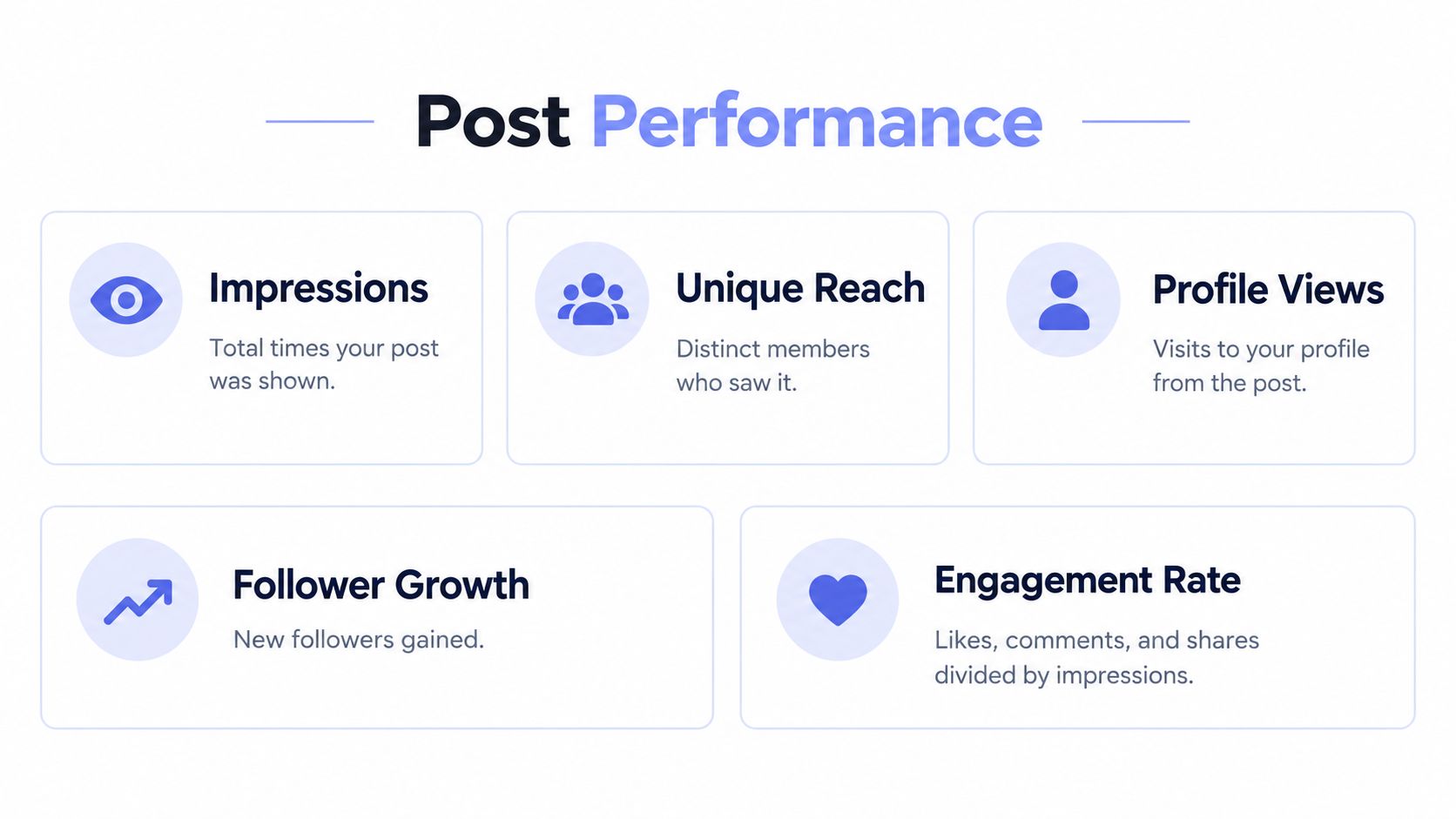 An infographic titled Post Performance defining metrics like Impressions, Unique Reach, Profile Views, Follower Growth, and Engagement Rate.
Use an outcome-led review
A post with fewer impressions may still be more useful if it brings relevant profile visits or qualified conversations. Don't optimize for reactions alone, and don't change the topic, audience, format, and timing all at once if you want to understand what influenced the result. Track the format and opening alongside the outcome, then make the next test narrow enough to learn from.
Cadence is an experiment constrained by quality and your ability to respond. A starting test of two to three useful posts per week for four weeks is one practical option, not a universal rule. Buffer's analysis reported 1,182 more impressions per post and a 0.23-percentage-point engagement-rate increase for accounts publishing two to five times weekly versus once-weekly posting; it also reported 16,946 additional impressions per post and a 1.40-point engagement-rate increase for accounts publishing 11 or more times weekly (Buffer's LinkedIn statistics analysis). Those results are correlational, so they don't show that increasing frequency alone caused the difference. Keep the pace sustainable, answer substantive comments, and review median performance rather than letting one outlier define your strategy.
Accessibility belongs in the same publishing review. LinkedIn recommends descriptive image text, captions for video, high-contrast colors, and readable fonts in its accessible-content guidance. Reuse the idea across channels if useful, but adapt the asset, alt text, opening, and call to action for LinkedIn. To check the clarity and structure of a draft before publishing, you can also analyze your LinkedIn posts.
Common Publishing Questions Answered
Why does my token stop working? Don't assume every publishing error means the token expired. Check whether the authorization includes w_member_social and whether the app is eligible for that permission, then inspect the actual response before changing authentication logic.
Why is my media still processing? Keep media registration, binary upload, and share creation as distinct steps. Create the post with the resulting media URN only after the upload has completed.
Can I publish to a company page the same way as a personal profile? Don't assume the same permission, identity, or analytics behavior applies. Confirm the authorized account and the access available to your app before choosing the publishing target.
What should happen when automation fails? Record the failed item and response, alert someone when needed, and retry only when the error is appropriate for a retry. Consistent publishing and useful measurement matter more than increasing volume without a feedback loop.
PostPulse provides a unified publishing API, official n8n and Make.com integrations, and an MCP server for teams building LinkedIn workflows. If you'd rather avoid maintaining each platform connection yourself, visit PostPulse to see whether its private-label or white-label setup fits your product.
About the Author

Founder of PostPulse — a social media scheduling platform for creators and teams. Software engineer with a passion for building developer tools and simplifying complex API integrations across social media platforms.