How to Post YouTube Video on Instagram in 2026
Published on
Tags:
You export a polished YouTube video, paste its URL into Instagram, and then wonder why there's no playable clip in your post. Or you upload the original file and discover that a widescreen tutorial looks cramped, the captions sit under the interface, and the opening takes too long to reach the point. The frustrating part is that neither problem gets fixed by copying the link or changing one export setting.
To post a YouTube video on Instagram effectively, treat it as a rights and editing job first. Choose a video you're allowed to reuse, pull a suitable source file, and make an Instagram-specific cut that gives viewers something useful on its own. The full video can stay on YouTube, with the Reel pointing interested viewers to it.
Table of Contents
Why Reposting a YouTube Video to Instagram Is Not Copy and Paste
A creator takes a successful 12-minute YouTube tutorial, pastes the watch URL into Instagram, and expects a video post. Instead, they have a link, not an Instagram-native clip. Uploading the original file doesn't solve the problem either: a long horizontal edit can feel out of place in a vertical-first viewing experience, and its useful moment may be buried after a slow introduction.
The two routes serve different jobs. A YouTube link points to the original video. A Reel gives people an immediately watchable excerpt inside Instagram. If the aim is to introduce the topic and direct interested viewers to the full explanation, the excerpt needs its own opening, framing, and ending. It shouldn't rely on viewers finding the right moment in a longer video.
That's why “how to post YouTube video on Instagram” is better understood as cross-platform adaptation, not a URL-copying task. You select a moment, shape it for the destination, and decide how the Instagram post will lead to the full source. A guide to giving archived content a second life can help with the broader editorial question: which parts of a finished piece are worth adapting for another audience?
The practical order matters. First confirm that you have the rights to reuse the footage and its individual elements. Then choose a segment with one clear idea, make a vertical edit, check the export on a phone, and publish it with a useful route to the full video. If this becomes a repeated workflow, you can automate the publishing steps, but automation won't choose a good excerpt or grant permission to use someone else's content.
The useful mental model: YouTube holds the full explanation. Instagram earns attention with a self-contained excerpt.
Check Rights and Source Files Before You Export
A public YouTube video isn't automatically free to repost. YouTube says original videos are generally protected by copyright, and Meta's rules require Instagram users to post content that doesn't violate another person's intellectual-property rights. Credit alone, a “no infringement intended” disclaimer, noncommercial use, or public availability doesn't grant permission to upload someone else's video.
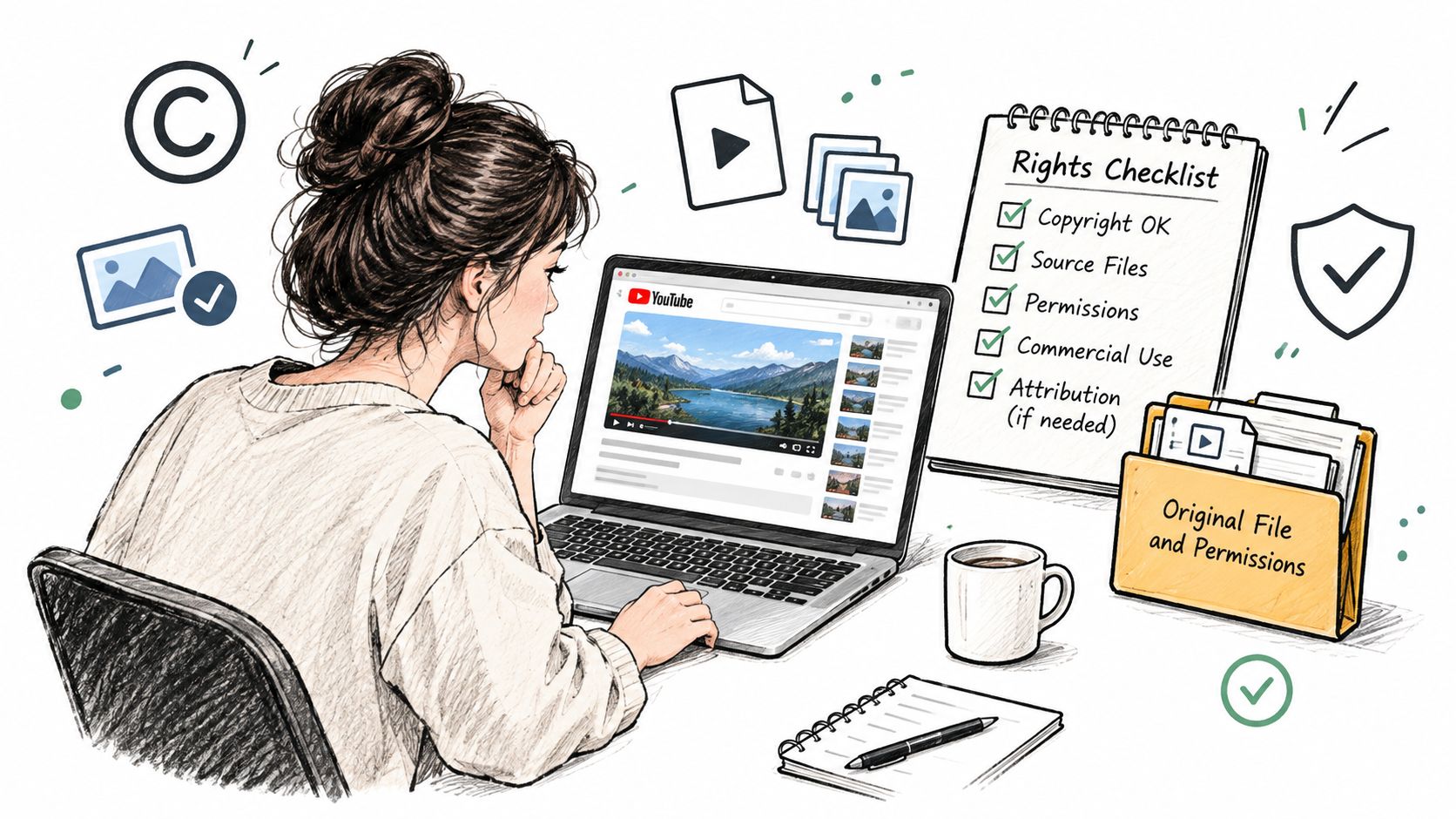 A creator checking copyright requirements on a laptop while preparing content for YouTube and social media.
There are three straightforward routes:
Use your own video. You're in the clearest position to make a derivative, provided you also have the rights to the music, images, clips, and other protected material it contains.
Get written permission or a license. Make sure it covers posting the content on Instagram, not just sharing a YouTube link.
Share the original YouTube URL. If you don't have permission to upload the file, link to the original rather than making a copy and publishing it as your own Instagram media.
For your own upload, YouTube's desktop instructions are direct: open YouTube Studio, select Content, choose the video, then use Menu → Download. YouTube says the downloaded MP4 may be provided at 720p or 360p, depending on the video size, so check the file before treating it as a high-quality editing master. If you still have the original project or export, that may be a more suitable source.
Music deserves its own check. Owning the footage doesn't automatically clear a commercial track playing underneath it, and a license for one platform may not cover another. YouTube's guidance says creators generally need permission for each protected element before uploading. If a video includes licensed music or third-party clips, verify that the rights cover Instagram use before you edit or automate publication. A file can upload successfully and still create a rights problem.
Cut a Vertical Reel From One Central Idea
A full-length YouTube upload rarely works unchanged as an Instagram Reel. Its pacing, framing, and setup were built for a different viewing experience. Choose one complete idea first, then edit around what an Instagram viewer needs to understand it.
Instagram's Reels product information says Reels can include multiple clips totaling up to three minutes. Treat that as a limit, not a target. For example, a ten-minute tutorial might yield several short Reels, each built around a distinct instruction or result. An interview can be divided by question or conclusion, as long as each excerpt makes sense on its own.
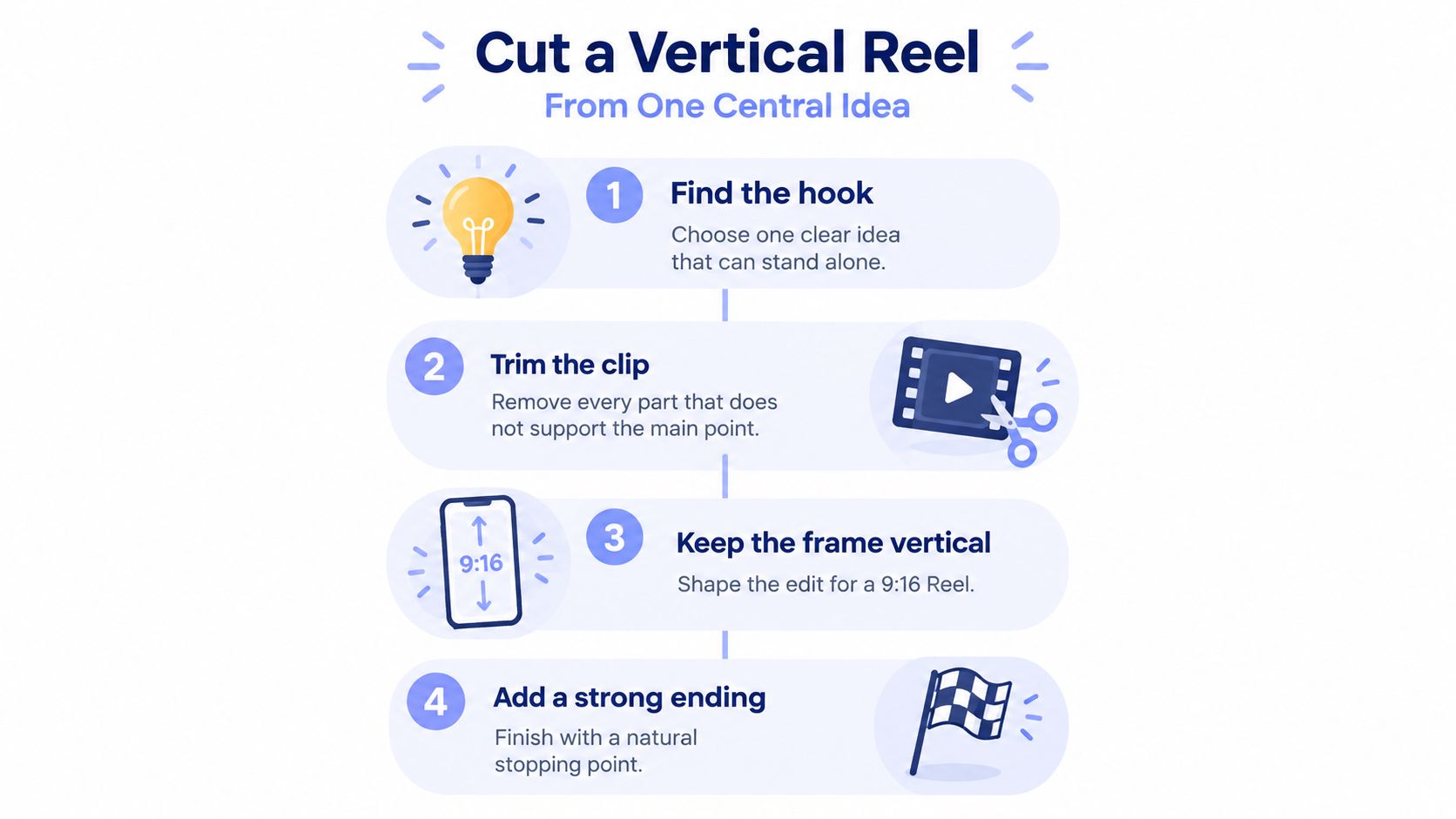 An infographic titled Cut a Vertical Reel showing four steps to create engaging vertical social media videos.
Build the edit around a clear point:
Choose a self-contained moment. A useful claim, demonstration, or answer can carry the clip. If it depends on a long introduction, add the missing context or select another excerpt.
Cut for pace. Remove pauses and repeated explanations. Start close to the strongest visual or statement, while leaving enough context for the point to make sense.
Reframe with intent. Set up a 9:16 composition around the subject instead of stretching the original footage. Keyframe a moving speaker; for screen recordings or two-person conversations, consider a split layout that keeps both the speaker and relevant material visible.
Give the ending a job. Stop at a natural conclusion. A brief prompt can point viewers to the full YouTube video for more detail.
Cropping can change the meaning of a shot. A centered speaker may fit neatly, while a chart, shared screen, or group conversation can lose key information outside the vertical frame. Check the crop as you edit, and recompose or use a different layout if the viewer can no longer follow the action.
A repeatable content repurposing strategy starts with the idea and the audience, then shapes the excerpt to fit. Each Reel should offer a complete takeaway, even for viewers who never visit YouTube.
Use this short video as a visual reference for planning a vertical edit:
Export Settings and Pre-Publish Checks
A Reel can look sharp in your editor and still arrive with soft text, clipped captions, or audio that is hard to hear. Check the export on a phone before publishing. Instagram re-encodes uploaded media, so the preview is the best way to catch problems that only show up at small size.
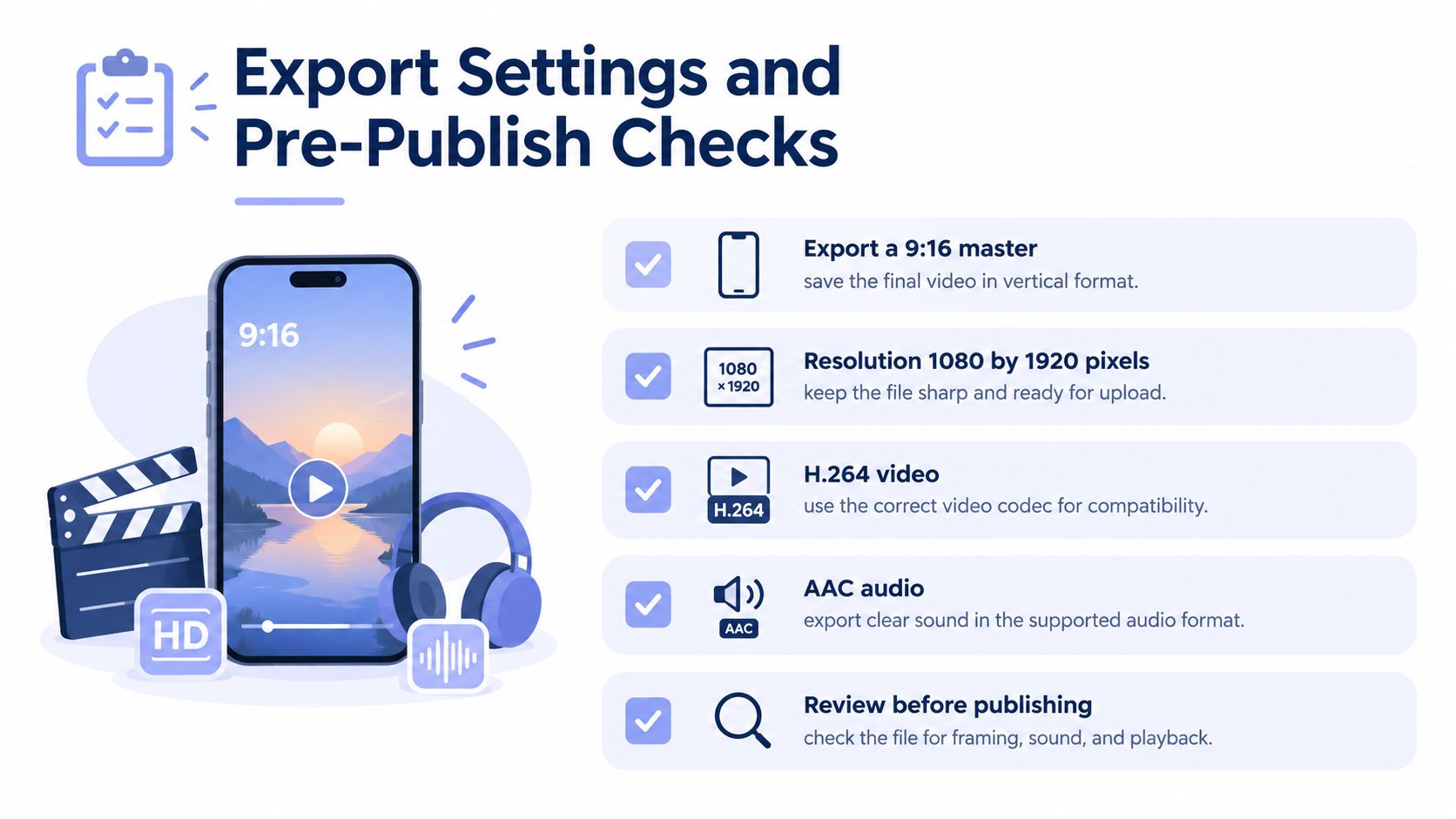 A checklist infographic illustrating export settings for high-quality vertical social media video content.
For a Reel, export a 9:16 vertical master at 1080 by 1920 pixels, with H.264 video and AAC audio. Keep faces, logos, and on-screen text clear of Instagram's top and bottom interface areas. Check vertical video dimensions for different destinations if you're preparing versions for more than one platform. For music and audio preparation, see these Reels and Stories audio tips, and confirm that the audio is cleared for your post.
Burn in captions when viewers may watch without sound. Review the timing, spelling, and line breaks on a phone screen. Auto-generated captions can mishear names and technical terms, so correct them before export.
Write a caption for the excerpt, not a copy of the YouTube title. Give viewers enough context to understand the clip, then suggest a next step, such as watching the full explanation on YouTube.
Run the final phone check
Before publishing, inspect the exported file on a phone:
Confirm rights and licensing. Check the footage, music, and third-party elements.
Check the opening frame with sound off. Make sure the visual still makes sense.
Review captions. Confirm they appear at the right time and remain readable.
Watch the full export. Look for unexpected crops, text collisions, and audio problems.
Check the published Reel after upload, too. If you're posting to Feed instead, verify that destination's aspect-ratio and length requirements. Instagram's publishing routes do not all use the same video specifications.
Automating Instagram Publishing With an API
A YouTube watch-page URL can't be passed to Instagram as a video file. A publishing workflow needs access to the original or another authorized media file, then must send that file through Instagram's publishing flow. The editing and rights decisions still come first. An API can automate delivery, but it won't make a full-length YouTube upload suitable for Instagram.
Meta's Instagram API overview says apps can publish images, videos, Reels, and carousels for Instagram professional accounts. Check the connected account type and permissions before building the publishing step. For the Reel workflow, the Instagram Reels publishing API guide describes how to submit media through Instagram's API.
YouTube uses a separate process. Its video upload guide documents sending media through videos.insert. For large or unreliable transfers, YouTube's resumable upload protocol lets an application create a session, save the returned session URI, and retry an interrupted transfer. Check processing status before marking the YouTube upload complete.
The videos.insert API reference lists a maximum upload size of 256 GB and a quota cost of 100 calls per day. Those limits apply to YouTube's upload method, not Instagram.
Keep the integration in distinct stages: verify the source and usage rights, prepare the edited Instagram file, validate the destination account, publish, then record the result and any error. If the workflow also includes speech-driven edits or localized dubbing, you can explore the lipsync API as a separate media-processing step.
Comparing Manual Posting and PostPulse Automation
Manual posting and automated publishing solve different operational problems. If you're producing an occasional Reel, opening the Instagram app gives you direct control over the final preview and caption. If you're building a product, agency workflow, or repeatable publishing process, maintaining platform integrations yourself means handling authentication, API changes, and platform-specific publishing steps.
PostPulse is one option for teams that want a unified publishing integration. It offers a REST API, official n8n and Make.com integrations, and an MCP server, with publishing across 9 platforms. Its platform information says it handles OAuth, token refresh, rate limits, and API version changes. That can reduce integration maintenance, but it doesn't replace rights checks, source selection, editing, or quality review.
Plan | Price | Best Fit |
Private-label pay-as-you-go | $0.20 per publication, no subscription | Developers or teams testing an occasional automated workflow |
Private-label subscription | $5 per account per month or $48 per year | Builders publishing regularly through API, n8n, Make.com, or MCP |
White-label | $200 monthly platform fee plus $1 per active account; connected-but-idle accounts are free | Apps, agencies, or platforms offering a branded publishing experience |
A solo creator posting a few Reels a month may be better off publishing manually, or using pay-as-you-go if automation is useful but infrequent. An agency or app builder with a recurring process may prefer a subscription or white-label setup, depending on whether users should see the publishing platform behind the workflow. The white-label account charge applies to accounts that publish during the month; connected-but-idle accounts are free.
Builders still in beta can ask about the startup support program, which waives fees until launch and is discussed individually. For any option, test the whole route with a rights-cleared source and a professional Instagram account before connecting more destinations.
Pick Your Route and Publish Your First Reel
A Reel cut from a licensed video can still fail if it strips away the context that made the original useful. Start with one idea that makes sense on its own, then edit a vertical clip around it. Keep the full YouTube video as the deeper resource, and make the Reel's next step clear.
Before publishing, watch the export on a phone. Check that captions are readable, the opening gets to the point, and important text or faces aren't hidden by Instagram's interface. Publish manually if you post occasionally and want to review every detail in the app. For a repeated workflow, test automation with one Instagram professional account and confirm the whole process works before adding more accounts.
After the Reel is live, review retention, saves, and shares against your own previous posts. Views alone won't show whether viewers stayed with the idea or found it useful. If people watch but don't continue to YouTube, clarify how the full video follows from the Reel's promise.
Make one rights-cleared Reel this week. If managing repeat posts across accounts becomes the slow part, consider whether PostPulse fits your workflow, as noted earlier.
About the Author

Founder of PostPulse — a social media scheduling platform for creators and teams. Software engineer with a passion for building developer tools and simplifying complex API integrations across social media platforms.