How to Add Link to Facebook on Pages and Profiles
Published on
Tags:
You paste a campaign URL into Facebook, and the preview still shows yesterday's image. Then you notice the post went live under your name instead of the business Page. If you're publishing through an API, the equivalent headache is a successful response and a post ID, but nothing visible where you expected it.
The practical answer to how to add link to Facebook starts before the paste. Confirm the author, prepare the destination's preview, and choose the right publishing surface. A working URL doesn't prove you've published the right post.
Table of Contents
Where Your Facebook Link Actually Posts
A post under the wrong name is an identity problem, not a link problem. Before touching the URL, decide whether you're publishing as yourself, as a Page, or giving a visitor a way to share your website.
Meta's instructions for sharing links from a Page say people with Facebook access can share links from that Page and describe switching into the Page before posting. The mobile workflow can also include scheduling before publication. Don't conclude that a control is unavailable until you've checked the active identity and the relevant Page interface.
Where a Facebook link can be added
Path | Author | Where you do it | How the URL is added | Scheduling | Card source |
Personal profile on desktop | You | facebook.com composer | Paste an HTTPS URL in What's on your mind | Use the profile's available publishing controls | Open Graph scrape |
Personal profile in the app | You | Facebook mobile composer | Paste an HTTPS URL | Use the profile's available publishing controls | Open Graph scrape |
Facebook Page on desktop | The Page after you switch into it | Page composer | Paste an HTTPS URL while acting as the Page | Use Page tools after the identity switch | Open Graph scrape |
Facebook Page in the app | The Page after you switch into it | Facebook app Page composer | Paste an HTTPS URL | Schedule can appear before you publish | Open Graph scrape |
Share button on your site | The visitor | Facebook Share dialog | Visitor shares your URL | Visitor's choice |
|
The profile scheduling cells aren't promises of a specific scheduler. They're a reminder not to carry Page instructions into a personal-profile workflow. Use the controls presented for that identity.
Choose the author before the device
For a business announcement, start by selecting the intended Page, then choose desktop or mobile. Starting from whichever composer is already open makes it too easy to prepare a perfectly good post for the wrong account.
For an occasional personal recommendation, the profile composer is the appropriate path. There's no reason to introduce Page permissions or an API just to share an article with your own audience.
Identity check: Read the name beside the composer before you paste. Treat it as part of the destination, not decoration.
A website Share button is a different interaction. The visitor chooses where to share; your site supplies the URL rather than publishing on their behalf.
If several people manage the same business presence, settle account selection and access before scheduling content. The Facebook Page management guide is useful context for organizing that workflow. For developers, the separate API path adds another identity decision: the credential used for publication.
Make the Link Card Render the Right Preview
Fix the destination page before trying to fix the Facebook draft. The title, description, and image belong in the page's Open Graph metadata, not in a series of experimental captions.
Meta's web sharing documentation describes how Open Graph markup supplies the shared preview and how the Sharing Debugger refreshes Facebook's scraped representation. It also notes that normally scraped content may persist for up to 24 hours, so a last-minute website edit isn't a reliable preview-refresh strategy.
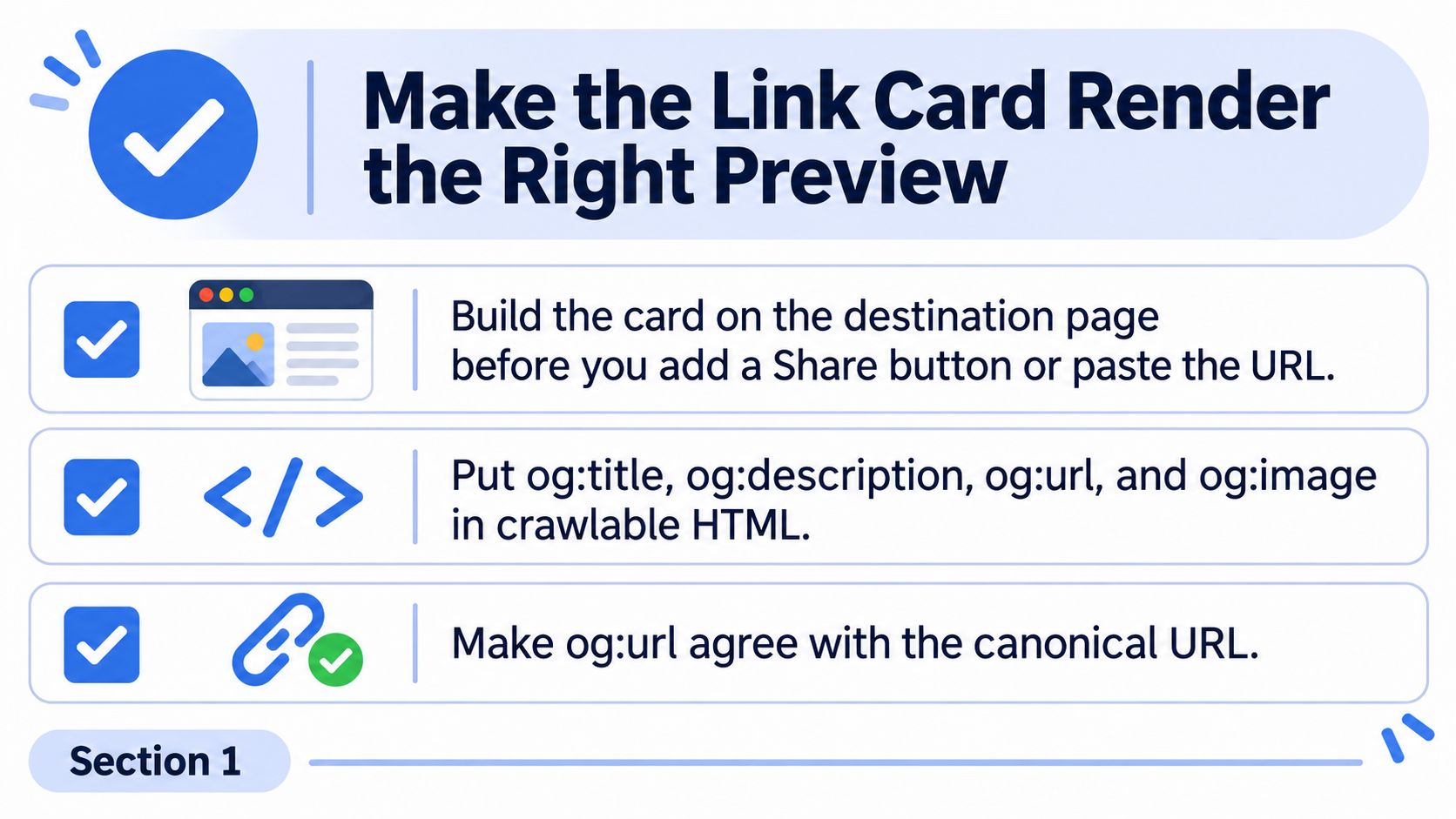 A checklist infographic illustrating three essential technical steps for optimizing link preview cards for social sharing.
Prepare the page Facebook will fetch
Use the actual destination HTML as your starting point:
og:titleshould identify the destination clearly. Avoid a generic website title when you're sharing a specific article or product.og:descriptionshould explain what the visitor will find. Keep the promise consistent with the page.og:urlshould agree with the canonical URL. Don't deliberately point these at different destinations.og:imageshould use an absolute HTTPS image URL that's publicly accessible, rather than a relative path or an authenticated asset.
Then check access. The destination should return a fast, public HTTP 200 response without a login wall, crawler restriction, or unnecessary redirect chain. Perform the same accessibility check on the image itself.
That distinction matters when diagnosing a blank card. A page can load for you because you're signed in while the public fetch still fails. Your browser session isn't a useful substitute for testing public access.
Debug the exact URL you intend to publish
Put the final destination into Meta's Sharing Debugger, inspect the result, and request another scrape after changing the metadata. Don't test one URL and publish another version with a different redirect path.
Check the desktop and mobile sharing experiences rather than approving only a desktop screenshot. You're checking whether the important information remains understandable, not merely whether an image exists.
Finish the metadata before approving the campaign. Repeatedly changing the destination while someone else reviews the post makes approval unreliable.
For teams reviewing paid creative alongside organic content, AdManage.ai's ad previews for Meta campaign reviews are a separate review resource. Keep that approval task distinct from debugging the destination's Open Graph card.
For user-initiated sharing from your website, use Facebook's Share Button or sharing dialog. Let the visitor choose an available destination, including a group or Messenger, rather than trying to publish into those places without their authorization.
Once the debugger shows the intended card, I'd freeze the metadata for the campaign window. Keep the approved URL with the approved caption so whoever publishes uses the same destination you tested.
How to Add a Link in the Facebook Composer
For a manual post, keep the sequence deliberate: identity, URL, preview, message, publication. Mixing those checks together makes it harder to tell whether you're fixing a destination problem or editing the wrong draft.
The composer workflow below uses the native profile or Page surface you've selected. The button labels can differ between desktop and the Facebook app, so follow the action rather than hunting for an identical screen layout.
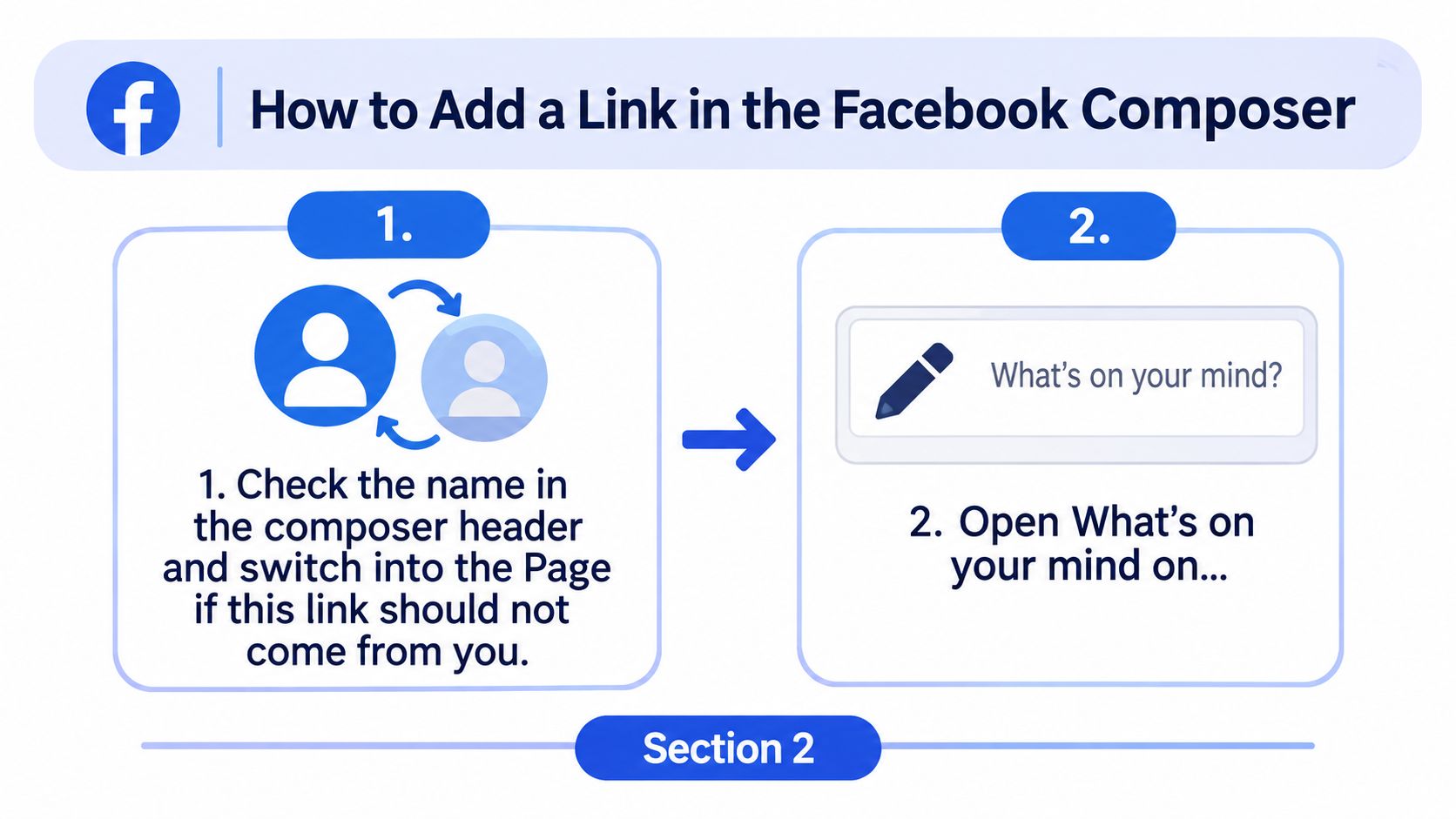 An instructional graphic showing two steps on how to begin adding a link in Facebook's post composer.
Prepare a draft you can verify
Check the name in the composer header. If the link should come from the business, switch into its Page before continuing. Don't use the caption to compensate for the wrong author.
Open the post composer. On desktop, start from What's on your mind; in the app, open the post control for the selected profile or Page. Check the identity again once the draft is open.
Paste the final absolute HTTPS URL. Start with the destination you want people to visit. Avoid adding several competing URLs while diagnosing a preview.
Pause and inspect the generated card. Look for the intended title, description, and image before building the rest of the message around it. If it's wrong, resolve the destination's metadata and scrape first, then start a clean draft with the final URL.
Write a message that makes sense without a click. Give readers the subject, the useful takeaway, and a reason to open the destination. Don't make an unexplained URL do all the communication.
That last action isn't just a copywriting preference. According to Penn State's account of a study published in Nature Human Behaviour in 2024, around 75% of forwarded Facebook links were shared without users clicking first, based on more than 35 million public posts from 2017–2020.
Say you're sharing a property listing. A caption can identify the property type, the neighborhood, and the feature worth examining, then invite readers to view the listing. DwellShot's examples of social media captions for property listings can help with that writing task, but the details still need to match the actual destination.
Publish only after the draft is settled
Choose immediate publication or the available Page scheduling control. In the Page's mobile flow, scheduling can appear before publication. If you schedule the link, inspect the scheduled entry in the native Page interface rather than assuming that saving it settled every detail.
Review the message and destination together. Read the caption as someone who hasn't visited your site. Check that it describes the linked page rather than an earlier version of the offer.
For a video destination, the guide to sharing YouTube videos on Facebook addresses that particular workflow. Keep the same discipline about the selected author and final destination.
Don't search the Page publishing composer for a visitor's group or Messenger destination. That's a user-sharing task, not the same action as publishing a Page feed post.
Publish, then open the live post as a viewer. Confirm the author, inspect the card, and follow the destination. The live viewer check is the finish line, not the moment the composer closes.
Publish a Page Link with the Graph API
A link can reach the wrong audience even when the request succeeds. The selected Page, credential type, destination URL, and publication state all shape what the API publishes. For an application or automation, use the Pages API rather than scripting browser clicks, and keep those choices tied together from authentication through verification.
Meta's Pages API publishing documentation describes publishing through /{page-id}/feed and checking the user's CREATE_CONTENT task. Confirm the publishing permission listed for the Page feed endpoint in Meta's current documentation and for the API version you use. Permission requirements can change, so verify them alongside the endpoint rather than relying on a familiar permission name.
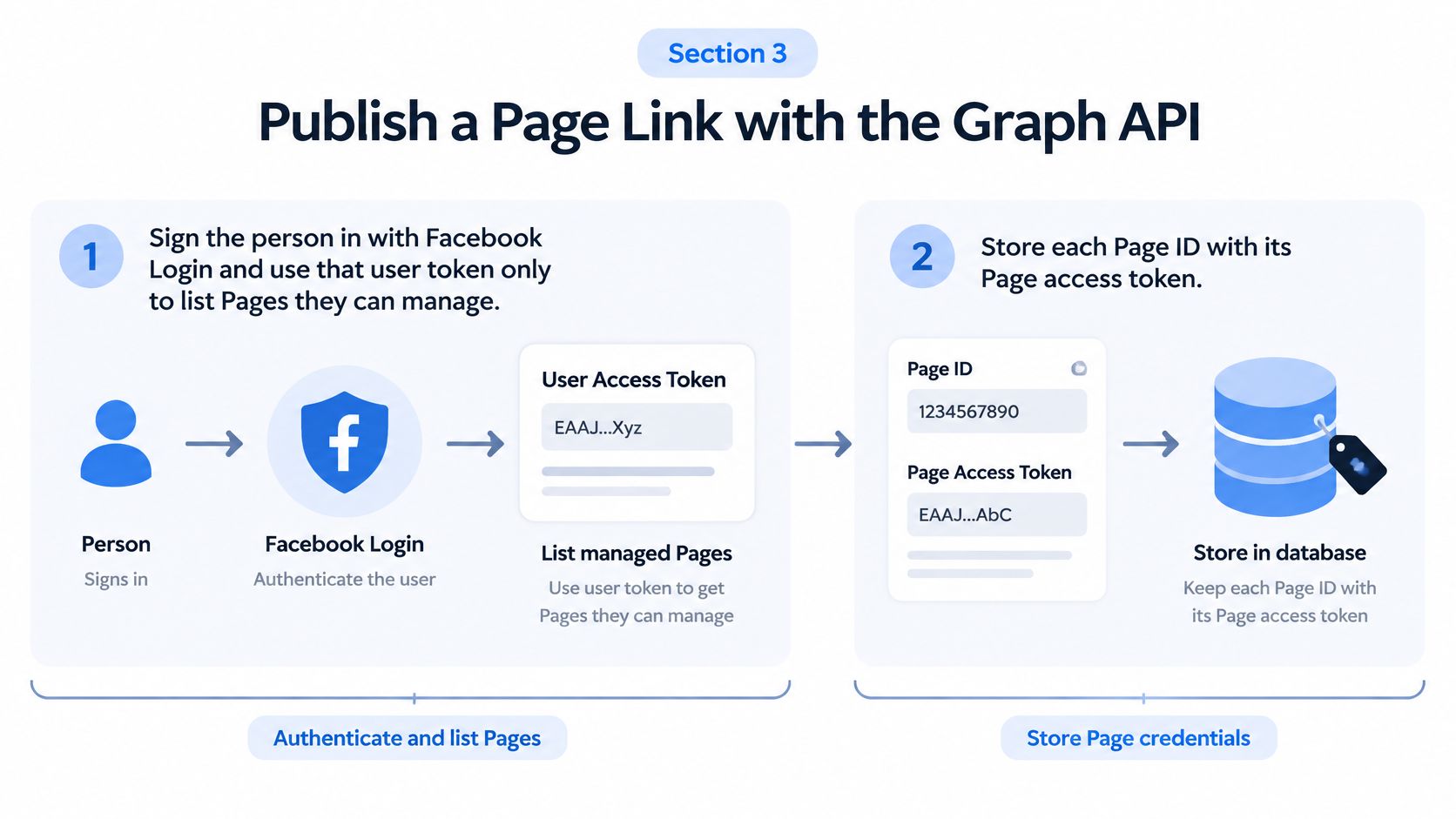 A diagram illustrating the process of publishing a Facebook page link using the Graph API and storing credentials.
Bind the Page to the right credential
Use Facebook Login to identify the Pages the person can manage, then retain the chosen Page ID with its Page access token. A Page ID stored separately from its token can lead to a valid request that publishes under an unintended identity.
The token sets the publishing voice. Meta's Page Feed reference distinguishes a Page access token, which publishes in the Page's voice, from a user access token, which publishes in the user's voice. Its example includes message, link, published=1, and access_token. Authenticate the person to establish Page access, then use the appropriate Page credential for the publication call.
Before sending, check three things:
Confirm capability. Verify that the authenticated person can create content for the selected Page.
Validate the destination. Require an HTTPS URL as an application rule and confirm it reaches the intended public page.
Protect credentials. Keep tokens out of caption text, public diagnostics, and ordinary application logs.
Token handling continues after the initial connection. The Meta OAuth token lifecycle guide covers related credential maintenance considerations.
Submit and reconcile the publication
Send a POST request to /{page-id}/feed with the publication values:
Parameter | Value to supply |
| The approved caption |
| The final HTTPS destination |
|
|
| The selected Page access token |
Graph API requests use HTTPS. Save the returned post ID with the Page ID and your internal job identifier so you can reconcile the response with the intended destination.
Production safeguard: A successful response confirms an API result, not visible publication.
Check publication status and verify the resulting Page post. An unpublished object may exist through the API without appearing in the Page feed, so the object ID alone does not confirm visibility. Use published=false only when the endpoint version and permissions support the intended unpublished workflow. Otherwise, schedule the publishing call in your application rather than treating that flag as a universal scheduler.
Keep organic Page publishing separate from paid creator workflows. Meta partnership ads are relevant when that is the campaign requirement, but a Page feed call does not replace a separate authorization process.
Fix a Link That Posts Wrong or Looks Blank
Match the symptom before changing anything. Rewriting the caption won't repair an inaccessible image, and repeatedly querying a post ID won't establish that an unpublished object is visible.
The fastest diagnosis separates identity, fetching, preview freshness, and publication status. Treat the causes below as checks to perform, not proof that every blank card has the same explanation.
Facebook link failures and the fix
What you see | Usual cause | Fix |
Yesterday's title or image | Cached scrape | Public 200 response, matching |
No thumbnail | Relative, blocked, or logged-in | Use an absolute HTTPS image on a public URL |
Post shows your name | Profile composer or user access token | Switch into the Page, or send a Page access token |
API object exists, Page feed does not | Unpublished post | Read publication status, not only the object ID |
Blue URL and no card | Fetch failed | Check login walls, robots blocks, and redirect chains |
Card is fine, clicks are weak | Reactions may be the wrong metric | Keep the preview, test comment placement, and count clicks separately |
Change the layer that failed
For a stale card, follow the preview checklist: verify the live page first, then refresh the scrape. Re-scraping a page whose metadata hasn't changed just repeats the same test.
For a missing thumbnail, inspect the image destination independently. Correct page metadata doesn't help if the referenced file requires authentication or can't be fetched publicly.
For an authorship problem, inspect the selected identity or stored credential pairing. Don't spend time changing Open Graph tags when the post is coming from the wrong publisher.
For a visibility problem, inspect publication status and the intended Page. A request log that contains a post ID is useful for reconciliation, but it isn't a viewer check.
Separate broken delivery from weak performance
A technically correct card can still attract little interest. That's a content or distribution question, and it needs a different test from preview debugging.
In Baylor University's controlled experiment with organic Facebook posts, the tested format combining text, a preview image, and the link in the comments accounted for approximately 62% of link clicks. That's a result from that experiment, not a universal instruction to move every outbound URL into a comment.
The trade-off is straightforward. A direct link post keeps the destination in the main publishing object; a comment-placement test asks the reader to take another step to find it. Compare those approaches only after you know the destination and visual material work.
Define success first. If the purpose is website visits, evaluate clicks rather than choosing a winner solely from reactions.
Keep the promise comparable. Don't change the offer, image, caption, and placement simultaneously if you want to understand the result.
Inspect the destination experience. A click that reaches the wrong page isn't a successful handoff.
Don't label a post broken merely because it's quiet. Verify the technical path, then test the message and placement against the outcome you need.
Hand the Page Link to One Publish Call
If you're sharing a link from your own phone, stop once the right author, intended card, and live destination are confirmed. A manual post doesn't need an integration project.
If you're building social publishing into an app, automation, or agent, the recurring work is different. You need to preserve the relationship between the customer's selected Page, the approved content, the publication time, and the result.
Keep the handoff explicit
In our Facebook publishing handoff, chatId is the Page ID, and an ordinary outbound URL belongs in the FEED workflow with the HTTPS destination you've already checked. Keep that target visible in your own approval screen rather than displaying only a generic connected-account label.
An engineer reviewing a job should be able to answer these questions without guessing:
Which Page is targeted? Store the selected destination with the job, not just with a temporary browser session.
Which content was approved? Keep the caption and final URL together.
When should it publish? Distinguish an immediate test from a scheduled campaign.
How will someone verify it? Assign a person to open the resulting post before approving a batch.
Those are application design choices, not reasons to add more fields to the Facebook caption. Keep operational identifiers in your own system.
Test the whole path before batching
Send a single Page test with a recognizable message and the approved destination. Open the published post, check its author, and follow its outbound URL.
Then exercise the scheduling path you intend to use. A successful immediate call doesn't validate your job runner, account selection screen, or campaign approval process.
Approve the batch only after someone has inspected a real published post.
Personal profiles aren't the target for this Facebook Page integration. Make that distinction explicit wherever users choose a destination, especially if your application supports other platforms with different account types.
The useful abstraction is a repeatable publishing handoff, not a promise that every URL will look right without preparation. Your website still needs an accessible destination and accurate metadata; your application still needs a deliberate target and a verification step.
PostPulse offers Facebook Page publishing and scheduling through one integration for apps, automations, and AI agents. Visit PostPulse to connect that publishing workflow, then send a single Page test with your checked HTTPS URL before scheduling a batch.
About the Author
Founder of PostPulse — a social media scheduling platform for creators and teams. Software engineer with a passion for building developer tools and simplifying complex API integrations across social media platforms.