Post to Instagram Feed: A Developer's Guide to the API
Published on
Tags:
Your container returned an ID, your logs look green, and nothing appeared in the Feed. Or worse, your carousel sat at in progress until you killed the job and retried it, which queued a duplicate. That's the normal first week of trying to post to Instagram Feed through the API. Instagram doesn't work like a simple upload endpoint, and most failures aren't random. They're account eligibility, container state, media normalization, or quota problems that you can check in a predictable order if you build the checks in from the start.
Table of Contents
Check Account Type and Permissions Before You Build
A publish can fail on an account that looks perfectly fine in the app. The profile exists, the user can post manually, and your OAuth flow completed. That still doesn't mean the API will let you publish for it.
Meta restricts Content Publishing to Instagram professional accounts, and its creator announcement explicitly expanded eligibility beyond Business accounts to include Creator accounts with the appropriate permissions, as described in Meta's Instagram Platform overview. Personal profiles aren't a supported publishing target. Don't promise support for every connected profile and discover that in production.
Run This During Onboarding
Validate the account type when the user connects, not when their first scheduled post fails. If it's personal, stop the flow and tell the user to convert it before they continue. That's a much better error than a failed job three days later.
Confirm account type: Check that the connected account is Business or Creator before you store it as publishable.
Match scopes to endpoints: Request only the permissions your publishing calls need, and verify they were granted, not just requested.
Use a documented login route: Meta documents Business Login for Instagram and Facebook Login for Business as the supported authorization routes for professional account data.
Store token state: Record when the token was issued and how you'll refresh it, so an expired token doesn't look like a media failure.
Practical rule: If onboarding can't prove the account is eligible, your queue shouldn't accept jobs for it.
If you want the permission model mapped before you design your connect screen, the Instagram API documentation walkthrough is a useful companion to Meta's reference. Get this gate right and a large class of mysterious failures disappears before you write any container logic.
Publishing a Single Image Through the Container Flow
Instagram publishing is a two stage container model, not a single upload. Treat it as one request and you'll spend a day wondering why a successful response produced no post. Successful container creation does not mean the post is live.
The flow below is the mental model to keep in front of you while you build.
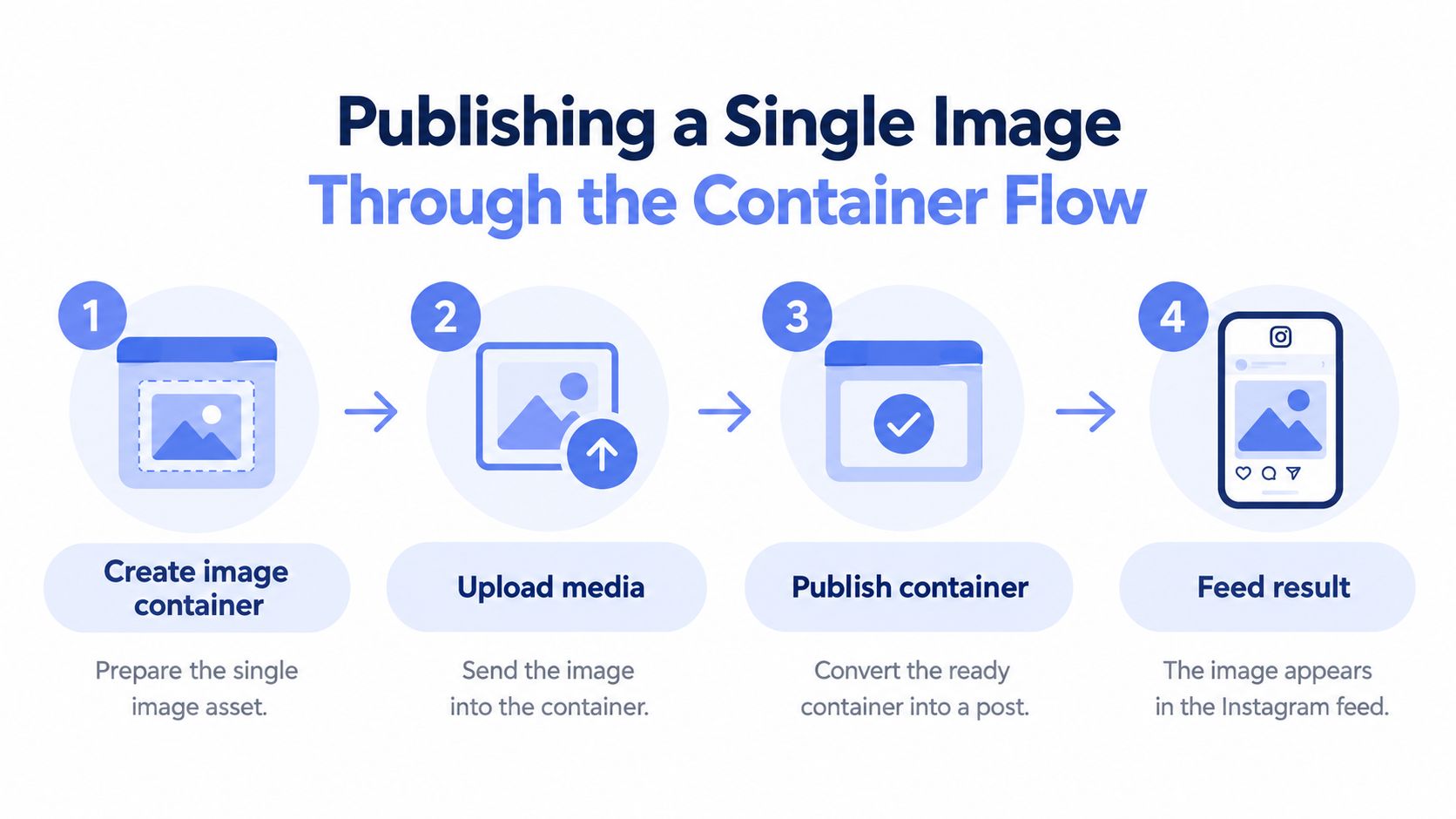 A four-step infographic illustrating the process of publishing a single image to the Instagram feed.
Stage One Is Preparation
First, confirm the destination is an eligible Business or Creator account, obtain the required user access token and publishing permission, and host the media at a publicly reachable URL. That last part trips people up constantly. A signed URL that expired, a localhost path, or a bucket that blocks Meta's fetcher will fail downstream in ways that look like API flakiness.
Test the media URL from outside your network before you create anything. If you can't fetch it cleanly without your own credentials, Meta probably can't either.
Create, Poll, Then Publish
Second, create the media container with the media URL and caption. Third, poll the container status until it's ready. Don't skip the poll because the create call returned quickly. Publication can fail after upload if media processing or eligibility checks haven't completed.
Fourth, make the separate publish call. Meta documents that final call as POST /{ig-user-id}/media_publish with creation_id and an access token in Meta's media_publish reference.
Create the container: Send the media URL and caption, then store the returned container ID against your internal job ID.
Poll for readiness: Check status with sensible intervals and a hard timeout, so a stuck container becomes a failed job instead of an infinite loop.
Publish once: Call media_publish only after readiness, and guard that call with idempotency around your job ID so a retry doesn't post twice.
Record the result: Save the published media ID and the final status, not just a boolean in your logs.
A container ID is a promise to check back later. It is not a post.
Build exponential backoff for transient errors, explicit token refresh handling, and a dead letter queue for permanent failures from day one. Retrofitting those after users start scheduling posts is painful, because by then your job table is full of states you didn't plan for. Keep each stage as its own recorded step and debugging a stuck publish becomes reading a timeline instead of guessing.
Media Specs and Cropping Rules for Feed Images
Pipelines pass valid files and still publish damaged posts. The container accepts your upload, the publish call returns a media ID, and the result in the feed has a head cropped off or caption text clipped at the edge. Feed publishing is a format selection problem, not a single resize at the end. Keep a high resolution source, generate platform safe derivatives from it, and keep captions and overlay copy separate from the rendered artwork so you can change text without re-exporting images.
This is the asset preparation work that decides whether automation helps or degrades every post.
 A digital artist uses a stylus to edit a mountain photograph for an Instagram feed post.
Square 1:1 assets are widely supported. Vertical 4:5 compositions generally use more mobile screen area, and existing guides commonly cite 1080 × 1350 pixels at a 4:5 ratio, including YourTemplate's Instagram content size dimensions guide. If your team ships to several platforms from one source file, compare Instagram and TikTok aspect ratios before you lock derivative sizes, because a crop that is safe in one feed can cut text in another.
One normalization case catches teams that only validate single images. When items at different ratios land in one carousel, they get normalized to a shared frame, so the per-image crop you previewed is not necessarily the crop that ships. Check each child asset against the frame the post will use, not the ratio it happened to be exported at.
Validate Derivatives, Not Just Sources
Check aspect ratio and encoding: Validate every derivative automatically before you create a container, not during a manual spot check.
Protect focal areas: Keep faces, product edges, and text away from crop boundaries, with safe margins built into the template.
Reject instead of damaging: If a file can't be normalized without cutting the subject, fail the job with a clear reason. A loud error beats a published embarrassment.
Verify the URL again: Confirm the final derivative, not the source, is publicly reachable at submission time.
Running those checks through a dedicated step like automated media validation before publishing keeps bad assets out of the queue entirely. A clean publish response means the API accepted the job. It says nothing about whether the image that reached the feed is the one you approved.
Carousel Containers and Why Jobs Get Stuck
A carousel job sits in progress forever. No error, no post, no obvious next step. When I've seen this, the integration usually treated the parent container as publishable the moment it was created, without waiting for everything underneath it.
A carousel is not one upload request. You create an individual media container for every image or video, then create a separate carousel container whose children parameter contains those item container IDs, and only then publish the carousel container. The failure is almost always in that order: the parent exists, so the worker assumes the post exists.
The hierarchy looks simple once you draw it, which is exactly why you should draw it before coding the job.
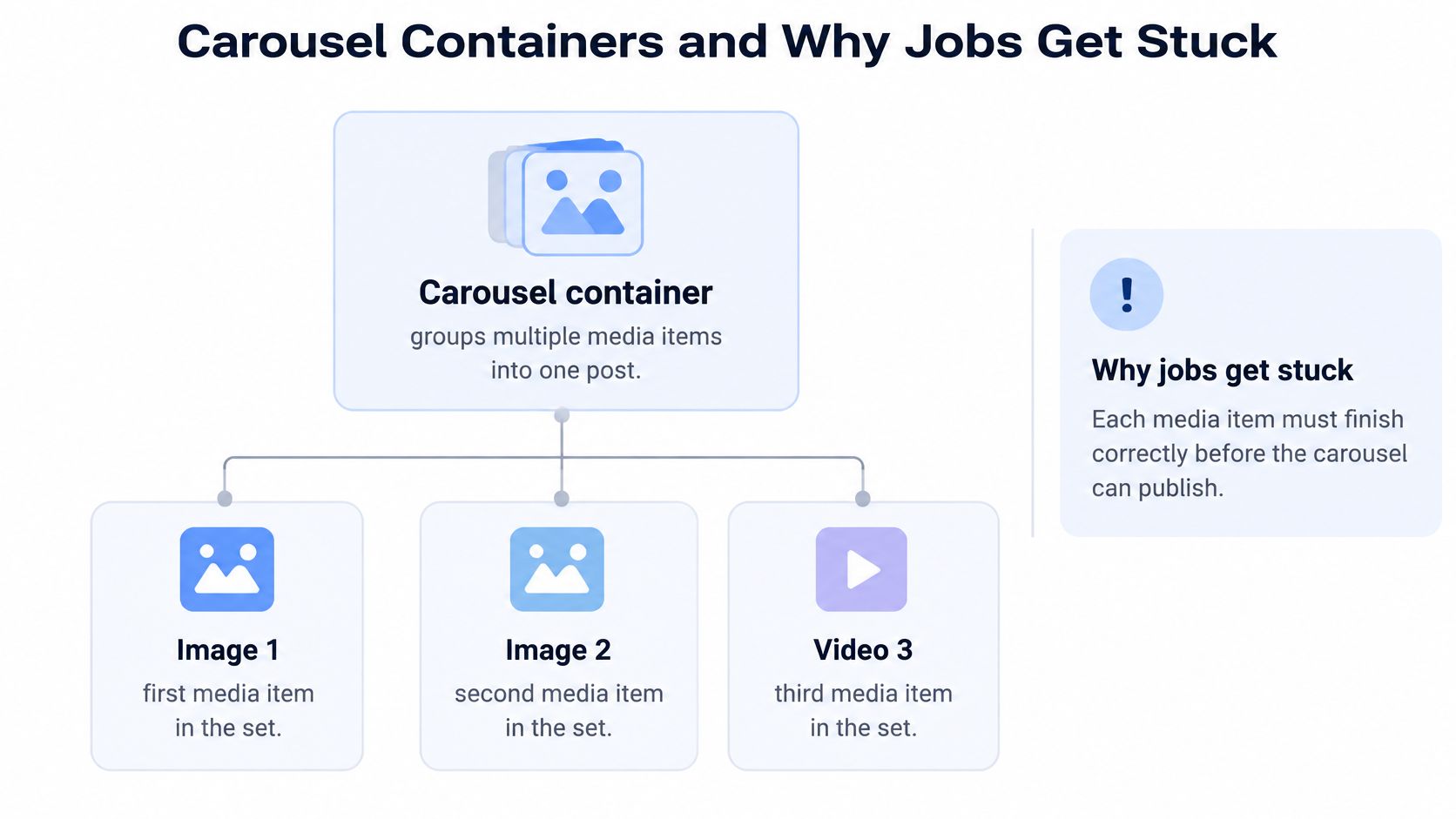 A diagram illustrating how a carousel container groups images and videos into a single social media post.
The Limits and the Dependency Order
A carousel must contain at least 2 and no more than 10 media items, and items may mix images and videos. The published carousel counts as one published post against the account's publishing limit, even though you still track each child creation step separately.
Create children first: Store every child container ID and its status on the job record.
Wait for all children: Don't create the parent until each child is usable. One unfinished child blocks the set.
Create the parent: Pass the child IDs in order through the children parameter, because order is presentation.
Wait again, then publish: Treat the parent like any other container. Poll it, then publish it once.
Normalize the Set Before Any of This
There's a second trap that file level validation misses. Instagram can normalize a carousel toward a shared presentation, and mixed aspect ratios are where the damage shows up. Don't treat the first slide as a magic setting. Treat it as the first asset in a sequence that still has to agree with every slide after it.
That's the part many Feed guides skip: a technically successful publish can still produce a carousel where slide three is cropped tighter than slide one, text drifts toward the edge, or a product photo loses the margin you designed around. Preprocess every slide to a common canvas before container creation. Preview the rendered sequence as a set, not as ten separate thumbnails. Decide up front whether your system pads, crops, or rejects incompatible files, and make that decision deterministic.
Silent quality loss at scale is what happens when apps, no code scenarios, or AI agents publish carousels without carousel level validation.
Dependency rule: If any child isn't ready, the carousel isn't stuck. It is correctly waiting on you.
Captions, Originality, and Recommendation Reach
Here's a failure mode no status code will show you. The API publish succeeds, followers see the post, and recommendation distribution goes nowhere. Most tutorials stop at image size and caption length, so they never address why a technically successful post underperforms.
The image below captures the part automation tends to skip: a human drafting something original.
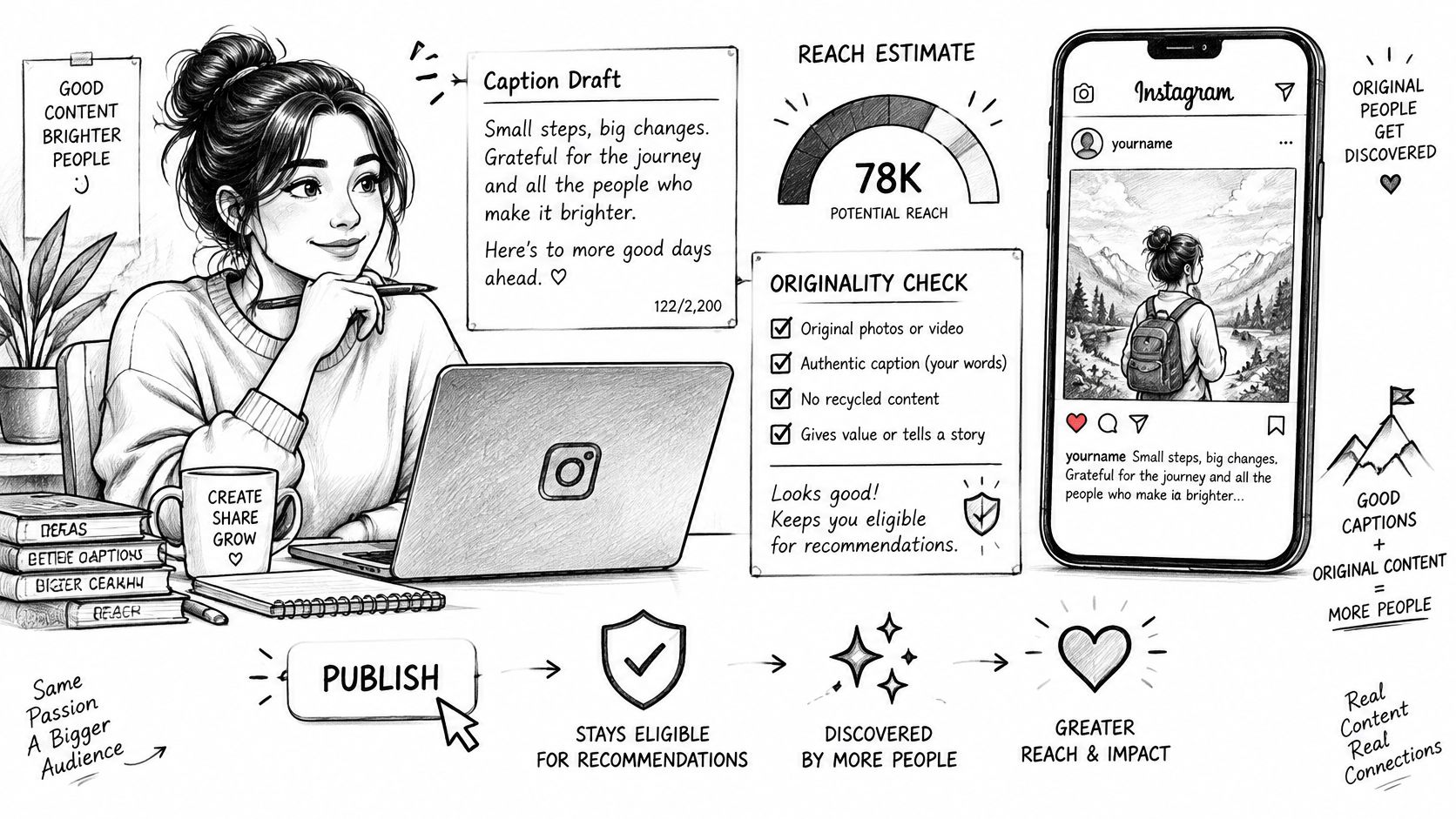 A girl working on a laptop, drafting an original Instagram post to increase her audience reach.
Instagram says its recommendation changes prioritize original content, while copied or lightly repurposed material can receive less distribution, as explained in Instagram's announcement on Feed recommendations changes. Superficial changes like reposting, adding borders, or crediting the source don't equal meaningful transformation.
Publishing and recommendation eligibility are separate things. Content can appear to followers yet remain unsuitable for Explore or suggested Feed distribution. If your reporting only confirms delivery, you'll miss that distinction entirely.
Why Post Everywhere Can Backfire
Blasting identical assets across accounts and platforms conflicts with Instagram's originality incentives. The workflow that's easiest to automate is often the workflow most likely to be treated as repurposed. Your pipeline needs safeguards, not just delivery.
This short video is worth watching before you design caption templates for automated accounts.
Add genuine transformation: New commentary, analysis, context, or original visuals per account, not a swapped hashtag block.
Detect duplicates: Flag identical or near identical assets before they publish to multiple accounts.
Record provenance: Store source ownership and origin fields on every asset, so reviewers can see where material came from.
Require approval for agents: Let an AI agent draft and queue, but keep a human approval step before it publishes original claims under a client's name.
Captions are part of that transformation. Write them per account, in the account's voice, with context a syndicated template can't supply.
Scheduling Around Instagram's Publishing Quota
Once publishing works, volume creates a new failure class. Jobs start failing near the end of a busy day, and your team blames the API when the account has used its publishing quota.
Meta's content_publishing_limit endpoint reports usage over a window of no more than 24 hours, including quota_usage, quota_total, and quota_duration fields, with an example showing a 50 item quota over 86,400 seconds in Meta's content publishing limit reference. Meta also raised the daily media post limit from 25 to 50 across Reels, Stories, and Feed posts. Query the endpoint instead of inferring remaining quota from your own job count, since posts made outside your system count too.
Schedule Against Reported Usage
Expose quota usage in your scheduler UI and in job records. When quota is exhausted, hold jobs until the window allows them. Don't retry them every few minutes and don't mark them permanently failed.
That distinction matters because API call throttling and content publishing quota exhaustion need different responses. Throttling calls for backoff on requests. Quota exhaustion calls for rescheduling the publication itself.
Check before dispatch: Read quota usage before releasing a batch, especially for accounts that also post manually.
Separate error classes: Label throttling, quota, token, and media failures distinctly in your queue so each gets the right recovery path.
Keep recovery mechanics: Use idempotency keys, exponential backoff for transient errors, and a dead letter queue for permanent failures.
If you're planning content weeks ahead, it helps to build a cinematic content calendar that your scheduler can translate into quota aware release times. Connecting that planning layer to an Instagram scheduling API that tracks account limits keeps the calendar honest about what can publish each day.
Choosing a Publishing Path and Your Next Step
You have three realistic ways to ship Feed publishing. They differ less in features than in what your team still has to own when something breaks at night. Be honest about that ownership before you choose, because the container flow, quota checks, and originality safeguards above don't disappear. Somebody maintains them.
Publishing Paths for Instagram Feed
Path | Best for | What you still own |
Direct API integration | Teams needing full control over every request and data flow | App review, OAuth and token refresh, container polling, quota handling, API version changes |
No code automation | Internal workflows and prototypes built by non developers | Scenario maintenance, error handling limits, per platform quirks inside each tool |
Managed publishing layer | Apps, automations, and AI agents adding publishing as a feature | Your product logic, content approval, and per account originality decisions |
Calling the API directly gives you maximum control and maximum maintenance. You'll manage your own Meta app through review, keep tokens alive, poll containers, and absorb every API change yourself. For a single internal tool publishing to accounts you control, that can be a fair trade. For a product where customers connect their own accounts, the review and token burden grows fast.
No code automation sits in the middle. It's fast for prototypes and internal posting, and it's useful for testing whether a workflow is worth productizing. The limits show up in error handling and state tracking, which are exactly where carousel and quota problems live.
A managed layer changes who maintains the platform plumbing. PostPulse, for example, offers a REST API, official n8n and Make.com nodes, and an MCP server for AI agents, using verified Meta, TikTok, and Google apps so teams skip the months long developer app review process, with OAuth, refresh, rate limits, and API version changes maintained on its side. Its stated pricing is pay as you go at $0.20 per publication or a subscription at $5 per account per month. You still own content quality and approval, which no vendor can decide for you.
Whichever path you pick, the creative side still needs intent. If Feed posts feed into paid promotion later, building high-converting Instagram campaigns is a useful read on how organic creative choices carry into ad performance.
Your Concrete Next Step
Don't start by wiring up scheduling for fifty accounts. Pick the path that matches who will connect accounts. Run one account through the eligibility and permission checks from the first section. Publish a single test image through the full container flow and watch each state in your logs.
Then publish one normalized carousel and preview it as a set. Check your quota reading against the endpoint. Add duplicate detection and an approval step before any agent touches a client account. That sequence, boring as it sounds, is what separates a demo that posts once from a system that keeps posting correctly.
If you'd rather not maintain Meta app review, token refresh, container polling, and quota handling yourself, PostPulse gives you one REST API, n8n and Make.com nodes, and an MCP server to post to Instagram Feed and eight other platforms. Connect one eligible account, publish a single test post through the flow covered above, and scale only after that first post lands exactly as expected.
About the Author

Founder of PostPulse — a social media scheduling platform for creators and teams. Software engineer with a passion for building developer tools and simplifying complex API integrations across social media platforms.