Instagram Reel Dimensions: Sizes, Ratios and Export Specs
Published on
Tags:
Export your Reel at 1080 x 1920 px in 9:16 portrait, as an MP4 with H.264 video. That's the canvas that fills the full-screen Reel viewer without padding, forced cropping, or wasted space at the edges.
You've probably hit the other version of this. The edit looks clean on your laptop, you upload it, and the headline is half under the username, the caption sits behind the action buttons, or the profile grid chops your subject at the forehead. Sometimes the file itself is fine and the API still won't publish it, because the container never finishes processing or Meta can't fetch the video URL you handed it.
Most guides collapse three different questions into one number. What Instagram accepts isn't the same as what fills the screen, and neither one guarantees your cover survives the profile grid. I'd separate those decisions from the start. Build for the full-screen frame, protect the center for the grid, and validate the encoded file before any publishing tool touches it.
Table of Contents
Instagram Reel Dimensions and File Specs at a Glance
Upload the wrong shape and Instagram decides the crop for you. Upload the wrong encoding and the file stalls before it ever reaches the viewer. The profile grid then applies a third cut, a centered 3:4 window that can remove foreheads, captions, and logos that looked safe in full screen. I treat those as three separate checks. Acceptance, full screen fill, and grid survival.
Start with one production target and treat everything else as a fallback. For Instagram Reel dimensions, that target is 1080 x 1920 px at 9:16, exported as progressive H.264 in an MP4 container. If a file deviates from that, you should know exactly why.
The Buffer guide to Instagram image and video sizes reports that Instagram can accept aspect ratios from approximately 1.91:1 through 9:16, while still identifying 1080 x 1920 as the size to normalize to before upload. Acceptance is permission. It does not mean the result fills a phone screen or preserves framing.
Reading the Spec Table Like a Preflight Checklist
Keep this table open while you export. Check the file you produced, not the preset name you clicked.
Setting | Recommended Value | Accepted Range or Limit | Notes |
Canvas (production target) | 1080 x 1920 px, 9:16 portrait | 720 px minimum resolution (reported) | Lowest practical 9:16 canvas is 720 x 1280 |
Aspect ratio | 9:16 vertical | About 1.91:1 through 9:16 (reported as accepted) | Non-9:16 files may be padded, cropped or shown smaller |
Frame rate | 30 fps baseline | Roughly 23 to 60 fps reported across third-party references, with one reference stating a 30 fps minimum | Use 30 fps unless source motion needs 60 fps |
Video container and codec | MP4 with H.264 | MP4 container, H.264 video | Use progressive scanning |
Profile grid preview | Centered 3:4 window, about 1080 x 1440 px | Centered crop of the 9:16 frame | Check faces and type in the app before publishing |
Maximum duration | 3 to 60 seconds in sharing flow | Value from sharing flow, not confirmed for every regular upload | Meta's iOS sharing documentation for Reels lists this range for background video |
Maximum file size | Under 50 MB in sharing flow | Value from sharing flow, not confirmed for every regular upload | Keep encodes under this weight when using that path |
Lock the canvas first. A 720 px minimum resolution gives 720 x 1280 as the lowest practical 9:16 export, but that is a floor. Text, subtitles, product detail, and faces hold up better through recompression when you start at 1080 x 1920. Do not upscale a soft source and expect restoration. You get a larger file with the same missing detail, and compression artifacts become easier to see on a large phone display.
Frame rate needs a practical rule. I recommend 30 fps for most Reels because it matches common capture, keeps motion smooth, and avoids needless transcoding. Use 60 fps only when the source was shot at 60 fps and fast movement benefits. Third-party references describe roughly 23 to 60 fps, with one stating a 30 fps minimum. Treat the edges of that reported range as uncertain for automated encoding. Confirm current behavior in Meta documentation before locking a template to 24 fps or 60 fps.
Duration and file size need the same discipline. Do not copy a roundup number into every publishing path. The sharing documentation lists Reel background videos at 1080p, running 3 to 60 seconds, in H.264, H.265, and WebM, and recommends keeping video under 50 MB. Those numbers belong to that flow. A regular in-app upload, a desktop upload, and an API upload can behave differently during processing, fetching, and validation.
That same documentation also mentions an optional sticker image at 640 x 480 pixels in JPG or PNG. That is the sticker asset. It is not the Reel canvas. Confusing the two produces a small, stretched export that fails the full-screen test immediately.
If you publish other Instagram video formats alongside Reels, ShipTeaser's guide to Instagram video formats is a useful companion for keeping the format families separate. Use it for context, then return to this table for the Reel-specific preflight.
Practical rule: Build for 9:16 full screen, protect the centered 3:4 for the grid, and validate the encoded MP4 before any publishing tool touches it.
Why 9:16 Is the Canvas and How Other Ratios Display
A horizontal export can look perfectly intentional in your editor and still feel lost in the Reel viewer. It sits in the middle of a tall frame, surrounded by unused space, while a native vertical video next to it takes over the whole screen. That's not a taste issue. It's geometry.
The sketch below captures the decision you're making before you shoot or edit, not after.
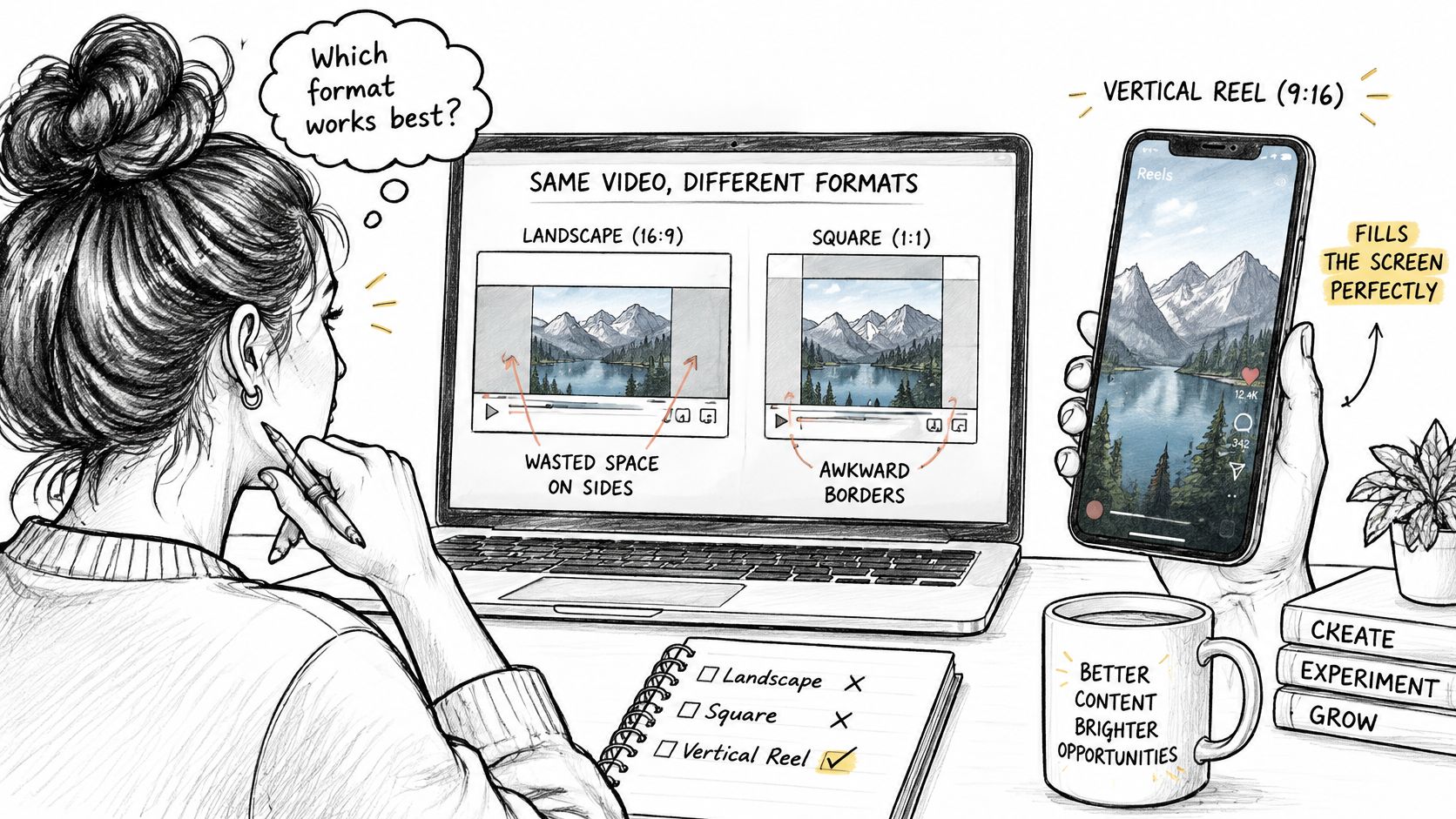 A person sketching to decide between landscape, square, and vertical video formats for optimal screen engagement.
The Media Cheat Sheet Instagram size reference identifies 1080 x 1920 pixels, equivalent to a 9:16 vertical aspect ratio, as the foundational production target because it matches the full-screen portrait display. It also notes that the 9:16 ratio can be expressed as 0.5625 when width is divided by height. Build at that size and you're designing in the same shape the viewer sees.
Meta points the same way. The Instagram Help Center guidance on Reels creative is the source for Meta recommending 9:16 vertical video for Instagram and Facebook Reels. Treat that as the framing target, then verify the exported file separately. A project called "final_9x16_v3" proves nothing about the pixels inside it.
Accepted Does Not Mean Visually Equivalent
Input Ratio | Typical Source | How It Displays in a Reel | Recommendation |
9:16 (1080 x 1920 px) | Vertical phone footage | Fills the full-screen portrait frame | Master format |
4:5 (1080 x 1350 px) | Feed portrait posts | May be padded or occupy less of the screen | Re-frame or re-export at 9:16 |
1:1 (1080 x 1080 px) | Square feed posts | Occupies less of the screen. Padding likely | Re-frame or re-export at 9:16 |
16:9 (1920 x 1080 px) | Landscape camera footage | Accepted within the reported range but does not fill a portrait frame | Avoid for Reels |
1.91:1 (wide end of reported range) | Landscape link-style video | Largest letterboxing and smallest on-screen size | Avoid for Reels |
Read the middle rows carefully. A 4:5 feed asset isn't broken, it's just built for a different surface. Forcing it into a Reel without re-framing leaves you with padding or a smaller presentation. The fix happens in the edit, where you decide what enters the taller frame and what stays out. Stretching the file to fill the canvas distorts faces, logos, and text, and viewers notice immediately.
Square video has the same problem with less height to work with. If the original edit still exists, open it, set a vertical timeline, and rebuild the composition. If all you have is the exported square file, you're choosing between padding, cropping in and losing resolution, or accepting a smaller on-screen result. None of those is as good as a native vertical edit.
The widest format is the hardest case. A 16:9 file can sit inside the reported accepted range and still look like a compromise in a portrait viewer. Say you have camera footage of a product demo shot wide so two people fit in frame. Cropping that to 9:16 may cut one person out entirely. Padding keeps everyone visible but shrinks the action. I'd rather re-shoot or re-edit with a vertical composition than publish the wide master and hope viewers lean in.
The video below is worth watching with that table in mind, especially the difference between a file Instagram takes and a file that owns the screen.
If you're deciding where Reels fit against other Instagram formats in a content program, the B2B Instagram benchmarks for 2026 from ContentBuck give useful context on how the formats compare. That strategic choice still doesn't change the export rule. Once you've chosen a Reel, 9:16 is the canvas.
My working rule is simple. Read the ratio from the exported file's actual pixel dimensions, divide width by height yourself if you have to, and don't trust the sequence name, preset label, or filename. Editors keep old settings, templates get duplicated, and someone always exports from the wrong sequence eventually. The file's geometry is the only version Instagram receives.
Safe Zones for Captions, Faces and Logos
A product clip opens full screen and the headline looks balanced in the editor. The same file appears on the profile and the thumbnail shows a product with no explanation. The headline sat in the top band that the grid crop removes. That failure comes from treating placement as one problem. It is three separate checks: what Instagram accepts, what fills the full-screen Reel viewer, and what survives the 3:4 profile grid crop.
The Perfect Corp guide to Instagram post sizes reports that the profile grid preview uses a centered 3:4 window, approximately 1080 x 1440 pixels, rather than the full 9:16 cover frame.
That distinction changes how you compose, because your full frame is taller than what a profile visitor sees. Three regions matter on every export:
The 9:16 playback frame is the full 1080 x 1920 px area in the Reel viewer.
The centered 3:4 grid window is about 1080 x 1440 px, which removes 240 px from the top and 240 px from the bottom of a 1920 px tall frame.
The overlay areas are the parts of the playback frame covered at times by captions, buttons, usernames, and account information.
The diagram below stacks those canvases so you can see why the center does so much work.
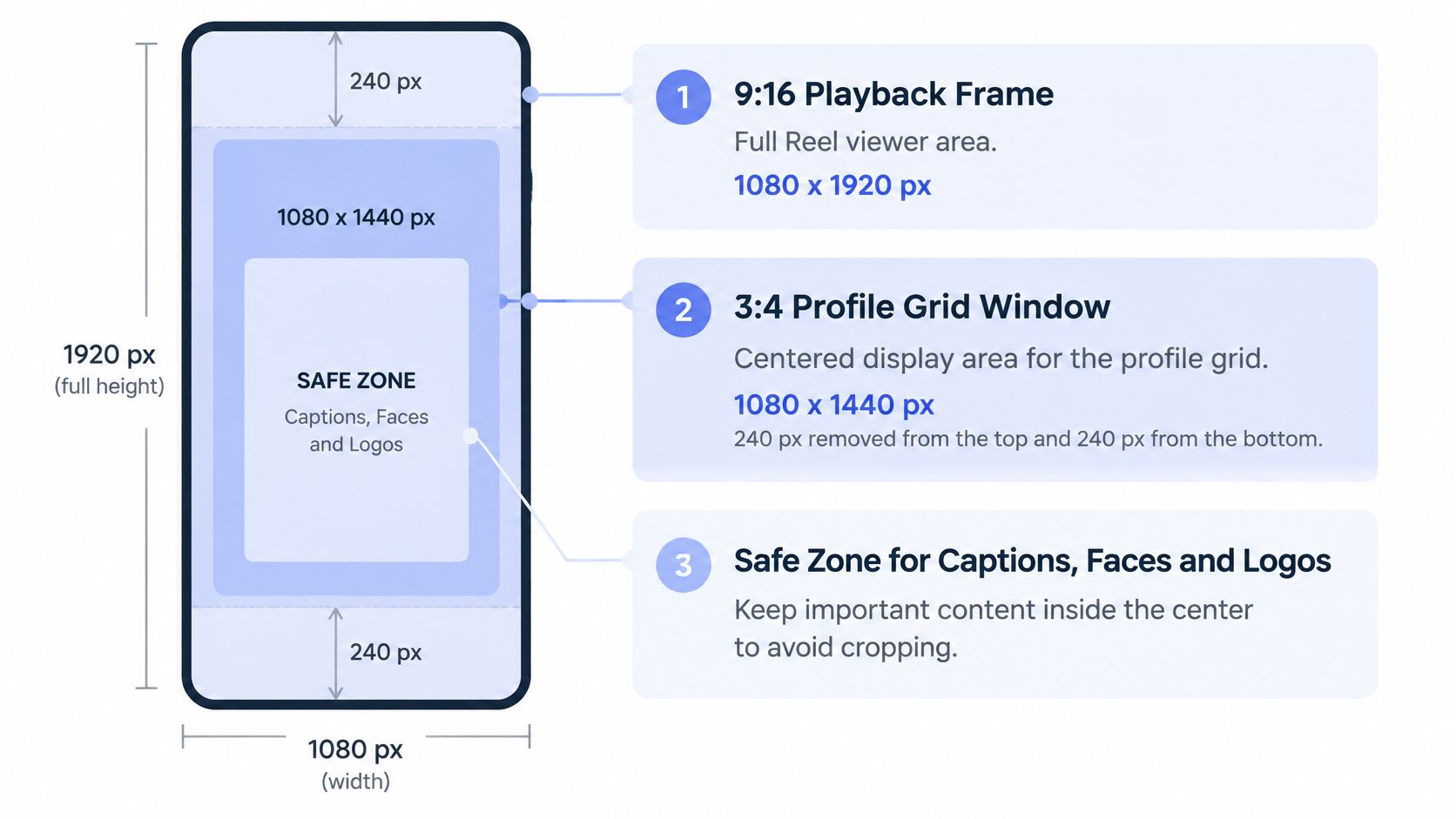 A diagram illustrating Instagram Reel dimensions, including the 9:16 playback frame and safe zones for content.
The Central Band Is the Placement Rule
Put faces, logos, product shots, headline text, and calls to action in the central band that survives the grid crop. That region holds up in full-screen playback and still reads in the thumbnail. I recommend keeping the message inside that middle rectangle and letting the outer bands carry background only.
Secondary captions can sit lower. Understand the trade before you do it. The lower part of the frame is where playback overlays compete for space, so anything placed there can end up covered during viewing.
Treat the overlay areas as zones rather than a precise pixel ruler, because interface elements shift with caption length, account details, and the viewing surface. A template that promises one exact bottom margin for every Reel overstates what any static guide can guarantee. Build clearance around text and logos, then check the result against real playback instead of trusting a fixed number.
Design for the center first, then use the top and bottom of the 9:16 frame for context that can survive being cropped or covered.
Headlines show the cost of ignoring that order. A headline parked in the top fifth of the frame balances nicely against a product below it in the edit. Full-screen playback reads fine. The centered grid crop removes the top band and the thumbnail becomes a product with no explanation. Move that headline down into the central band, tighten it to a few words, and the same cover works in both places.
Faces fail the same way. A presenter framed high in the shot can lose the top of the head in the grid, or sit so close to the edge that the playback crop makes the framing look tight even when the video plays correctly. Lower the framing slightly. Keep eyes and mouth comfortably inside the center. Leave the outer bands for background, hands, scenery, or other material that supports the shot without carrying the message.
Wider Footage Has to Earn Its Way Into the Zones
These safe zones assume a vertical composition already exists. A wider or square source dropped into a tall timeline has no reliable placement until you re-frame it. Scaling to fill the height can push the subject partly out of frame. Scaling to fit the width leaves empty bands top and bottom. Neither version gives text a stable home.
Choose the subject position inside the 9:16 frame first, then place graphics against the central band. That order prevents rework. Graphics locked to the original wide composition shift relative to the subject after the crop, which forces a second pass over every caption and logo.
Preview both contexts before export. Watch the full frame the way a viewer in the Reels tab sees it. Then mask to the centered portion and read it as a grid thumbnail. Short test, clear result. If headline, face, and product stay legible in both views, the layout is ready. If any of them depend on the top 240 px or the bottom 240 px, the layout needs another adjustment.
How to Export a Reel That Passes Upload Checks
The goal isn't the biggest file you can produce. It's a file that passes checks, displays cleanly after Instagram recompresses it, and doesn't need a second export because someone used the wrong sequence. Bigger than the target usually buys you upload time, not visible quality.
The Hopper HQ guide to Instagram Reel size describes an MP4 container with H.264 video and progressive scanning, with 30 fps as the practical baseline and a minimum resolution of 720 pixels for accepted uploads. It also reports support for roughly 23 to 60 fps, which is one side of the frame rate conflict you should verify against Meta before hard-coding an edge case.
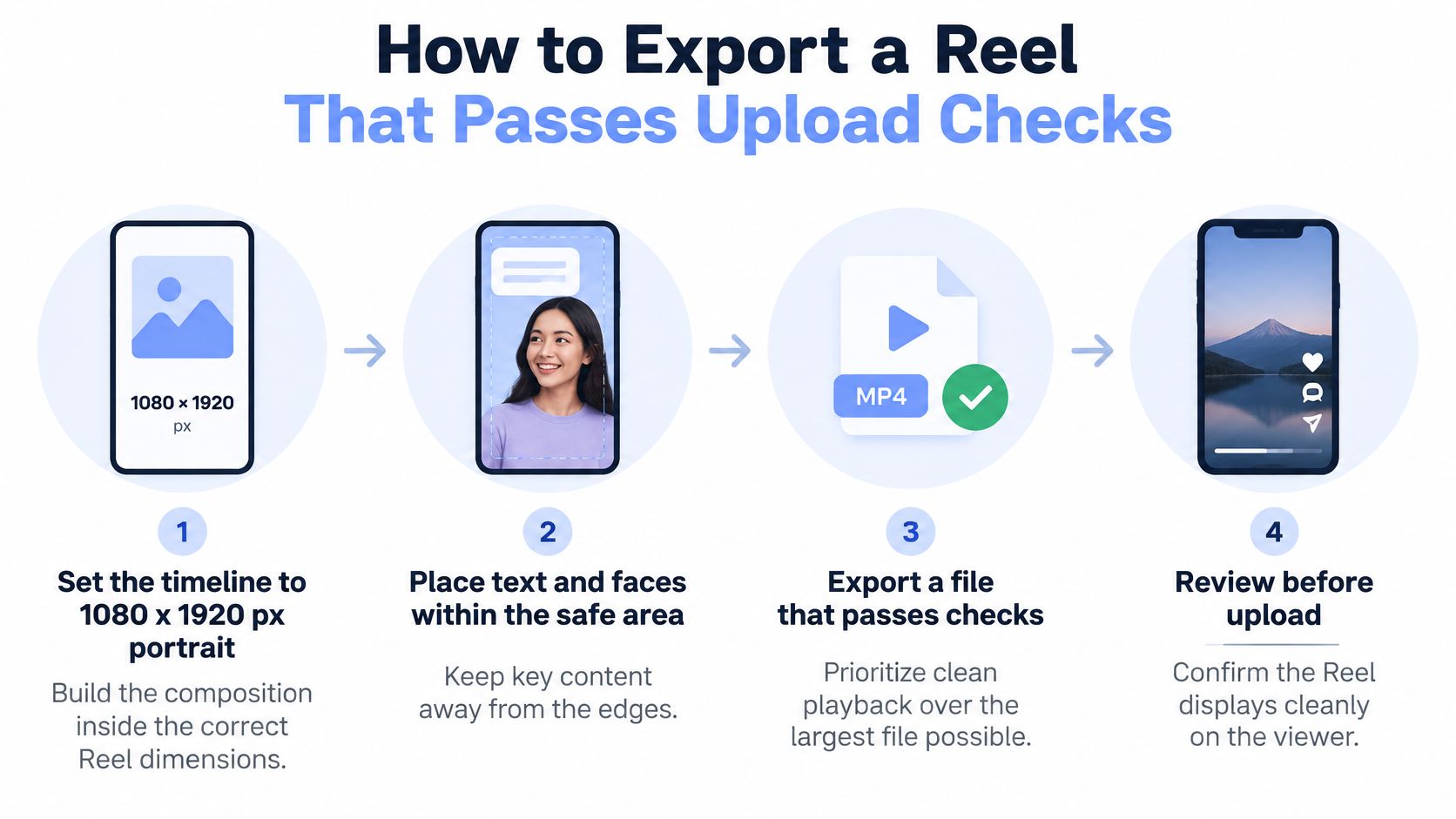 A four-step guide infographic illustrating how to create and export Instagram Reels with optimal dimensions and safe zones.
The Export Sequence I Would Use
Set the timeline to 1080 x 1920 px portrait. Build the composition inside that frame from the start. Exporting substantially above 1080p generally increases file size without a dependable playback gain, so don't use a 4K timeline as insurance.
Match the frame rate to the source. Use 30 fps for ordinary footage. Use 60 fps when the source was captured at 60 fps and motion fidelity matters, such as fast product movement or sports footage. Converting slower footage up to 60 fps doesn't create real frames.
Export MP4 with H.264 and progressive scanning. This is the broadly compatible combination. Interlaced output belongs to broadcast workflows, not phone-first vertical video, and exotic codec choices create avoidable compatibility questions.
Apply crops and padding in the editor. Decide the framing while you can see it. If you let the platform handle a mismatched file, you've handed the composition decision to an automated resize.
Re-check pixel dimensions after every crop or resize. A crop can leave you at an odd size that looks close enough in the editor. Read the encoded output and confirm it's still 1080 x 1920 before the file moves on.
Run a preflight before publishing. Validate the container, codec, progressive scan, frame rate, pixel dimensions, orientation metadata, and file size. A media validation check before upload catches the boring failures, which are most of them. Rotated phone footage and mismatched orientation metadata are classic examples.
Confirm duration and file size in Meta's current Help Center. Don't assume a value from a third-party roundup still applies to your publishing path. Check the official limit, then record the value you checked and the date in your process notes if your team publishes at volume.
Why Each Check Prevents a Specific Failure
Timeline size prevents the platform from inventing your framing. Codec and container checks prevent a file that plays locally but fails or behaves oddly after upload. Orientation checks prevent the sideways Reel, where the pixels are correct but the metadata tells a player to rotate them. File size and duration checks prevent rejection at the last step, after someone has already approved the creative.
The 720 x 1280 canvas belongs in this conversation as a fallback. If you're recovering older footage or working with a source that has less detail, that's the lowest practical 9:16 size to aim for. Don't choose it to save a few seconds of upload time on new material. Instagram recompresses what you send, and starting with more real detail gives that process more to work with.
Don't upscale low-resolution footage just to pass a dimension check either. The file will report the right numbers and still look soft, because the missing detail was never there. You're better off being honest about the source quality, keeping text large and simple, and avoiding fine detail that won't survive.
One more habit saves a lot of debugging. Keep the exported file that passed, exactly as it passed. Don't re-export from the project later and assume it's identical. Presets drift, editors update, and someone changes a setting. The validated file is your known good artifact.
Uploading a Reel Through the Content Publishing API
Your dimensions can be perfect and the API upload can still go nowhere. You create a container, it sits in progress, or the publish step fails because Meta never retrieved the video in the first place. That's usually not a sizing problem. It's a workflow problem.
Meta's Content Publishing API documentation for Instagram describes the upload as an Instagram media container created with media_type=REELS and a video_url, followed by a separate publish request using the returned container ID. Two steps, not one. If your code treats container creation as publishing, nothing goes live.
The Two-Step Flow, in Order
Host the video at a publicly reachable URL. Meta fetches the file by issuing its own request to your video_url. A localhost path won't work, a login-only link won't work, and a signed URL that expires before Meta retrieves it won't work. Test the URL from outside your own network and without your session cookies.
Create the container with media_type=REELS. Pass the video_url with that media type. This tells Meta to build a Reel container rather than another kind of media object, and it starts the retrieval and processing work.
Keep the container ID and wait for processing. Save the returned ID immediately. Check the status Meta reports and don't attempt the publish step until processing has finished. Publishing too early turns a timing issue into a confusing error.
Publish using the container ID. The publish request is separate from creation. Only after this step succeeds should your system mark the Reel as posted.
Read the published object back correctly. When you query the result, media_type returns VIDEO, because a Reel is represented internally as a video. Check media_product_type to confirm the video was designated as a Reel. If your reporting logic looks only at media_type, you'll misclassify your own posts.
Validate Before Meta Ever Sees the File
The API isn't a fix-up service. Run your dimension, codec, frame rate, and orientation checks before you create the container, while the file is still in your pipeline and cheap to replace. Once you've handed Meta a URL, every correction means a new file, a new URL, and a new container.
If you're building this flow yourself, the details of the Instagram Reels API publishing path are worth mapping against your own implementation before you ship. Compare each step, especially where your code stores the container ID and how it handles a container that never reaches a publishable state.
Hosting deserves more attention than it usually gets. Put the file somewhere stable, confirm the URL returns the video itself rather than a redirect to a login page or an HTML preview, and keep it available until after publishing succeeds. Developers lose hours here because the URL works in their browser, where they're already authenticated, and fails for Meta's unauthenticated fetch. An expiring URL creates the same failure on a timer. If your storage issues short-lived links, generate the link as late as possible or use a host that stays reachable through processing.
Log three things for every attempt. Log the container ID so you can trace the object, the processing status so you know where it stopped, and the host of the video URL so you can spot patterns when one storage location keeps failing. Add your preflight results for dimensions and codec while you're at it. When a publish fails at 2 a.m., that log line is the difference between a five-minute fix and re-running the whole pipeline blind.
Correct dimensions make a file eligible. A reachable URL, a finished container, and a separate publish call make it live.
Cover Images, Thumbnails and Feed Placement Settings
A six second clip opens on a black transition, then cuts to the product centered in frame. The video file is correct. The grid thumbnail is black. That mismatch is a cover setting problem, not an export problem. Covers and placement control what surface shows the Reel and which frame represents it. They leave the encoded dimensions untouched.
Parameter | What It Controls | Default or Behavior | Affects Dimensions? |
share_to_feed=true | Places the Reel in the Feed and the Reels tab | Appears in both surfaces when set | No |
share_to_feed=false | Places the Reel in the Reels tab only | Appears only in the Reels tab | No |
cover_url | Custom cover image for the Reel | Set explicitly per upload | No. Supplies a separate still image |
thumb_offset | Frame used as thumbnail, in milliseconds | Set explicitly per upload | No. Chooses which frame is shown |
caption, audio name, location | Metadata shown with the Reel | Set explicitly per upload | No |
Set share_to_feed deliberately in any automation. The flag decides whether the Reel appears in both Feed and the Reels tab, or only in the Reels tab. That is an audience decision. I recommend making it explicit per account or per campaign in your publishing configuration, so no Reel inherits distribution by accident.
Use cover_url when the video frames alone will not survive the grid. A custom still lets you control composition for the centered 3:4 window, while the video keeps playing full screen 9:16 in the viewer. Keep the cover simple. One subject, centered, with room above and below. Type placed near the top edge or bottom edge of a 9:16 still often disappears under the grid crop. Recut the still to the intended crop covers for profile grid display before upload, then confirm it reads at small size.
Use thumb_offset when you want a video frame as the thumbnail without uploading a separate image. The value selects a point in time, in milliseconds. Return to the black transition example. Move the offset forward to the moment the product sits in the central band, and the grid shows product instead of black. The file did not change. Only the selected frame changed.
That selection has to respect three different views. Instagram accepts the file, the full screen viewer fills 9:16, and the profile grid shows a centered 3:4 crop. A frame that works full screen can fail in the grid when the face or headline sits high or low. Review the candidate frame with the top and bottom removed. If the subject still reads, keep the offset. If the subject gets cut, pick a later or earlier frame where the subject already sits in the middle.
Caption, collaborator usernames, tagged users, audio name, and location belong in the publishing step. They affect discovery, credit, and clarity. They do not resize video. Keep geometry in the export step and keep these fields in the upload payload, so a metadata edit never triggers a needless re-export.
Common Sizing Mistakes and How to Avoid Them
A file can pass Instagram checks, leave black bars in the full-screen Reel viewer, and still lose its headline in the 3:4 profile grid crop. Those are three separate tests. Most rework comes from treating acceptance as proof of presentation, so check the encoded file and the framing before you publish.
The SociaHive guide to Instagram Reel size reports that Instagram accepts Reel aspect ratios from 1.91:1 through 9:16, with a minimum resolution of 720 pixels. Acceptance only means the upload will not be rejected. It says nothing about whether the Reel fills the vertical viewer or whether captions survive the grid.
Stretching a 4:5 or 1:1 file to fill 9:16. Faces widen, text deforms, and logos look wrong. Re-frame from the original edit instead of distorting the export.
Upscaling weak footage to reach 1080 x 1920. The numbers pass and the picture stays soft, because upscaling adds file size without restoring detail. Export from the best native source you have and treat 720 x 1280 as the floor.
Trusting the project or file name as proof of 9:16. Names describe intent, not pixels. Read the encoded output dimensions during preflight and let that decide.
Ignoring phone orientation metadata. The video looks upright in one player and ships rotated in another. Check orientation before upload and confirm the exported file plays upright outside your editor.
Designing only for the profile grid. Everything crowds into the center and the full-screen Reel feels empty at the top and bottom. Keep critical content in the central band, then use the outer frame for supporting visuals.
Designing only for full-screen playback. The grid crop removes your headline or the top of a face. Preview the centered crop before you call the edit done.
There is a pattern underneath all six. Someone checked the intention instead of the artifact. The timeline was supposed to be vertical, the preset was supposed to be the Reel preset, the footage was supposed to be the good take. Publishing systems do not receive intentions. They receive files with measurable properties, so measure them.
I recommend making that measurement automatic wherever software posts for you. If you publish through an API, an n8n or Make workflow, or an AI agent, a technically accepted file with bad framing will go out at scale before a human sees it. Your automation should validate aspect ratio, resolution, frame rate, orientation, and codec on every asset. When a file fails, it should stop with a precise error naming the property that is wrong, or generate a proper 9:16 derivative from the source.
Acceptance is the lowest bar in the whole process. Your audience sees presentation quality, not a successful upload response.
Lock a Reusable Reel Template Before Your Next Export
A locked template removes sizing decisions from every future edit. Save a 1080 x 1920 px, 9:16 master with the central safe band marked as a nonprinting guide layer. Headlines, faces, and logos go inside that band because that area fills the full-screen viewer and survives the 3:4 profile grid crop. Supporting visuals can use the outer frame.
Pair the template with one protected export preset. Use MP4, H.264, progressive scan, and 30 fps, and switch to 60 fps only when the source was captured at 60 fps. Give the preset a clear name and lock it against casual edits. Trust matters here. An editor needs to know the preset still matches what Instagram accepts, what fills the viewer, and what survives the grid.
Set share_to_feed per account rather than leaving feed placement to chance. Set thumb_offset explicitly on every Reel so Instagram does not use the first frame as the default thumbnail. If short video ads are part of the same workflow, a tool such as the ShortGenius AI video ad maker can produce draft assets quickly, but those files still need the same dimension and safe zone checks as anything edited by hand.
Run one test Reel through the complete publishing path. Watch full-screen playback on a phone, then check the grid thumbnail on the profile. Log the dimensions, frame rate, codec, file size, and duration for that upload so a later failure points to one changed setting. Confirm the current duration and file size limits in Meta's official documentation before you scale this template, because allowed values can change and may differ by publishing path. If you publish through an API, PostPulse is one option that handles token management and the API layer, which leaves more time for asset validation.
If you're tired of babysitting container states, expiring tokens, and per-platform upload quirks, PostPulse gives you one publishing integration for Instagram Reels and eight other platforms through a REST API, n8n and Make nodes, or an MCP server. You bring correctly sized, validated assets, and it handles the API layer, token refresh, and publishing calls. Visit PostPulse to wire it into your app, automation, or agent and ship your next Reel through a pipeline you don't have to babysit.
About the Author

Founder of PostPulse — a social media scheduling platform for creators and teams. Software engineer with a passion for building developer tools and simplifying complex API integrations across social media platforms.