PostPulse MCP Setup
Published on · Updated on
Tags:
In this article, we're going to show you how to setup and add PostPulse to your AI assistants like Claude, Cursor, and other MCP-compatible clients. Turning your AI agents into content creation and publishing tools.
Overview: What's An MCP?
 PostPulse YouTube Thumbnails (1)
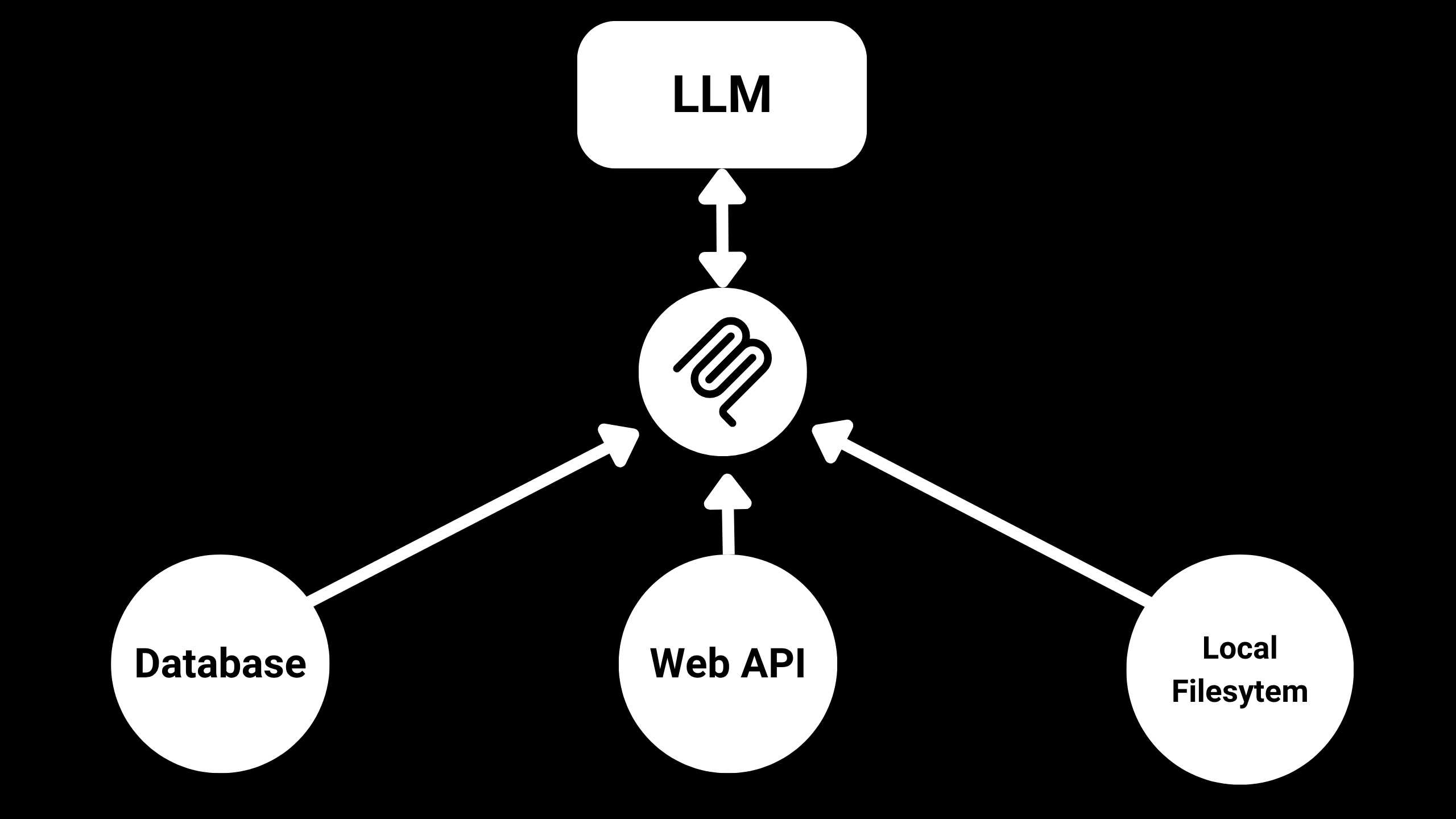
Before we proceed, we need to make sure you're aware of what MCP even is: If you've used AI tools long enough, you'll probably notice that AI agents are great at talking, but terrible at performing tasks, that's because it exists in a bubble. If you want it to analyze data, check files or schedule calendar dates, you'll have to copy and paste your data for hours to get it right, it's a disconnected mess.
That's where MCP comes in; MCP stands for Model Context Protocol and it's like a universal language for AI tools, instead of building hundreds of custom connections for every single task, developers now have one standard way to plug AI into everything. Think of it like USBC for your digital life; once a tool is MCP compliant, your AI doesn't need to learn a new trick to use it, it just plugs in and gets to work. It can search your internal docs, pull live data or trigger workflows in real time, MCP turns AI from a chatbot into a connected team node.
So what does this have to do with PostPulse? With the PostPulse MCP, you can now turn your favorite AI agents into content creation AND social media publishing tools. Generate content in your chatbot, schedule your posts, make useful edits and pull data directly from PostPulse, all from the comfort of your AI agent, without ever having to copy and paste your data or make a complex API connection.
Setup
To add PostPulse's remote MCP server; all you'll need to do is copy the URL below, paste it in your client and that's it! Your client is going to auto-discover the OAuth endpoints and walk you through authorization.
 ScreenShot Tool -20260513231655
Special Setup: Claude Desktop and Claude Web
Claude Desktop:
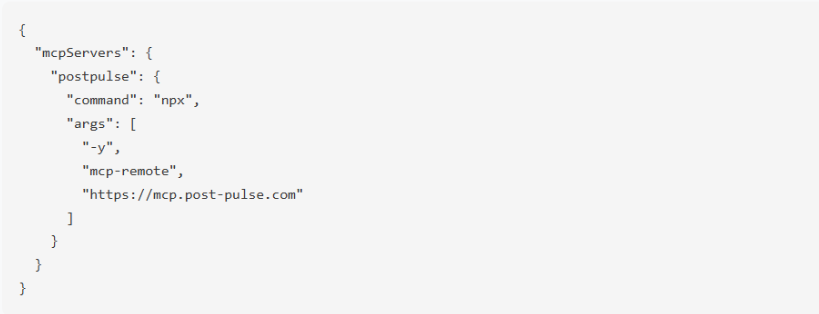
If you're using Claude Desktop, add this to your claude_desktop_config.json:
 ScreenShot Tool -20260515034401
Claude Web:
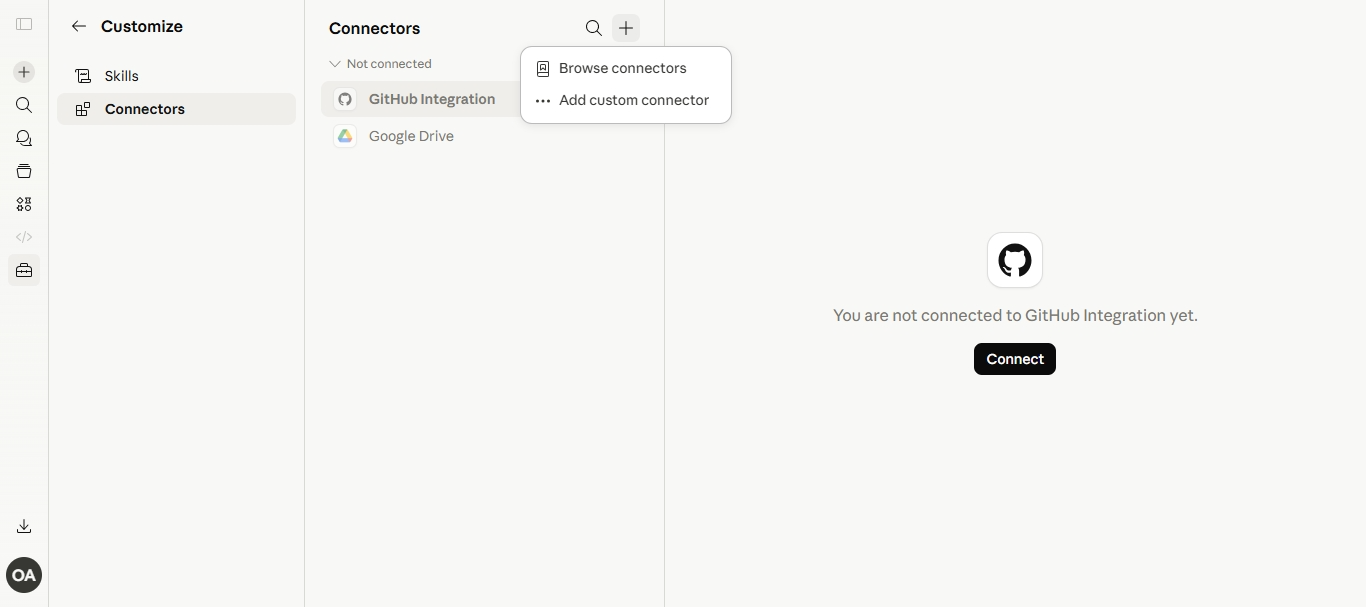
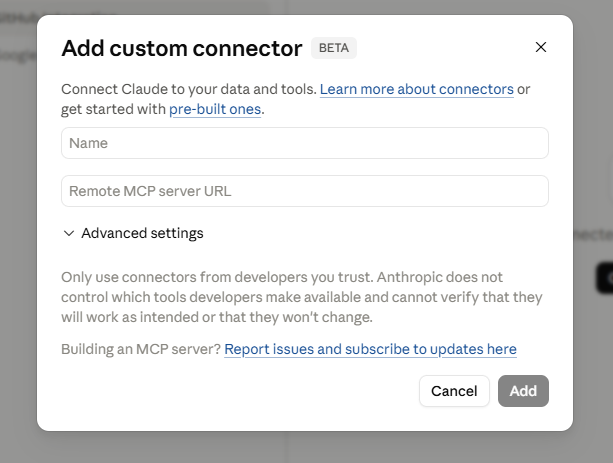
If you're using Claude's web platform, you can also add the PostPulse MCP remote server there by going to the connectors section
 ScreenShot Tool -20260515035507
Add a custom connector and paste the remote MCP URL, and that's it.
 ScreenShot Tool -20260515035606
Conclusion
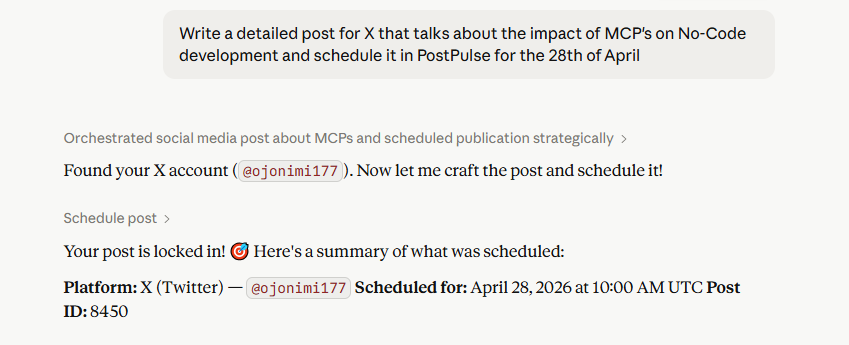
With PostPulse's remote MCP, creating complex 3rd party connections and API calls are now a thing of the past. All you'll need is an MCP compatible platform, and you'll be able to perform actions like the below effortlessly, from the comfort of your AI agent.
 ScreenShot Tool -20260515040844
About the Author