Perfect Discord Profile Picture Size: 2026 Guide
Published on June 11, 2026
Tags:
Use 128×128 pixels as the baseline Discord profile picture size, keep the file under 8 MB, and make it a 1:1 square. If you want a sharper result, especially on higher-resolution screens, export at 512×512 pixels and let Discord scale it down.
The pain point usually shows up the same way. You upload an avatar that looks clean in Figma, Photoshop, or your image editor of choice, then Discord turns it into something soft, oddly cropped, or both. The problem usually isn't the artwork. It's that Discord treats avatars like processed assets, not raw images.
That means your source file gets checked, resized, and displayed inside a circle. If you prep the image like a normal square headshot without thinking about the crop and scaling path, Discord does exactly what it wants and your composition loses. That's why a lot of polished avatars still look wrong after upload.
Table of Contents
The Blurry and Badly Cropped Avatar Problem
You make an avatar, export it, upload it, and Discord shaves off the edges of the design or makes the face look softer than expected. That's the standard failure mode for anyone treating Discord like a dumb file host.
A common example is a portrait with hair, headphones, or text pushed near the corners of the canvas. In the editor it still looks like a square image, but once Discord displays it as a circle, those edge details get clipped. Another common miss is using a tiny source image and expecting Discord to rescue it.
Practical rule: If the important part of the image lives near the border, Discord will punish the composition.
This gets worse when the original artwork was made for another platform first. A social avatar that works on X, Slack, or GitHub can still fail on Discord because the visible area feels tighter after the circular crop.
If you're generating a fresh avatar instead of editing an old one, tools that create professional AI portraits can be useful as a starting point, especially when you need a centered face with a clean background. The key is still the same. Export for Discord's square-in, circle-out behavior instead of trusting the default output.
Discord PFP Quick Reference Specs 2026
Blurry results usually start with one of three mistakes: a source image that is too small, a composition that uses the corners, or a file choice that does not survive Discord's processing cleanly. Use these specs as the pre-upload check.
Discord Profile Picture Requirements
Attribute | Requirement |
Recommended baseline size | 128×128 pixels |
Better working size | 512×512 pixels |
Aspect ratio | 1:1 |
Upload limit | 8 MB |
Common formats | JPG, PNG, GIF |
Final display shape | Circular crop |
The table gives the hard constraints. Optimal quality is achieved by preparing the image for Discord's asset pipeline instead of treating upload size as the whole problem. Discord accepts a square file, then resizes it for different UI slots and presents it inside a circular mask. A technically valid file can still look wrong if the composition or export settings are off.
A few practical rules help:
Build on a square canvas. Cropping to 1:1 before upload gives you control instead of letting Discord make the awkward decision.
Use 512×512 as the working default. It gives Discord enough detail to scale down cleanly across desktop, mobile, and higher-density displays.
Keep the subject centered. Faces, logos, and initials need padding because the visible result is a circle, not the full square.
Pick the format for the image type. PNG works better for sharp edges and transparency. JPG is fine for photo-style avatars without transparent backgrounds. GIF is for animation, but it adds weight and can expose compression artifacts faster.
Stay under the file limit without crushing detail. If you have to compress aggressively to fit, start from a cleaner export rather than repeatedly re-saving the same file.
One trade-off matters more than people expect. Bigger is usually better, but only if the source is clean. Upscaling a soft 96×96 image to 512×512 does not restore detail. It just gives Discord a larger blurry file to process.
Understanding the Discord Avatar Pipeline
Discord avatar handling makes more sense when you think about it like an asset pipeline rather than an image upload field.
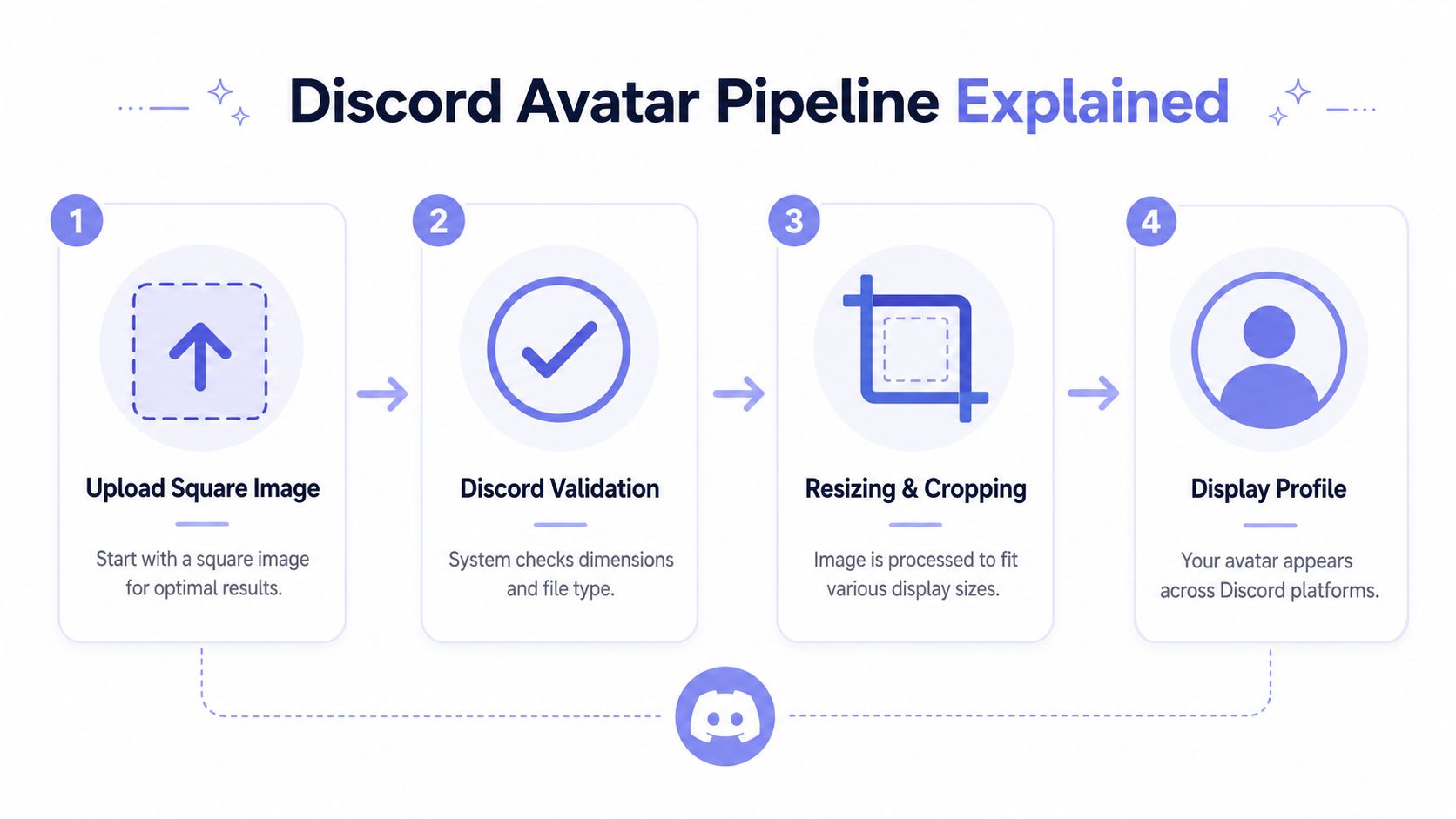 A four-step infographic explaining the Discord avatar upload, validation, processing, and display pipeline for profile pictures.
What Discord actually does to your image
The clean mental model is this:
You upload a square image.
Discord validates the image shape and file characteristics.
Discord resizes that asset for different UI contexts.
Discord displays it with a circular crop.
That “square asset pipeline” framing is the useful one. Pixazo's write-up on Discord profile picture size describes the avatar spec as a square upload flow with a 1:1 aspect ratio, a commonly cited 128×128 px minimum or recommended working size, and a final circular crop that requires keeping important elements inside a centered safe area.
Why centered composition matters
Developers tend to think in dimensions first. Designers tend to think in composition first. For Discord avatars, both matter, but composition is where most failures happen.
If you have a face, logo, mascot, or initials, keep that content centered and give it breathing room. Don't park key details in the corners. Don't rely on thin edge outlines. Don't assume the editor preview means every context in Discord will feel identical.
Treat the visible avatar as a circle inside your square file. The corners are expendable.
That one rule fixes most bad crops before they happen.
Recommended Dimensions and File Size Explained
Blurry avatars usually come from the wrong export strategy, not the wrong artwork. The file can look sharp on your canvas and still soften after Discord resizes it for the sidebar, member list, profile popout, and full profile view.
Export size that holds up in Discord
A square source at 128×128 pixels is the floor for a basic avatar. It works for simple graphics, thick shapes, bold initials, and flat-color icons where there is not much fine detail to preserve.
For anything with soft edges, facial detail, line art, glow effects, or transparent edges, export at 512×512 pixels. That gives Discord a cleaner master asset to downscale from, which usually produces better edges than uploading a tiny image and asking the platform to scale it up or reprocess a weak source.
The goal is not chasing the biggest possible file. The goal is giving Discord enough clean pixel data before its resizing and compression steps strip detail away.
How file size and format affect the result
Discord accepts a reasonably large upload, but heavier files are not automatically better. Large PNGs with noisy textures or oversized transparent canvases waste bytes without improving the final avatar. The same goes for GIFs that carry too many frames or too much unused space around the subject.
Use this rule set in practice:
128×128 for simple avatars that rely on shape, contrast, and centered composition
512×512 for portraits, logos with thin strokes, transparency, or artwork that needs cleaner downscaling
PNG for transparency, logos, and crisp edges
JPG for photographic avatars without transparency, especially if PNG export gets bulky
GIF only when animation matters enough to justify larger file weight and possible compression trade-offs
What I recommend in real workflows
I usually export two versions first: a 512×512 PNG and a 512×512 JPG. Then I compare them in small-size previews. PNG often keeps edges cleaner. JPG can produce a smaller file and sometimes looks better on photographic images with no transparent background.
If you are preparing a batch of avatars, Bulk Image Generation's image resizing is a practical way to create square exports quickly. If your team also has to keep track of image specs across other social apps, the platform image spec references help reduce guesswork without maintaining your own document.
One more practical point. Remove empty padding before export. Discord crops to a circle after resizing, so unused space around the subject makes the actual face or logo appear smaller than expected.
How to Change Your Discord Avatar Step by Step
Once the image is prepared correctly, the actual upload is the easy part.
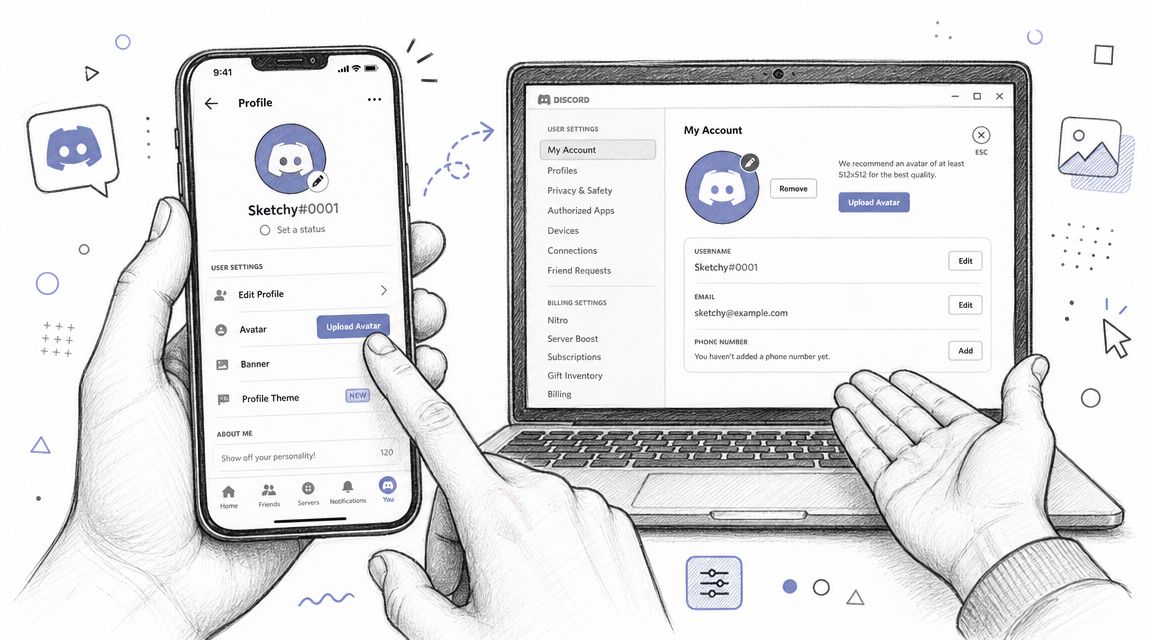 A hand holding a smartphone and another hand gesturing toward a laptop displaying Discord account settings.
On desktop
Open Discord.
Click the gear icon for User Settings.
Open your profile settings.
Choose the avatar edit option.
Select your prepared square image.
Adjust the crop if Discord prompts you.
Save changes.
The important part isn't the clicks. It's checking the preview before you confirm. If the face or logo already feels tight in the editor, it'll probably feel tighter in actual use.
A good desktop workflow is to keep two exports ready: one PNG and one JPG. If one produces weird edges or heavier compression artifacts, try the other.
On mobile
On iPhone or Android, the path is usually just as short:
Open Discord and tap your profile icon.
Go to account or profile settings.
Tap the avatar area.
Pick the image from your device.
Reposition if needed, then save.
If you want to watch the flow before doing it, this walkthrough matches the basic upload path:
One practical note for mobile uploads: phone screenshots, downloaded memes, and AI-generated images are often not exported as clean squares. Pre-crop them yourself before opening Discord. That avoids fighting the in-app crop tool.
Advanced Tips for Animated Avatars and Transparency
Static avatars are easy. Animated avatars and transparent assets are where Discord starts exposing every shortcut in your export settings.
 A creative illustration featuring the Discord logo with Nitro branding, representing enhanced file size and features.
Working with GIF avatars
Independent guides consistently document JPG, PNG, and GIF as supported avatar formats and note that the profile editor applies a circular crop, as covered in Pixelied's Discord profile picture size guide.
That matters for GIFs because motion near the edge of the frame can look awkward once the circle mask trims it. Keep the action centered. Avoid tiny text, quick flashes, or detailed background movement that only survives in a full square preview.
A few export habits help:
Keep the motion simple: Small looping changes survive better than busy full-frame animation.
Trim unnecessary frames: Duplicate or low-value frames just bloat the file.
Reduce palette complexity: Heavy gradients and noisy textures can make GIFs harder to compress cleanly.
Using PNG transparency well
Transparent PNG avatars can look great if the subject has a clear silhouette. Logos, illustrated busts, and cutout portraits work especially well.
The catch is contrast. Your transparent edges may look clean on one Discord theme and muddy on another. Check the asset on light and dark backgrounds before upload. If the artwork has soft anti-aliased edges or low-contrast shadows, add a subtle outline or simplify the silhouette.
If you're experimenting with AI-generated avatars that need cleanup before export, this guide to creating an AI avatar workflow is a useful reference for getting from generated image to publishable asset without leaving rough edges in the final profile image.
Troubleshooting Common Avatar Issues
Even when you know the Discord profile picture size rules, three problems keep showing up: blur, bad crop, and upload failure.
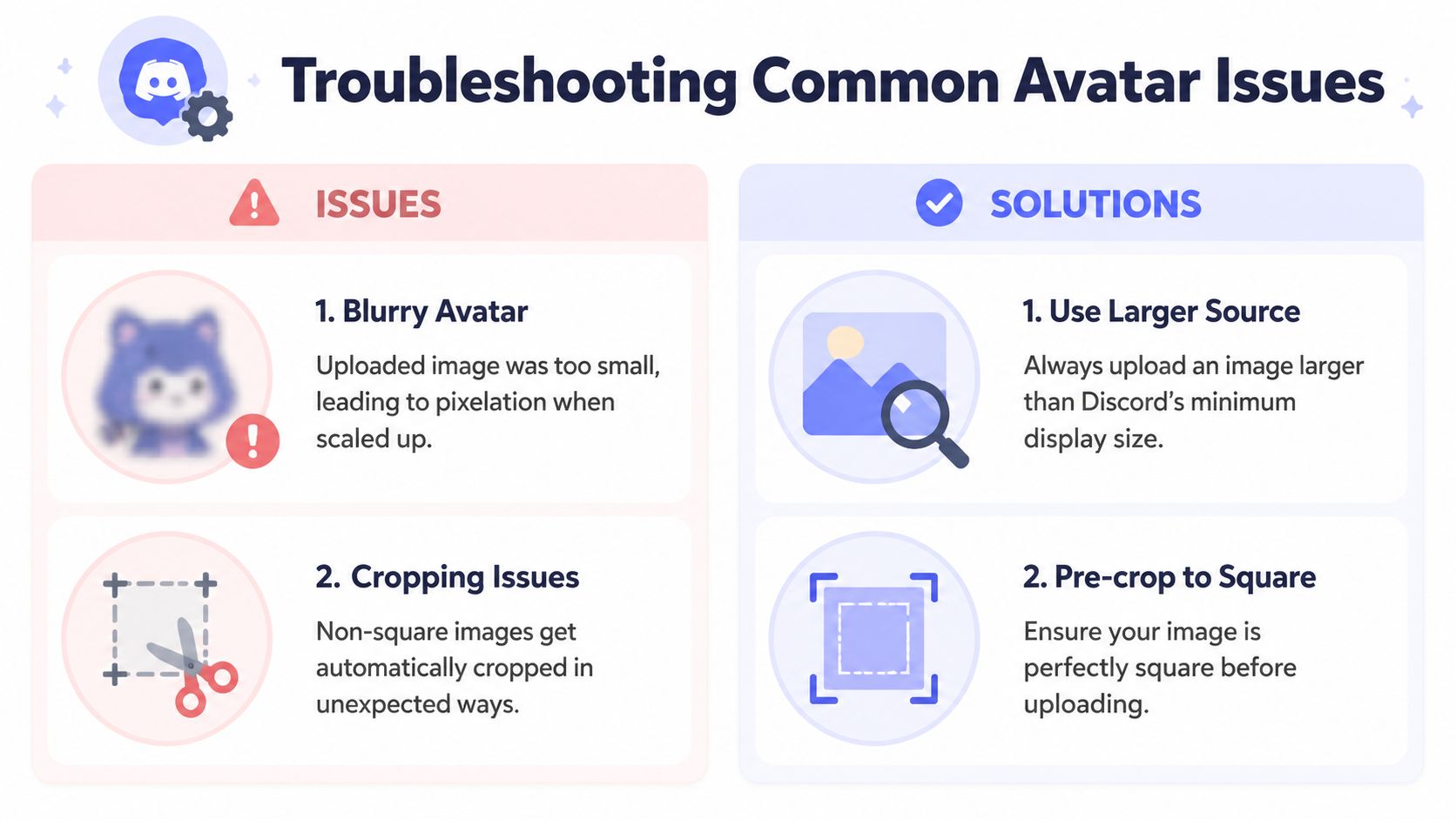 An infographic titled Troubleshooting Common Avatar Issues showing solutions for blurry or poorly cropped Discord profile pictures.
Blurry after upload
The usual cause is a weak source image. Maybe it was too small to begin with, maybe it was already compressed, or maybe it came from a screenshot.
Fix it by going back to the source and exporting a larger square file with cleaner edges. If the original is low quality, resizing alone won't save it. Rebuild or regenerate it from a better master.
Start from the highest-quality square source you have. Don't try to polish a tiny image after the fact.
Cropped wrong
This usually means the composition ignored the circular display mask. If a forehead, hat, shoulder, or text is too close to the boundary, Discord makes the problem obvious.
Fix it by adding padding around the subject inside the square canvas. Re-center the artwork, then preview it as a circle before uploading.
Upload fails
File size and format friction becomes apparent. Whop's Discord profile picture sizing discussion notes that file-size guidance varies across sources, with some saying 8 MB and others 10 MB, and accepted format descriptions can differ too. The practical takeaway is simple: compress enough to pass upload checks while preserving transparency or animation.
Try this sequence:
For PNGs: Remove unnecessary metadata and flatten hidden layers before export.
For GIFs: Shorten the loop and simplify the animation.
For uncertain files: Re-export as a fresh square asset instead of repeatedly re-saving the same compressed file.
If you're building upload flows or validating media before handoff, PostPulse media validation is the kind of utility layer that helps catch asset issues before a user gets a failed upload or a weird result.
Frequently Asked Questions
Can I upload a non-square image?
You can try, but you're creating extra work for yourself. Discord's avatar flow expects a square result, so pre-cropping the image yourself gives you more control over framing.
Which formats are usually accepted for avatars?
Common references consistently list JPG, PNG, and GIF for Discord avatars, with the final display shown as a circle. In practice, PNG is the safest pick for crisp edges and transparency, JPG works for simple photos, and GIF is the obvious choice when animation is supported on your account.
Does Discord always keep my image exactly as uploaded?
Not really. Discord may resize and process the file for display, which is why a carefully prepared source image matters more than just “meeting minimum requirements.”
If you manage social publishing inside an app, automation, or internal tool, PostPulse is worth a look for the broader problem around media formatting and cross-platform publishing. Discord avatar prep is one small example of the same pattern: every platform has its own upload rules, crop behavior, and validation quirks.
Composed with Outrank
About the Author
Founder of PostPulse — a social media scheduling platform for creators and teams. Software engineer with a passion for building developer tools and simplifying complex API integrations across social media platforms.