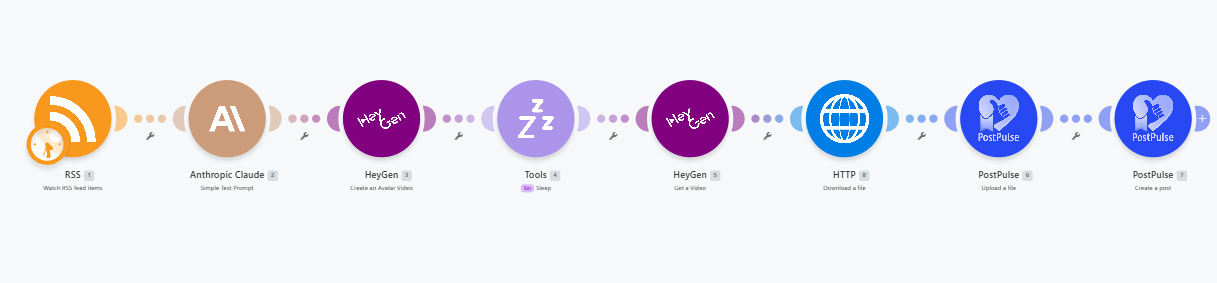
Create AI Avatar YouTube Videos: HeyGen + Make.com + PostPulse + Claude
Published on
Tags:
Filming video content every single week is not for the faint of heart; from finding content idea, to camera setup, to reshoots and edits, it's no wonder it can quickly become a full time job. Fortunately for you, in this article, we're going to show you how to generate content with AI avatars , using Make.com and HeyGen.
Tools we'll be using in this tutorial:
Make.com
HeyGen
PostPulse
Anthropic's Claude
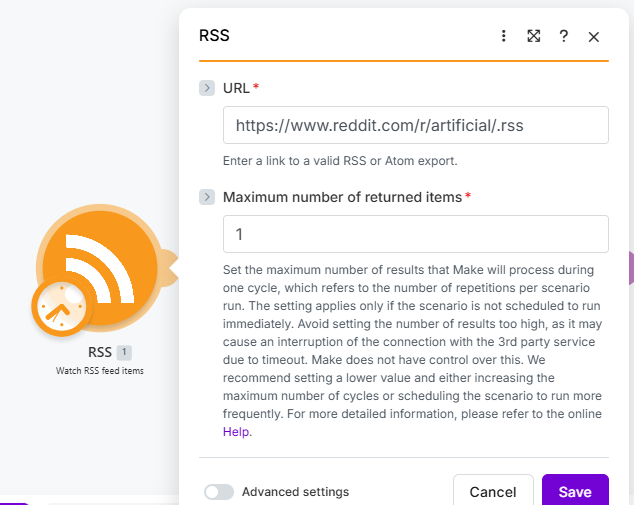
Step 1: Setup RSS Feed Trigger
 ScreenShot Tool -20260515043838
We're going to setup our trigger by using the watch RSS feed item module. We're going to be waiting for data from a subreddit that will include its description and summary, once we get that data, our automation will kick off.
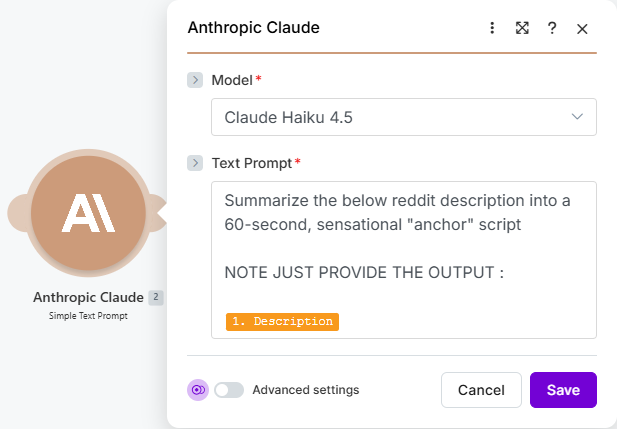
Step 2: Create Video Script
 ScreenShot Tool -20260515044641
We're going to take the subreddit description and summary we got from our RSS feed, and use the Anthropic Claude module to create a short script for our HeyGen module.
Note: You can use any Claude model of your choice, in our demonstration, we used the Haiku model, for more precise and longer scripts, the Sonnet model is recommended.
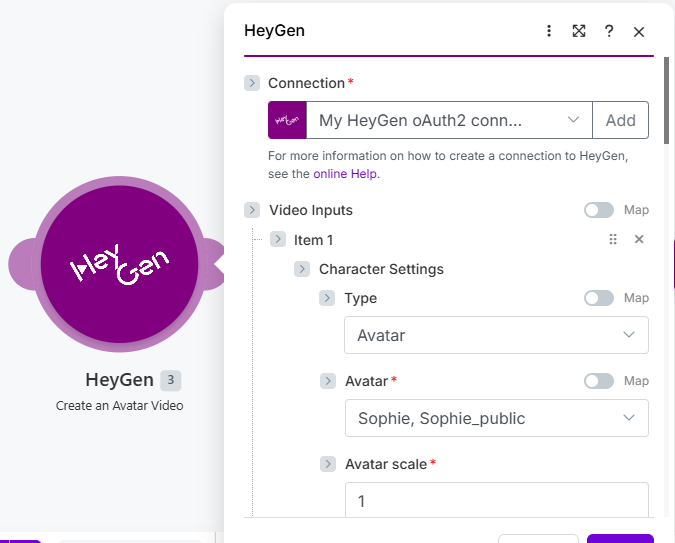
Step 3: Create AI Avatar Video with HeyGen
 ScreenShot Tool -20260515050053
In this step, we're going to add the HeyGen create a video module and use it to animate an AI avatar from HeyGen. You can use any of HeyGen's free public avatar's and voices for your build. Once you're done, add the script generated by Claude by mapping it to the input text field.
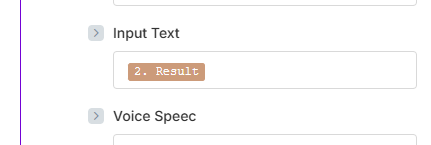 ScreenShot Tool -20260515051610
Step 4: Pause Scenario
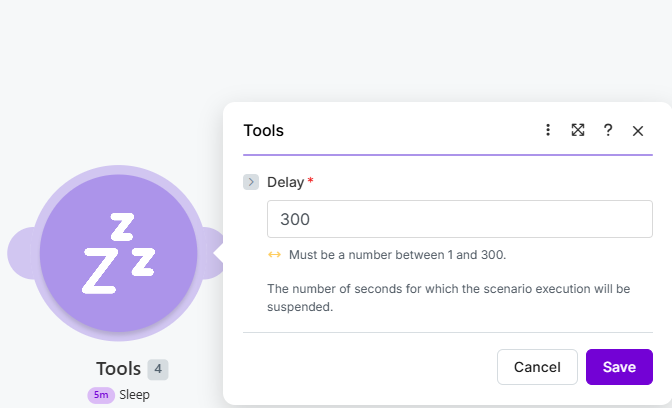 ScreenShot Tool -20260515053220
While HeyGen is creating our video, this process usually takes 4-5 minutes, so we're going to add the sleep module to our scenario and add a 300 second (5 minute) delay.
Step 5: Get Generated HeyGen Video
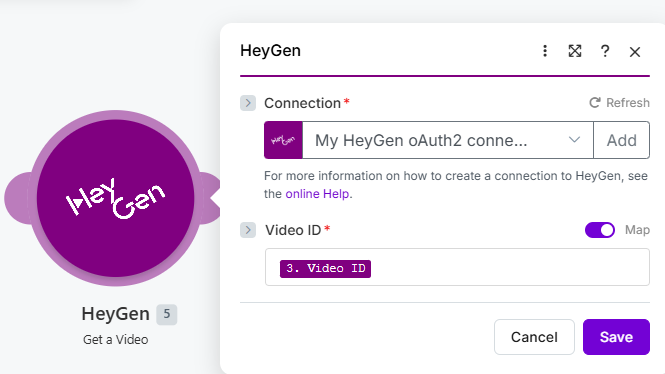 ScreenShot Tool -20260515054408
In this step we're going add another HeyGen module to our scenario; the get a video module. We're using this module to get the results of our generated video from step 3.
Step 6: Download Video
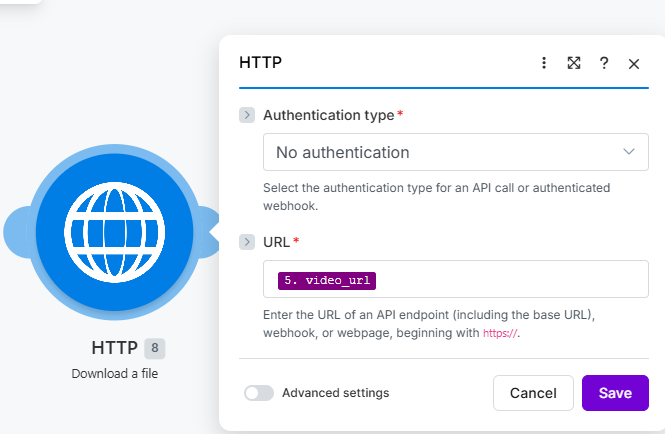 ScreenShot Tool -20260515055731
In this step, we're going to download our generated HeyGen video by adding a HTTP module and downloading our video URL from HeyGen.
Step 7: Upload Media to PostPulse
 ScreenShot Tool -20260515060309
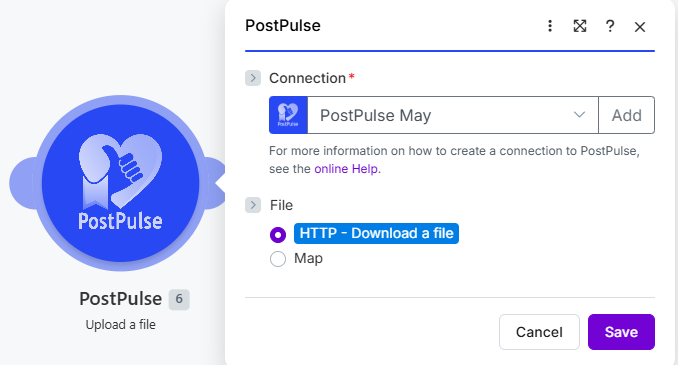
In this step, we're going to upload our downloaded video to PostPulse in order to retrieve our media upload key.
Step 8: Schedule AI Avatar Video in PostPulse
 ScreenShot Tool -20260515061835
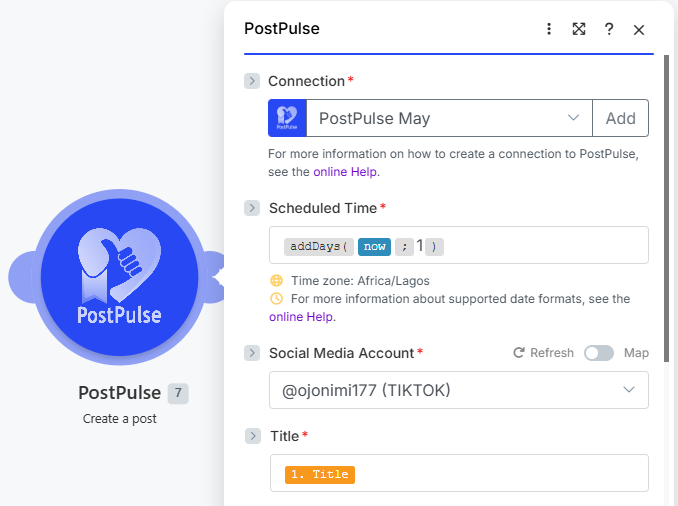
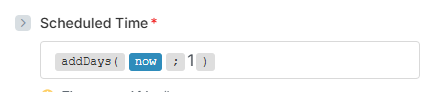
Lastly, we're going to schedule our generated video in PostPulse. Because we want to schedule a new post everyday; In our Scheduled Time field, we’re going to add a formula:
 ScreenShot Tool -20260515062323
The formula we’re using is the addDays formula; this is going to allow us to add a single day to our calculations, or in this case our schedule. So when we switch on our automation, and schedule it to run every week, our formula is going to add an extra day each and every time our scenario runs, scheduling our next posts weekly on a predictable date.
 ScreenShot Tool -20260515063339
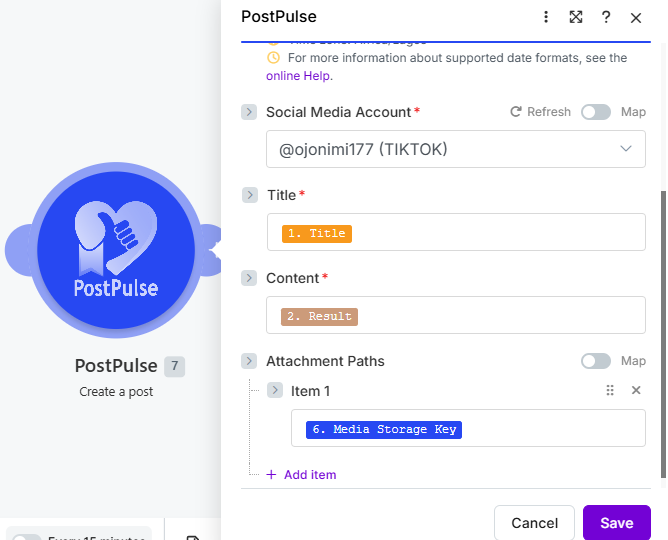
For our video title and content field we're going to use the title of our RSS feed and the description created by Claude, and our attachment path is going to be the media key we got from step 7.
 ScreenShot Tool -20260515070830
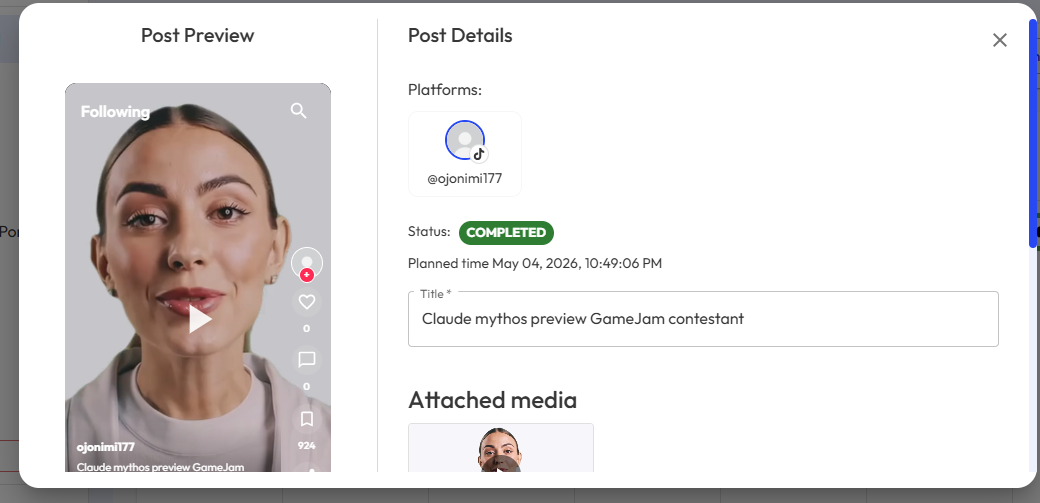
Follow these steps successfully and you’ll be able to view your scheduled AI avatar video in your PostPulse dashboard. You can also preview your video to get a better idea of what they’ll look like once they’ve been posted.
About the Author