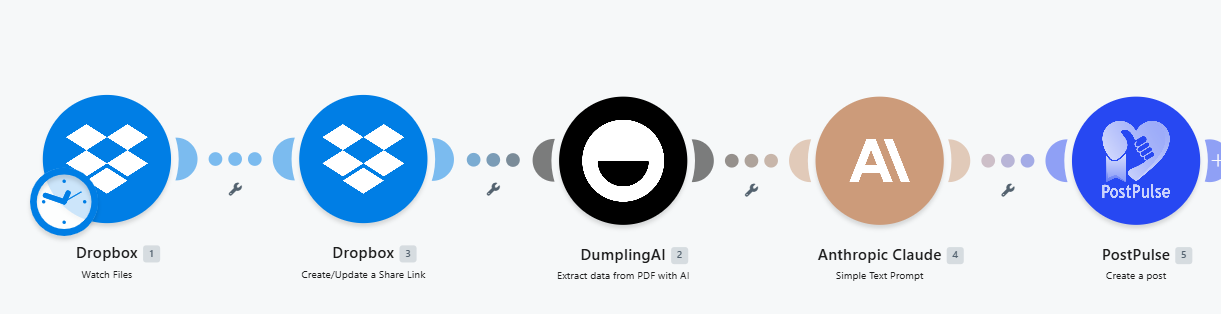
Turn PDF Files into Catchy Social Media Posts with AI and Make.com
Published on June 11, 2026
Tags:
Ran out of content ideas for your social media channels? Well you're not the only one, in 2026 every content idea has been completely exhausted, and coming up with new ideas is becoming its own full time tax. Lucky for you, we've got a solution that could work for you: in this tutorial, we're going to show you how to create social media content from PDF files.
Tools we'll be using in this tutorial
Make.com
Dropbox
Dumpling AI
PostPulse
Anthropic's Claude
Step 1: Setup Dropbox Trigger
 ScreenShot Tool -20260610013028
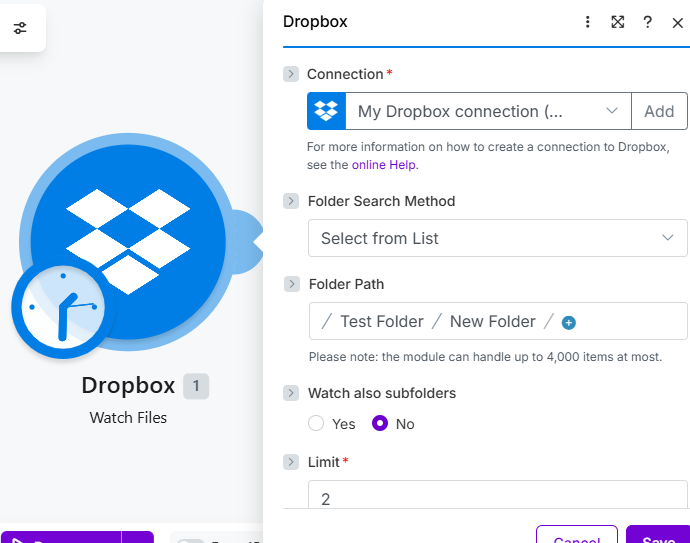
We're going to setup the trigger of our scenario using the Dropbox module, specifically the watch files action. We're waiting for a new PDF file to be added to our Dropbox folder, every time a file is added to our folder, our scenario will kick off.
Step 2: Create a Share Link
 ScreenShot Tool -20260610025053
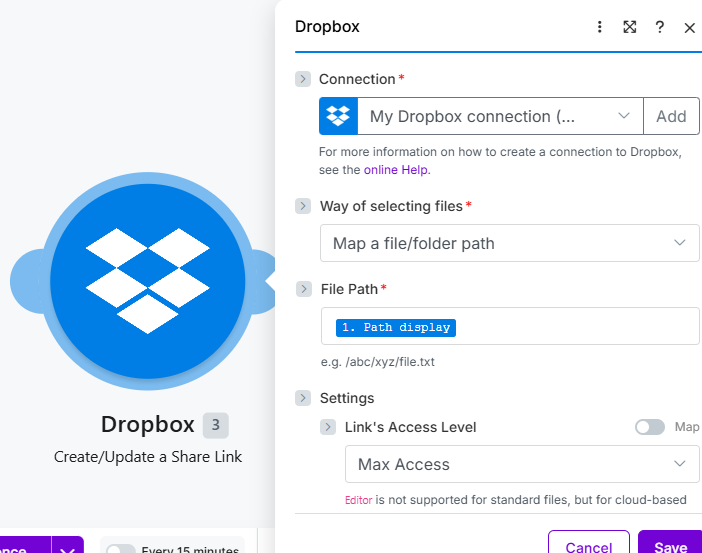
Next, we're going to create a share link for our files using a second Dropbox module, but this time with the create a share link action.
Note: When setting up this module, make sure to allow downloads. Don't forget to also allow max access.
Step 3: Extract Data from PDF
 ScreenShot Tool -20260610030304
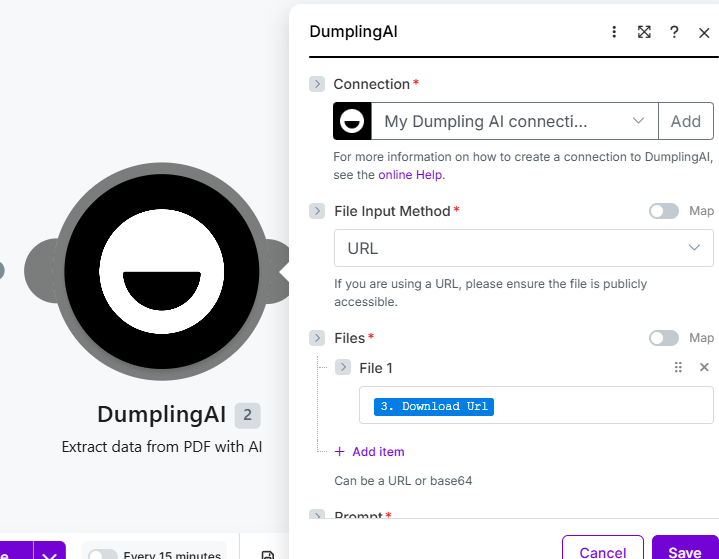
In this step, we're going to use Dumpling AI's extract data from pdf module to extract a summary of our file. Our file input method is going to be a URL, and the URL in question is going to be the share link we've generated with Dropbox.
Step 4: Turn Extracted Summary to Social Media Post
 ScreenShot Tool -20260610031125
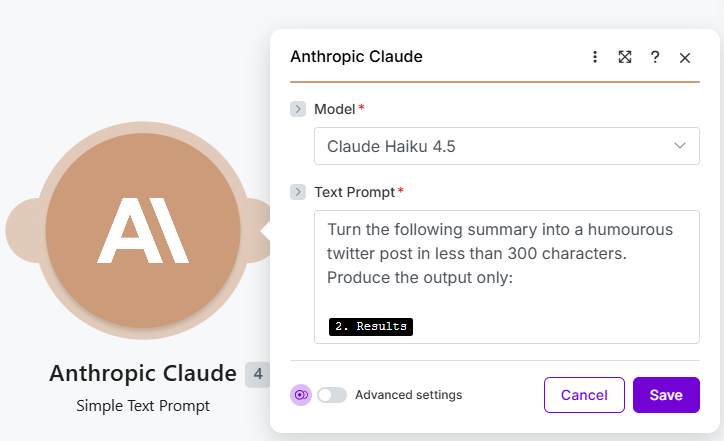
Add the Anthropic Claude module to turn your extracted summary into a catchy social media post. We used the Haiku model for our build, but you're free to use whatever model you believe is suitable. You're also free to swap Claude for any AI generation model of your choice like ChatGPT or Grok.
Step 5: Schedule to PostPulse
 ScreenShot Tool -20260610031509 (1)
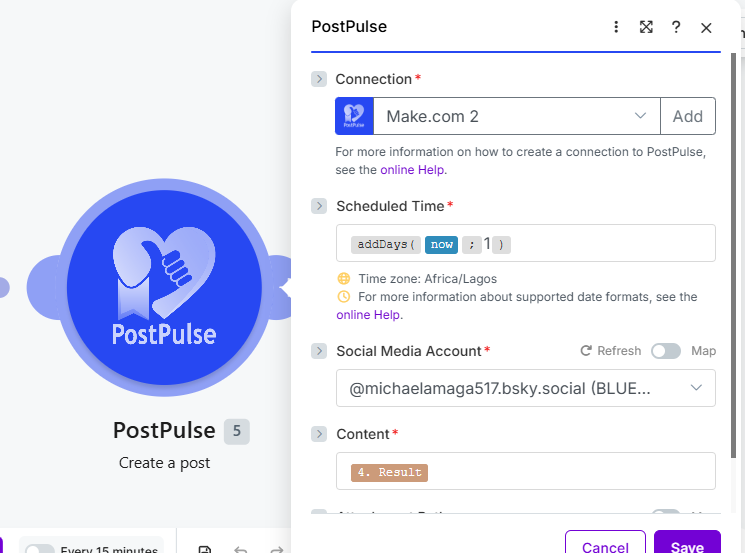
Finally, add the PostPulse model to schedule your posts to your social media channels.
 ScreenShot Tool -20260610053101
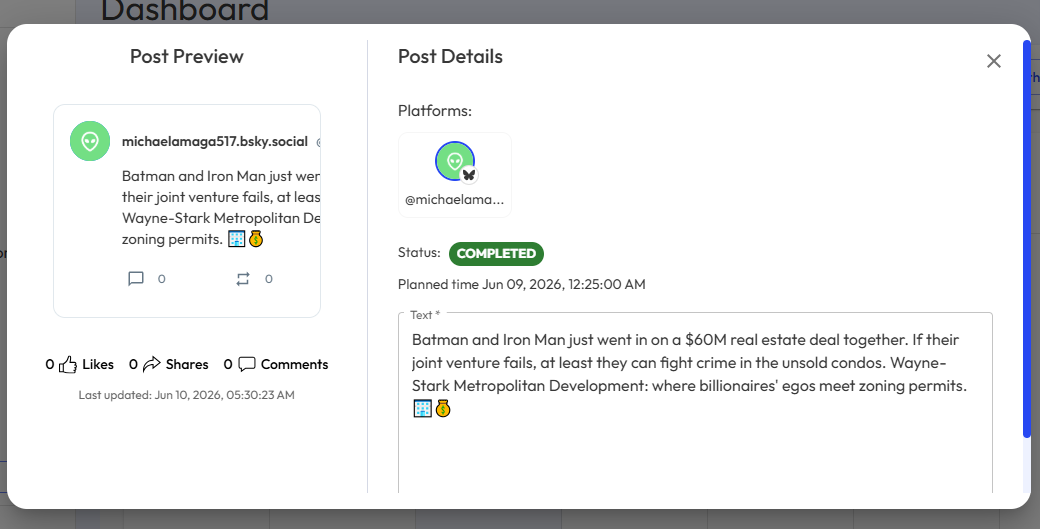
Follow these steps and you'll be able to turn any pdf file into a social media post in no time at all!
About the Author