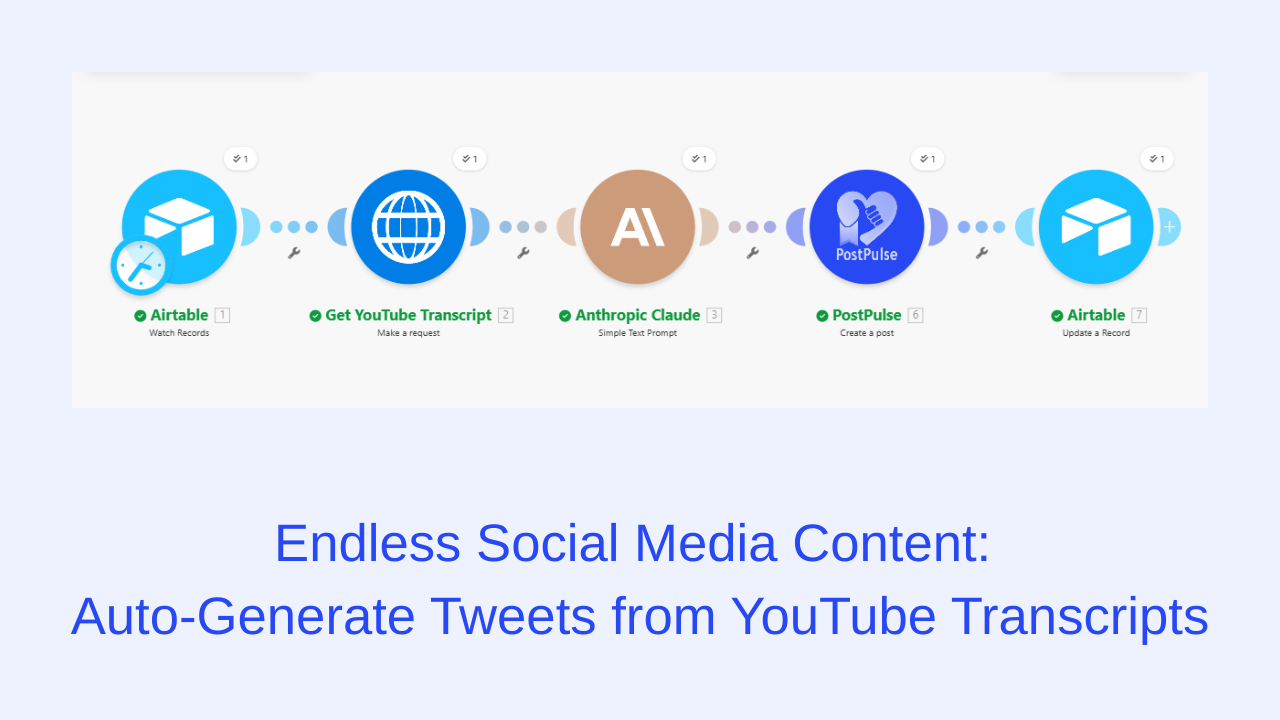
Endless Social Media Content: Auto-Generate Tweets from YouTube Transcripts
Published on · Updated on
Tags:
Posting daily social media posts is a challenging yet rewarding task. It can increase the visibility of your brand and meaningfully engage with your audience. However, posting content to social media everyday is easier said than done, it's even harder coming up with ideas to post daily and consistently. In this article, we're going to show you how to create daily social media posts for your brand, and we're going to show you how to do so with the most available content idea source on the internet: YouTube.
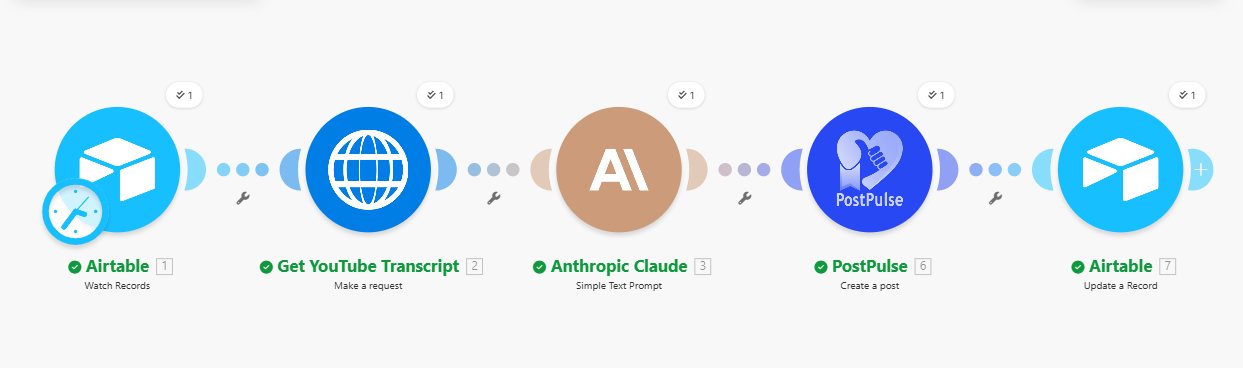 make-image-10
Tools we'll be using for this tutorial:
Make
Airtable
YouTube Transcript Extractor API
Anthropic Claude
PostPulse
Step 1: Setup Trigger
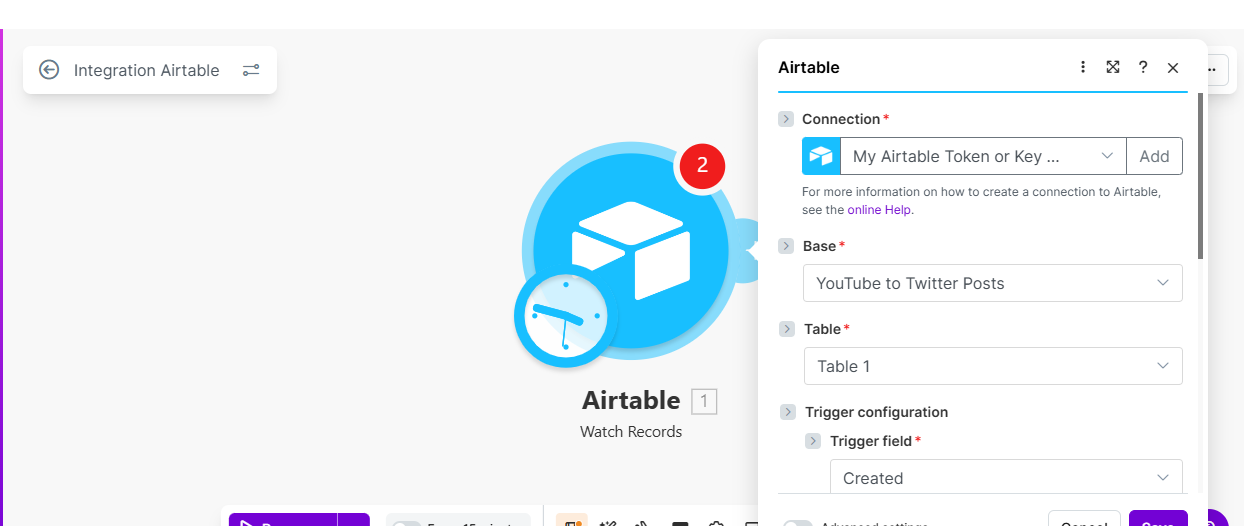 make-image-11
We'll start our workflow by using Airtable as our trigger. In our Airtable table we have 3 fields:
YouTube URL : Where we’ll drop the URL link to the YouTube videos we’ll be using.
Posted? : A status field with two options : Yes and No. This is how we’re going to know if our social media post has been posted.
Created Time : The creation date of our row.
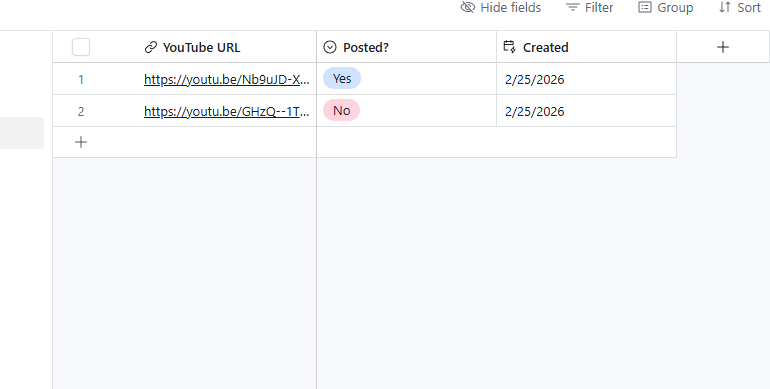 make-image-01
In Make, our trigger field is going to be the Created Time field. It’s important to note that this field is mandatory if you're ever going to use Airtable as a trigger in any of your Make automations.
Step 2: Extract YouTube Transcript
 make-image-08
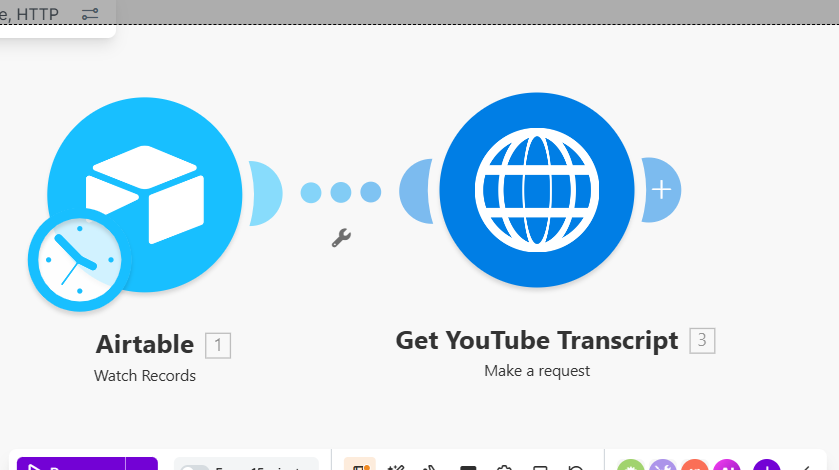
For our next step, we’re going to extract the transcript of our YouTube video URL. To do this we’ll be using a 3rd party API, so we’ll add the HTTP module to our scenario. You can use any 3rd party api provider of your choice for this step, the important thing is that you should be able to extract transcripts from your YouTube URL.
Step 3: Summarize Transcript to Short Engaging Content
 make-image-05
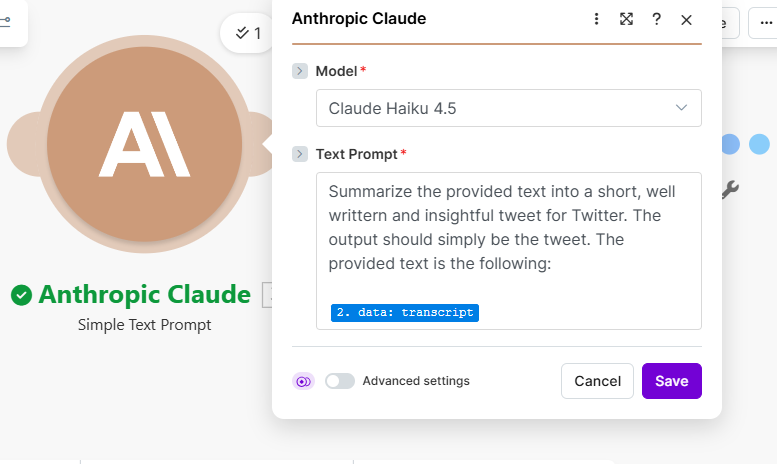
In this step, we’ll take our extracted transcript and run it through an AI chat model to summarize our transcript and create a short engaging social media post. We’re using Anthropic's Claude module for the purpose of this demonstration, but for your build, you can use any chat model of your choice, like ChatGPT, Gemini or Grok.
Step 4: Schedule Daily Posts in PostPulse
 make-image-03
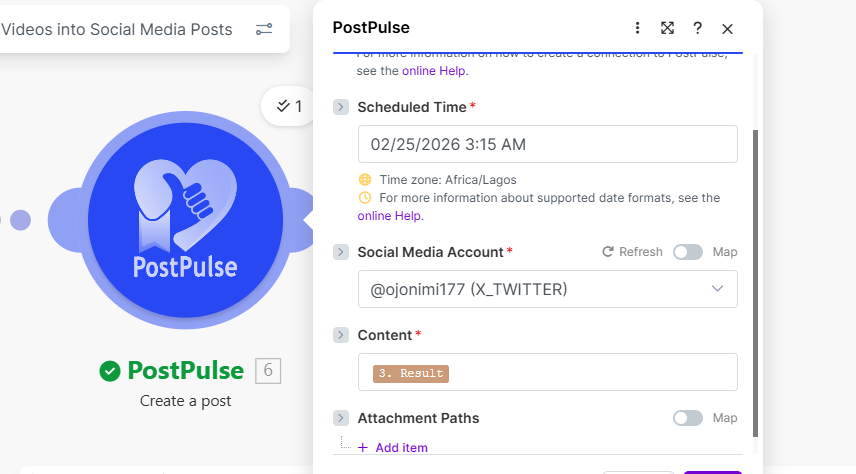
Now that we've got our post, we want to schedule our post for today, so we're going to use the PostPulse module in Make to schedule our post.
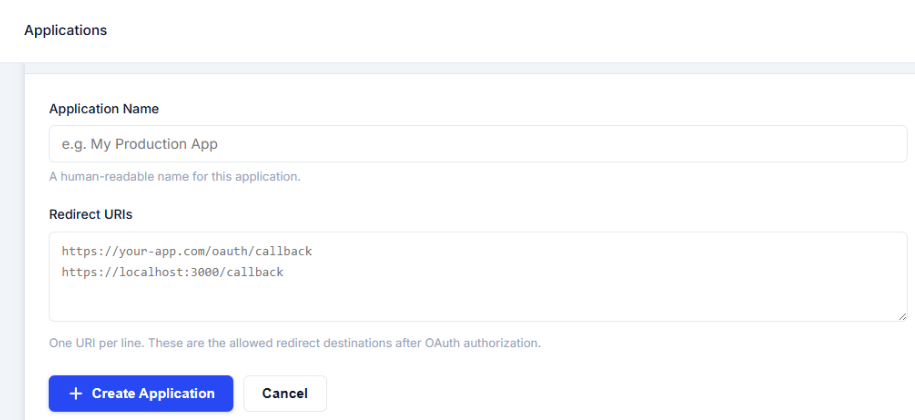
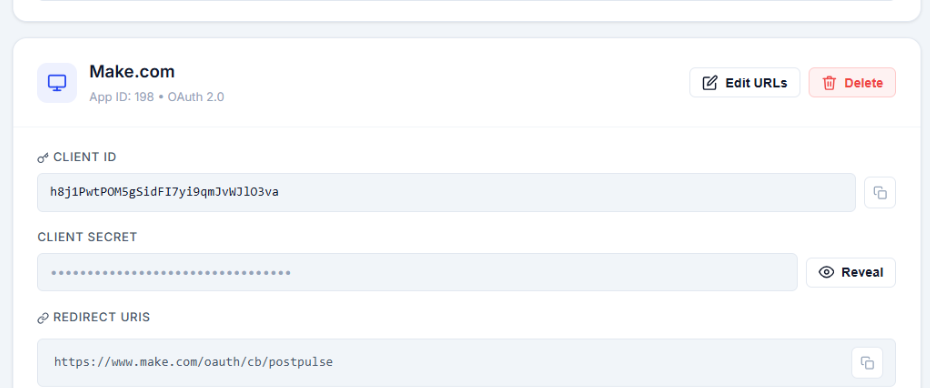
For this step, you’ll need a PostPulse account. Once you’ve opened up an account you can head over to the developer dashboard and Create a New App, when creating a new app, you’ll need an application name and a redirect URL for Oauth.
Note: Use this redirect URL for Make applications = https://www.make.com/oauth/cb/postpulse
 make-image-12
Once you’ve created an application, you’ll be given a Client ID and a Client Secret key, copy these and paste them in the PostPulse module in Make.
 make-image-09
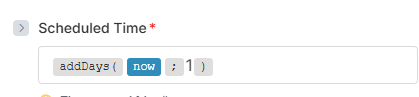
Once you’ve done that all we’ll need to do is select our connected social media account, map out our Claude output as our content, and we’ll set up the date we want our post to go out. Because we want to schedule a new post everyday, we’re going to add a formula in our Scheduled Time field.
 make-image-07
The formula we’ll be using is the addDays formula; this will allow us to add a day to our calculations, or in this case our schedule. So when we switch on our automation, and schedule it to run everyday, our formula is going to add an extra day each and every time our scenario runs, scheduling our next post for the next day each and every time.
Step 5: Update Airtable Field
 make-image-02
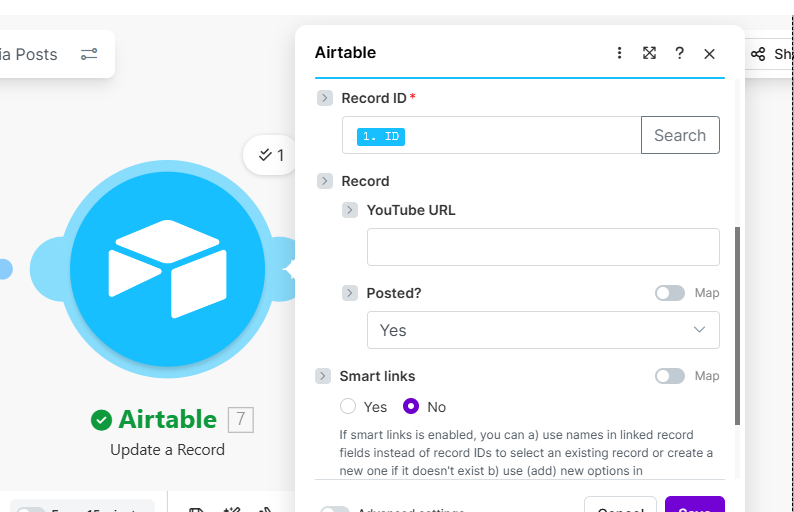
The last thing we're going to do is add a second Airtable module, but this time we're going to update our record, and this is where we'll update the status of our airtable record from No, to Yes, letting us know that our workflow has been successful and our post has been scheduled.
 make-image-06
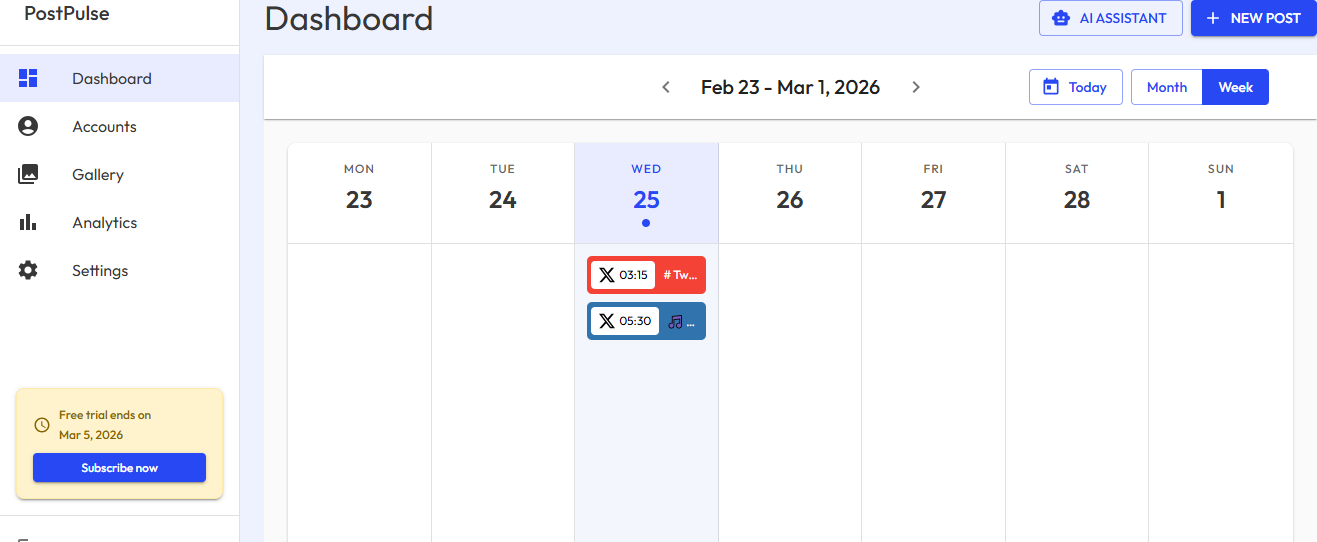
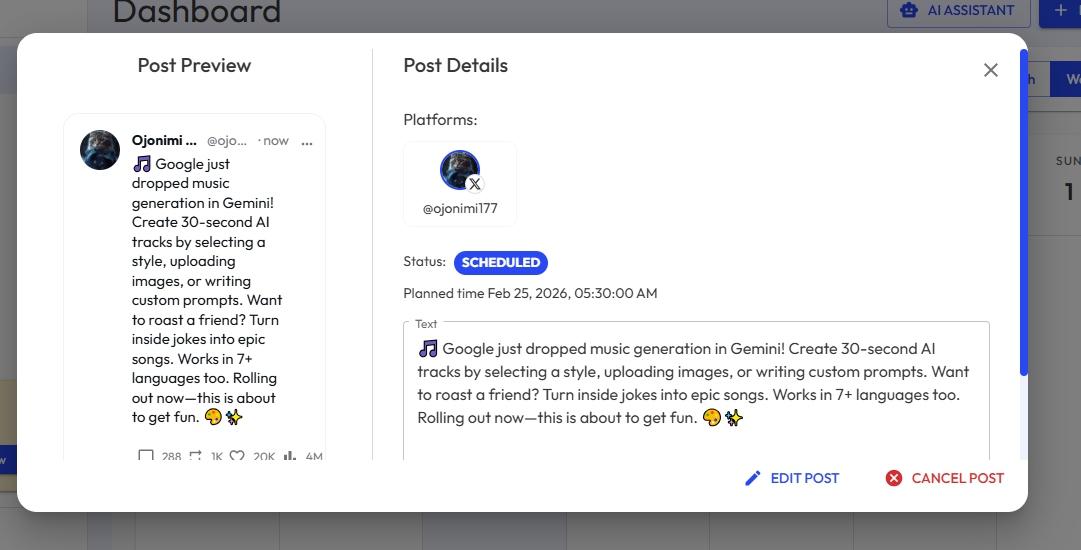
Follow these steps successfully and you’ll be able to view your scheduled posts in your PostPulse dashboard. You can also preview your posts to get a better idea of what they’ll look like once they’re posted to your social media account.
 make-image-04
If you’re interested in this automation, you can find a copy of this workflow below and use it as a template.
About the Author